> For the complete documentation index, see [llms.txt](https://docs.umbraco.com/llms.txt). Markdown versions of documentation pages are available by appending `.md` to page URLs; this page is available as [Markdown](https://docs.umbraco.com/umbraco-automate/backoffice/approvals.md).
# Use Approvals
Add approval steps to an automation and act on pending approvals in the backoffice.
The **Request Approval** action pauses an automation and waits for a user to approve or reject before the run continues. Use it to add a human checkpoint to an automation, for example, before publishing AI-generated content.
Request approval stage
## How It Works
1. The automation reaches a **Request Approval** step.
2. The run's status changes to **Suspended**, and an approval entry is created with the configured prompt. Notification channels that report suspended runs send a notification.
3. A user with access to the workspace opens the approval and chooses **Approve** or **Reject**.
4. The run goes back to **Running**, the step finishes, and the run follows whichever branch matches the decision.
A run waiting for an approval can't be resumed from the run view. It continues once the approval is decided.
A rejection is not an error. The **Request Approval** node has two outgoing handles on the canvas — **Approved** and **Rejected**. Send each outcome down a different path, the same way you would with an **If** node. See [Control Flow](/umbraco-automate/concepts/control-flow.md).
If a run finishes on the Rejected path, its status is **Rejected**, a separate status from **Failed**. Nothing went wrong — a person said no.
## Using the Decision in Later Steps
The step's output is available to any step that runs after it:
| Field | Description |
| ------------------- | ---------------------------------------------------------------------------------- |
| `approved` | `true` or `false`. Use this to branch, for example `${ steps.approval.approved }`. |
| `outcome` | The decision as text: `Approved` or `Rejected`. |
| `comment` | The optional note the approver left. |
| `approvedByUserKey` | The user key of whoever made the decision. |
| `decisionUtc` | The date and time the decision was made. |
See [Bindings](/umbraco-automate/concepts/bindings.md) for the full binding syntax.
## Request Approval Settings
| Setting | Description |
| ------------------- | --------------------------------------------------------------------------------------------------------------------------- |
| **Prompt** | The message shown to approvers explaining what needs approval. Supports [bindings](/umbraco-automate/concepts/bindings.md). |
| **Timeout (hours)** | Optional. If set, the step auto-rejects when no decision is made within this many hours. |
## Approver Permissions
A user can act on an approval if they are a member of a user group that the workspace allows access to. See [Manage Workspaces](/umbraco-automate/backoffice/workspaces.md).
## Finding Pending Approvals
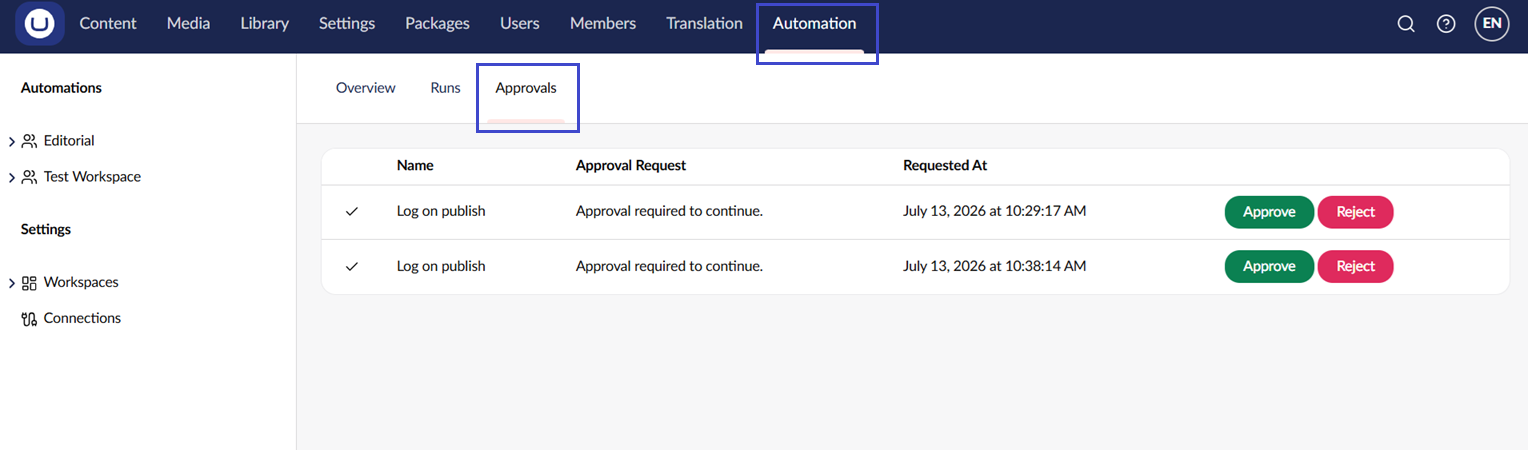
The **Approvals** dashboard in the Automation section lists every approval awaiting a decision across the workspaces you can access. Click an approval to open the decision dialog.
Approvals dashboard
## See Also
* [Build an Automation](/umbraco-automate/backoffice/building-an-automation.md)
* [Manage Workspaces](/umbraco-automate/backoffice/workspaces.md)
* [Control Flow](/umbraco-automate/concepts/control-flow.md)
* [Bindings](/umbraco-automate/concepts/bindings.md)
---
# Agent Instructions
This documentation is published with GitBook. GitBook is the documentation platform designed so that both humans and AI agents can read, navigate, and reason over technical content effectively. Learn more at gitbook.com.
## Querying This Documentation
If you need additional information that is not directly available in this page, you can query the documentation by asking a question.
Perform an HTTP GET request on the following URL with the `ask` and `goal` query parameters:
```
GET https://docs.umbraco.com/umbraco-automate/backoffice/approvals.md?ask=&goal=
```
`ask` is the immediate question: it should be specific, self-contained, and written in natural language.
`goal` is what the user is ultimately trying to achieve, the reason they need the answer. Sharing it helps GitBook give you a better, more relevant answer. A goal is most helpful when it describes the outcome the user wants rather than restating the question. For example, with `ask=how do I create an API token`, a goal like `automate deployments from our CI pipeline` lets GitBook tailor the answer to that use case.
The response will contain a direct answer to the question and relevant excerpts and sources from the documentation.
Use this mechanism when the answer is not explicitly present in the current page, you need clarification or additional context, or you want to retrieve related documentation sections.