> For the complete documentation index, see [llms.txt](https://docs.umbraco.com/llms.txt). Markdown versions of documentation pages are available by appending `.md` to page URLs; this page is available as [Markdown](https://docs.umbraco.com/umbraco-automate/backoffice/connections.md).
# Manage Connections
Create, test, and manage the credentials your automations use to talk to external services.
A connection stores the credentials an action needs to talk to an external service. See [Connections](/umbraco-automate/concepts/connections.md) for the underlying concept.
## Where Connections Live
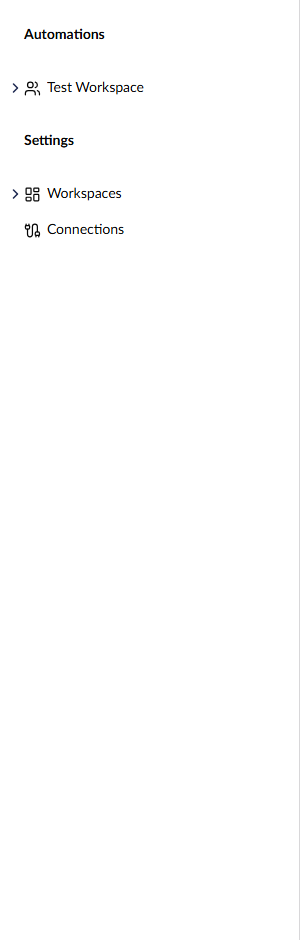
Connections are managed from the **Settings** sidebar in the **Automation** section. The Settings sidebar is only visible to administrators.
Connections live under the Settings menu in the Automation sidebar.
## Create a Connection
1. Open the **Automation** section.
2. Go to **Connections** in the tree.
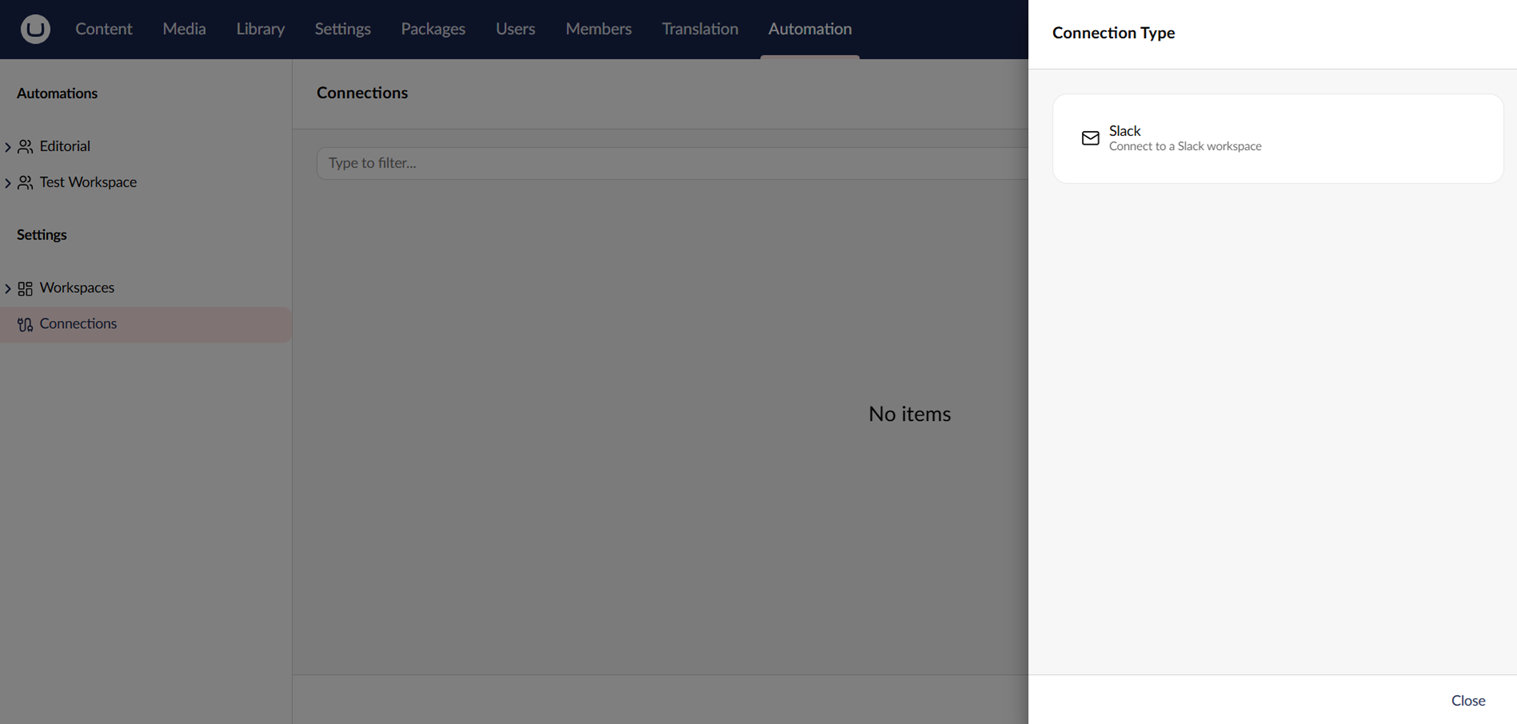
3. Click **+**, or select **Connections** and click **Create** above the list. The **Connection Type** picker opens.
4. Pick a connection type from the picker, for example **Slack**.
5. Enter a name and configure the type-specific settings.
6. Click **Authenticate with** , for example, **Authenticate with Slack**, and sign in with the provider. This step only applies to OAuth connection types such as Slack.
7. Click **Save**.
8. Click **Test connection** to verify the credentials.
Creating a connection.
## Allow a Connection in a Workspace
A connection only appears in an action's connection picker when its workspace has explicitly allowed it. Until the workspace allows a connection of the right type, the action picker shows actions that need one as unavailable. The action is greyed out, with a message naming the connection type it needs. You can find it by search, but you cannot select it.
1. Open the workspace that needs the connection.
2. On the **Settings** tab, find the **Allowed Connections** field.
3. Pick the connection from the connection picker.
4. Save the workspace.
## Authenticate an OAuth Connection
OAuth connection types, such as Slack, have an **Authenticate with** button, for example **Authenticate with Slack**. It opens the provider's sign-in page in a pop-up window. After you sign in, the connection editor shows the connection as connected. Save the connection to keep the new authentication.
If the browser blocks the pop-up, the editor shows a warning with a **Continue in this tab** button. The button reads **Save and continue in this tab** when the connection is new or has unsaved changes, and saves the connection first. Select it to sign in with the provider in the same browser tab. After signing in, you return to the connection with the authentication applied. Click **Save** to keep it.
Keep the following in mind when you authenticate a connection:
* Save the connection within 15 minutes of signing in. After that, saving fails with a message asking you to authenticate again.
* Each authentication belongs to one connection. To use the same provider account in another connection, authenticate again from that connection.
* Automate removes authentications that were never saved to a connection after 24 hours.
If an OAuth provider hasn't been set up yet (no client ID or secret in `appsettings.json`), the **Authenticate with** button is disabled. A warning explains what an administrator needs to add, with a link to the provider's setup instructions where available.
## Test a Connection
The **Test connection** button calls the connection type's validator. For OAuth connections, this confirms the access token is still valid and can reach the provider's API. For credential-based connections, it attempts a real call.
The button appears once the connection is saved. If the connection has unsaved changes, **Test connection** saves them first and then runs the test. If the form has validation errors, a warning asks you to fix them and save the connection. The test runs only after a successful save.
A failed test shows the error message so you can correct the settings. Connection types that do not implement a validator return a warning instead of a success.
## Use a Connection in an Action
When you configure an action that requires a connection, the connection picker only shows connections of the matching type that the current workspace has allowed.
## Delete a Connection
Open the connection from the Settings sidebar and click **Delete**. Any automation step that uses the deleted connection will fail at runtime until the step is reconfigured.
## Environment Safety
Connection definitions can transfer between environments via Umbraco Deploy, but sensitive credential values are stripped by default. See [Transfer Automations](/umbraco-automate/add-ons/deploy/transferring-automations.md) for the rules Deploy applies.
## See Also
* [Connections](/umbraco-automate/concepts/connections.md)
* [Transfer Automations](/umbraco-automate/add-ons/deploy/transferring-automations.md)
---
# Agent Instructions
This documentation is published with GitBook. GitBook is the documentation platform designed so that both humans and AI agents can read, navigate, and reason over technical content effectively. Learn more at gitbook.com.
## Querying This Documentation
If you need additional information that is not directly available in this page, you can query the documentation by asking a question.
Perform an HTTP GET request on the following URL with the `ask` and `goal` query parameters:
```
GET https://docs.umbraco.com/umbraco-automate/backoffice/connections.md?ask=&goal=
```
`ask` is the immediate question: it should be specific, self-contained, and written in natural language.
`goal` is what the user is ultimately trying to achieve, the reason they need the answer. Sharing it helps GitBook give you a better, more relevant answer. A goal is most helpful when it describes the outcome the user wants rather than restating the question. For example, with `ask=how do I create an API token`, a goal like `automate deployments from our CI pipeline` lets GitBook tailor the answer to that use case.
The response will contain a direct answer to the question and relevant excerpts and sources from the documentation.
Use this mechanism when the answer is not explicitly present in the current page, you need clarification or additional context, or you want to retrieve related documentation sections.