> For the complete documentation index, see [llms.txt](https://docs.umbraco.com/llms.txt). Markdown versions of documentation pages are available by appending `.md` to page URLs; this page is available as [Markdown](https://docs.umbraco.com/umbraco-automate/getting-started/first-automation.md).
# Create Your First Automation
Build a publish-triggered automation that writes to the application log.
Follow this guide to build an automation that writes a message to the application log whenever a content item is published.
## Prerequisites
* Umbraco Automate is installed and the database is configured.
* An administrator user (workspace creation and connection management are admin-only).
* Access to the **Automation** section in the backoffice.
* At least one publishable content item.
## Build a publish-triggered automation
{% stepper %}
{% step %}
### Step 1: Create a Workspace
The first time you open the **Automation** section, the dashboard shows a welcome panel because no workspaces exist yet.
1. Click **Create a Workspace** on the welcome panel.
2. Enter a name, for example `Editorial`.
3. Pick a **Service Account Key** and at least one **User Group**. The service account must be an API user. If you don't have one, create it in the **Users** section first.
4. Click **Save**.
A workspace groups automations together and controls which user groups and connections have access.
{% endstep %}
{% step %}
### Step 2: Create the Automation
1. In the tree, expand your new workspace.
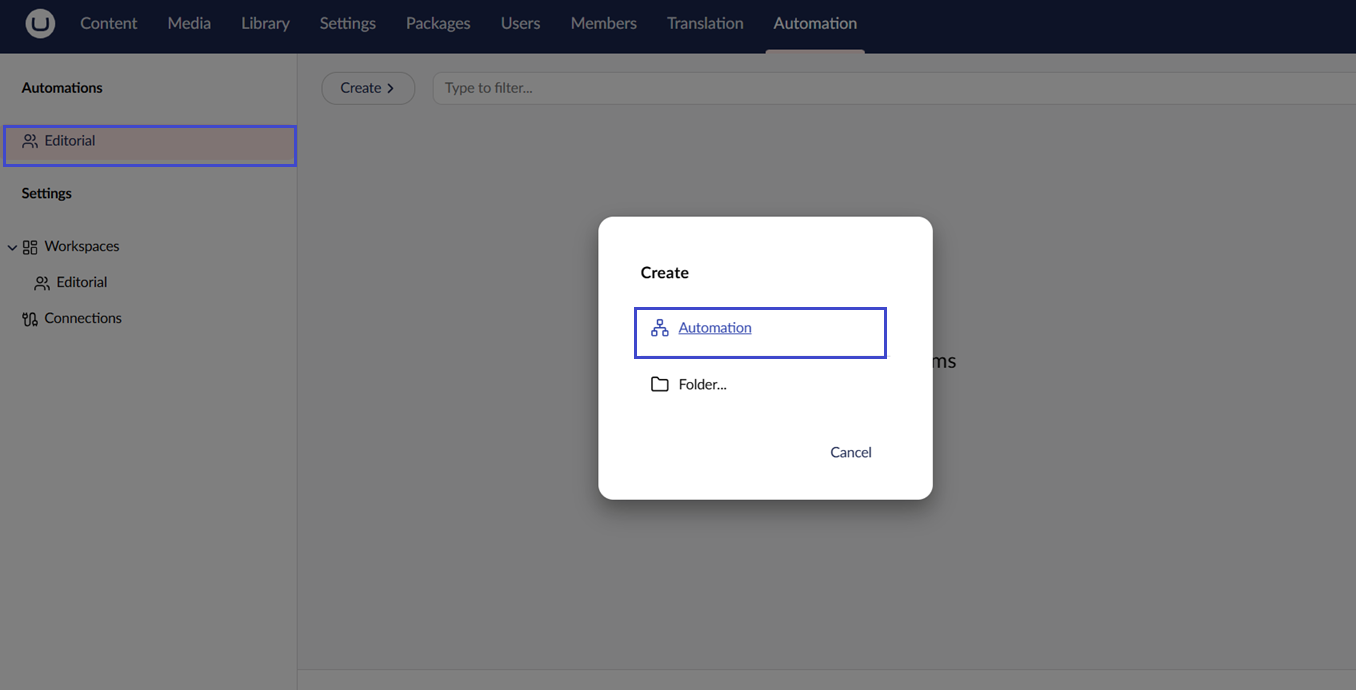
2. Click **+** > **Create** > **Automation** from the actions panel.
3. Enter a name, for example `Log on publish`.
4. Click **Save**.
Creating a new automation.
The new automation opens on the visual canvas with an empty trigger placeholder.
{% endstep %}
{% step %}
### Step 3: Configure the Trigger
1. Click **Add trigger** on the canvas.
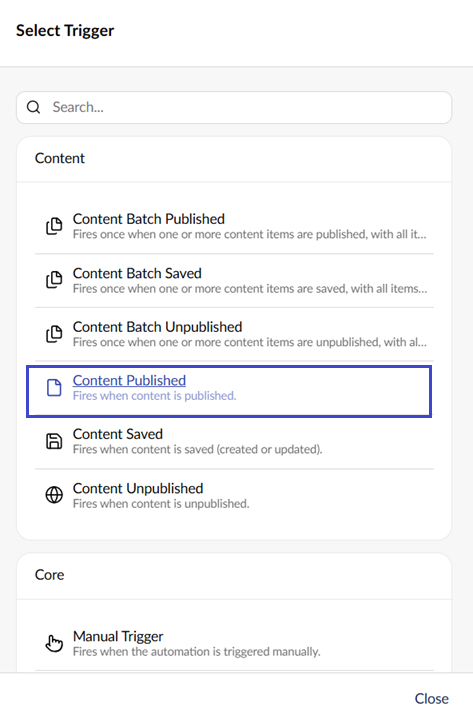
2. Select **Content Published** from the Trigger picker.
3. Leave the **Content Types** field blank to match all content types.
4. Click **Save**.
Picking a trigger from the catalogue.
{% endstep %}
{% step %}
### Step 4: Add an Action
1. Click the **+** button below the trigger.
2. Select **Log Message** from the Action picker.
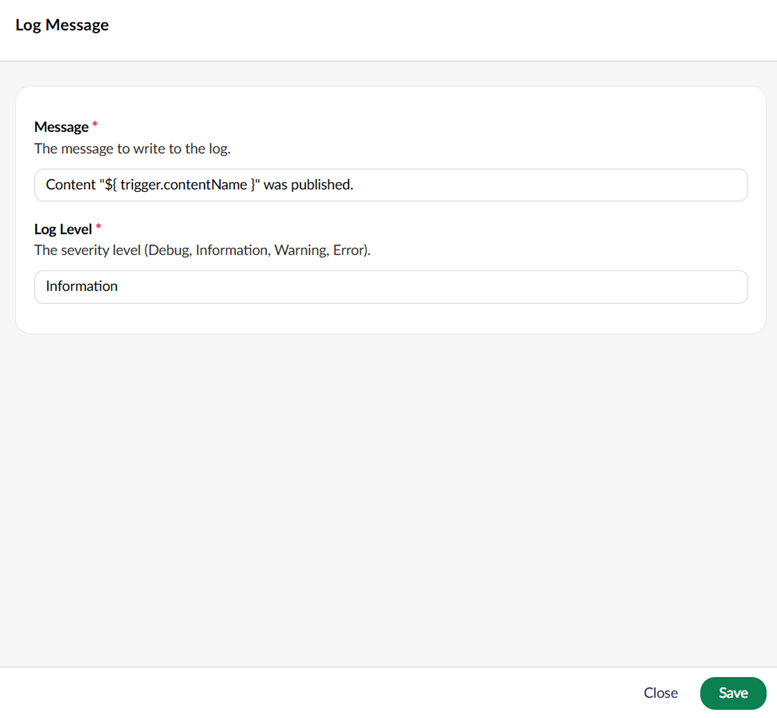
3. Set the message to `Content "${ trigger.contentName }" was published.`
4. Click **Save**.
The `${ trigger.contentName }` placeholder is a binding. The binding is replaced at runtime with the name of the published content item.
Configuring the Log Message action with a binding.
{% endstep %}
{% step %}
### Step 5: Publish the Automation
Automations only react to events when they are published. Draft automations do not run.
Click **Save and Publish** in the workspace toolbar.
Publishing the automation.
{% endstep %}
{% step %}
### Step 6: Trigger the Automation
1. Go to the **Content** section.
2. Open and **Save and Publish** any content item.
3. Go to the **Automation** section.
4. Open the automation.
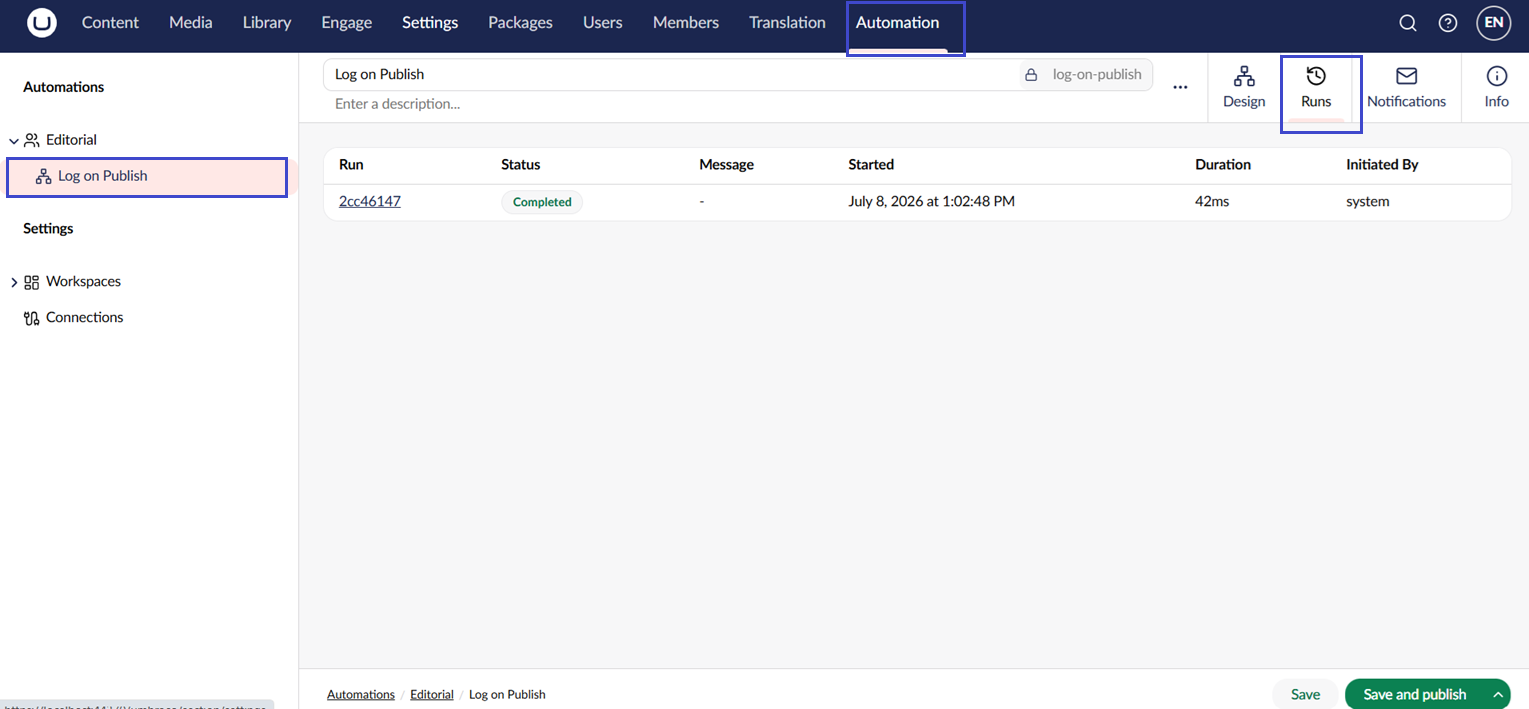
5. Navigate to the **Runs** tab to see the run record.
6. Click on the most recent run record to view the details.
7. Click the **Log Message** step to expand it. The **Input** tab shows the resolved message, and the **Output** tab shows the data the step produced.
View triggered automation.
{% hint style="success" %}
Your automation is working when the run appears in the **Runs** tab and the **Log Message** step shows the resolved message.
{% endhint %}
{% endstep %}
{% endstepper %}
## Next Steps
Read **Core Concepts** to understand workspaces, bindings, and connections.
{% content-ref url="/pages/vSmbGGHo5WYIJRvTtrgv" %}
[Core Concepts](/umbraco-automate/concepts/concepts.md)
{% endcontent-ref %}
Then explore **Add-ons** to add triggers and actions for Slack, Forms, Commerce, and more.
{% content-ref url="/pages/oQQJF4rL8kwmrDo6X0VR" %}
[Overview](/umbraco-automate/add-ons/add-ons.md)
{% endcontent-ref %}
---
# Agent Instructions
This documentation is published with GitBook. GitBook is the documentation platform designed so that both humans and AI agents can read, navigate, and reason over technical content effectively. Learn more at gitbook.com.
## Querying This Documentation
If you need additional information that is not directly available in this page, you can query the documentation by asking a question.
Perform an HTTP GET request on the following URL with the `ask` and `goal` query parameters:
```
GET https://docs.umbraco.com/umbraco-automate/getting-started/first-automation.md?ask=&goal=
```
`ask` is the immediate question: it should be specific, self-contained, and written in natural language.
`goal` is what the user is ultimately trying to achieve, the reason they need the answer. Sharing it helps GitBook give you a better, more relevant answer. A goal is most helpful when it describes the outcome the user wants rather than restating the question. For example, with `ask=how do I create an API token`, a goal like `automate deployments from our CI pipeline` lets GitBook tailor the answer to that use case.
The response will contain a direct answer to the question and relevant excerpts and sources from the documentation.
Use this mechanism when the answer is not explicitly present in the current page, you need clarification or additional context, or you want to retrieve related documentation sections.