# External Login Providers

The External Login Providers feature in Umbraco Cloud allows you to integrate third-party authentication systems to manage backoffice user logins securely and efficiently. This functionality is especially useful for teams that want to simplify login management or use their existing identity systems.

{% hint style="info" %}
This page describes how to set up external login providers for the Umbraco backoffice.

External login providers can also be configured for access to the Cloud Portal. For more information, see [Organization Login Providers](/umbraco-cloud/begin-your-cloud-journey/the-cloud-portal/organizations/organization-login-providers.md).
{% endhint %}

Using OpenID Connect, Umbraco Cloud supports external login providers such as Microsoft Entra ID, Auth0, Google, and so on. This feature helps administrators manage backoffice access, assign user roles, and improve security.

This guide shows you how to set up and configure external login providers for your Cloud projects. It includes the following steps:

* [Prepare your login provider](#prepare-your-login-provider)
* [Register the login provider on Umbraco Cloud](#register-the-login-provider-on-umbraco-cloud)

Additionally, you can explore a few examples in the section below:

* [Configuration scenarios](#configuration-scenarios)

## Requirements

To use the External Login Provider feature on Umbraco Cloud there are the following requirements:

* Any cloud project based on:
  * Umbraco 13 with Umbraco.Cloud.Identity.Cms 13.2.1 or higher installed
  * Umbraco 14 with Umbraco.Cloud.Identity.Cms 14.2.1 or higher installed
  * Umbraco 15 with Umbraco.Cloud.Cms 15.1.1 or higher installed
  * Or [Umbraco Heartcore](https://docs.umbraco.com/umbraco-heartcore)

You can use any login provider that supports the Open ID Connect protocol.

This guide covers implementing the following External Login Providers with Cloud:

* Microsoft Entra ID
* Auth0
* Google

{% hint style="info" %}
Make sure you have set up a tenant or organization in the provider.
{% endhint %}

## Prepare your login provider

{% tabs %}
{% tab title="Microsoft Entra ID" %}

1. Access the Microsoft Azure Portal.
2. Locate the Microsoft Entra ID and enter your tenant.
3. Select **Add**.

![Select Add and then choose App Registration to start registering your app](/files/HC1lU82lmNDz7VNxPt6p)

4. Choose **App registration**.
5. Register your app.
   * Ignore the Redirect URI as that will be covered later in the guide.

<figure><img src="https://lh7-rt.googleusercontent.com/docsz/AD_4nXeCPUN_bsq916FgXWRJCxmLvgvMfBZlfSFAS_7QZhFcJ8fCC388jLHgJRgg1zOJvCNdPW8EtUyNk86MlCo4dVtt1_oP-8oDuM3Eoq6rjAbQToN-pP2waheSCHDVtebrNTWa9ieBwg?key=SHa73yR2OEmkQib9bmYUbpLC" alt=""><figcaption></figcaption></figure>

6. Click **Register**.

Once the app has been registered, you must find and note down a series of keys. These keys will be used to set up the login provider on Umbraco Cloud.

Locate and note down the following keys:

* **Application (client) ID** - found on the **Overview** page for the app.
* **Authority URL** - available from **Endpoints** on the **Overview** page.
* **Client Secret** - needs to be generated on the **Certificates & Secrets** page.

{% hint style="info" %}
**Enterprise or custom setup**

If you're working with an enterprise or a custom setup, ensure the email claim is included in the ID token configuration.
{% endhint %}
{% endtab %}

{% tab title="Auth0" %}

1. Access your Auth0 dashboard.
2. Navigate to **Applications**.
3. Select **Create Application**.

![Select Create Application to get started](/files/osybPftiAQ3lKeM9LhxH)

4. Give the application a name and select **Regular Web Application**.
5. Go to the **Settings** section.
6. Identify and note down the following keys:
   1. **Domain URL** (Authority URL)
   2. **Client Id**
   3. **Client Secret**
      {% endtab %}

{% tab title="Google Authentication" %}

1. Access the Google Developer Console.
2. Select **Create Project** and give it a name.
3. Go to the **OAuth consent screen** page.
4. Select the **Internal** User Type and click **Create**.
5. Fill in the required information.
6. Add **Authorized domains** from where login should be allowed.
7. Click **Save and continue**.
8. Navigate to **Credentials**.
9. Select **+ Create Credentials** and choose **OAuth client ID**.
10. Choose **Web Application** as the application type.
11. Fill in the required fields.
12. Click **Save** to complete creating the credentials.

Before you move on, take note of the following keys:

* **Client ID** (generated through the steps above)
* **Client Secret** (generated through the steps above)
* **Authority URL** (`https://accounts.google.com`)
  {% endtab %}
  {% endtabs %}

Once you have the keys from your login provider, you need to follow the next steps in the Umbraco Cloud Portal.

Keep the configuration for your login provider open, as you will come back to it later in the guide.

## Register the login provider on Umbraco Cloud

1. Access the Umbraco Cloud Portal.
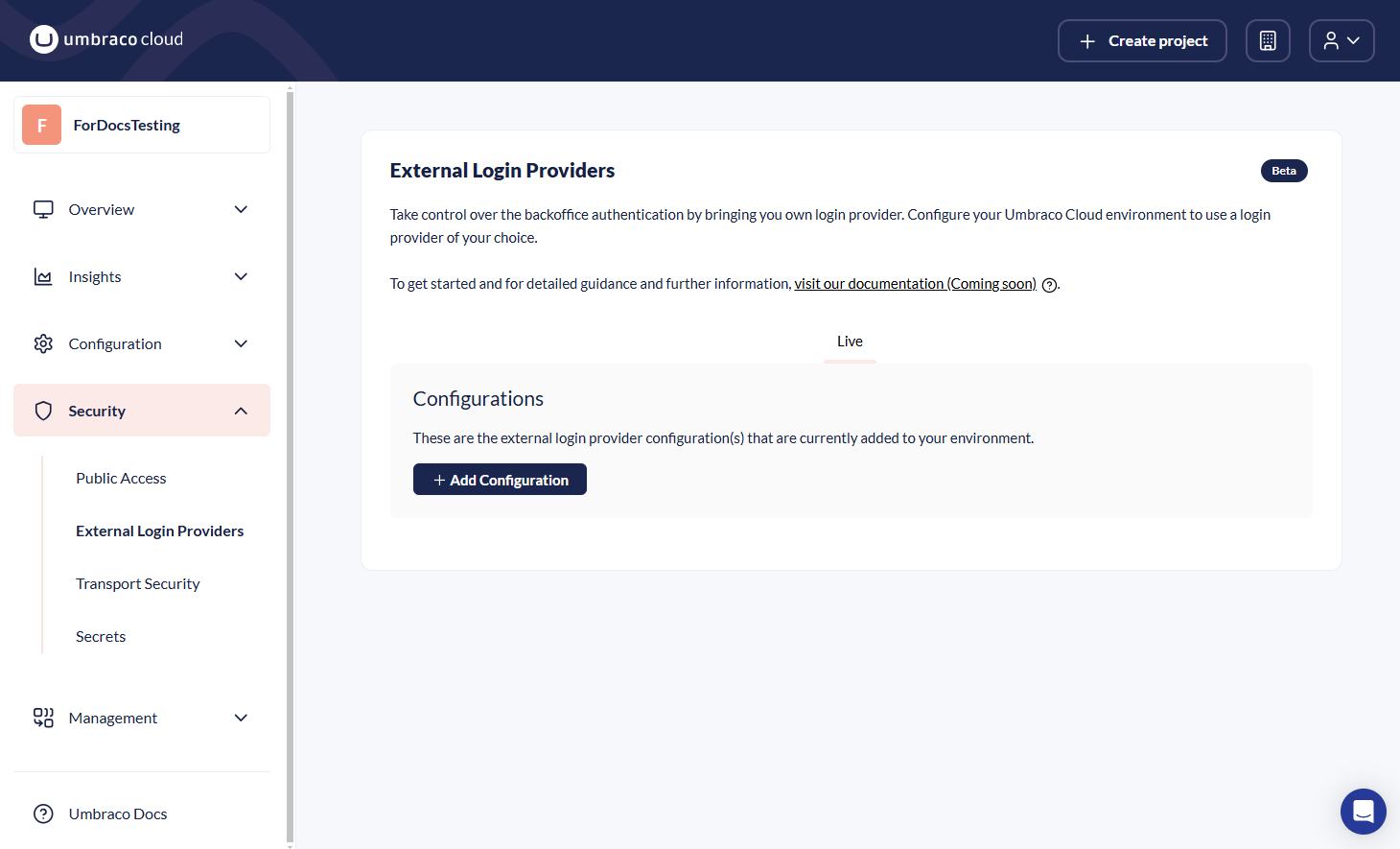
2. Navigate to the **External Login Provider** page under the **Security** section.

<figure><img src="/files/M0bhSzhHuScvd0kFYg9W" alt=""><figcaption></figcaption></figure>

3. Select **Add Configuration**.
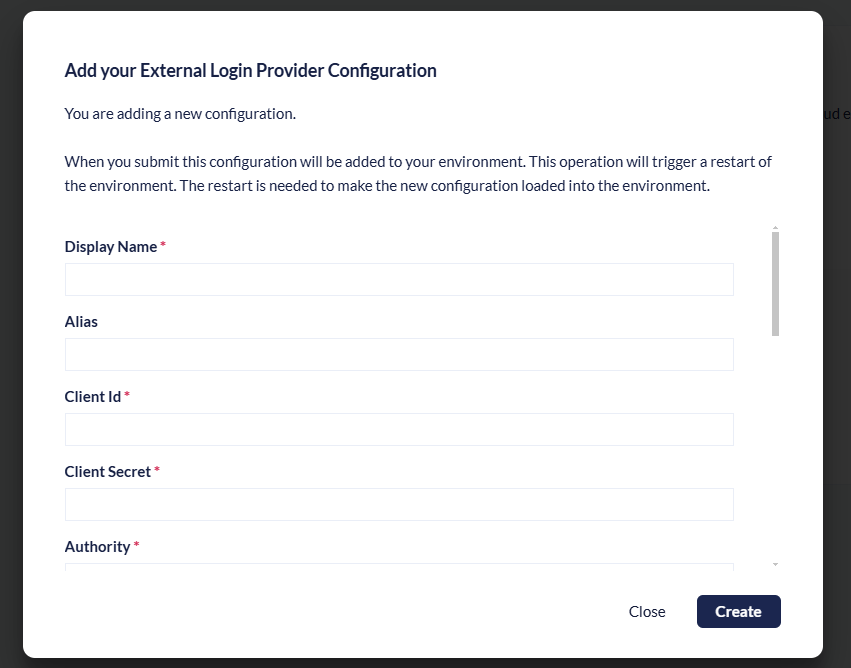
4. Fill out the fields.
   1. [Learn how to fill out the form](#configuration-fields).

<figure><img src="/files/1hwXinu0UC7xnNlAoSMt" alt=""><figcaption></figcaption></figure>

{% hint style="info" %}
The **alias** must be unique across different login providers in the same environment.
{% endhint %}

6. Click **Create** to add the new configuration.
7. Select **Redirect URIs**.
8. Take note of the Redirect URI.
9. Head back to the configuration for your external login provider.

{% tabs %}
{% tab title="Microsoft Entra ID" %}

1. Click on **Authentication**.
2. Select **Add a platform**.
3. Select **Web** and add the Redirect URI.
4. Add more Redirects URIs if needed.
5. Under **Implicit grant and hybrid flows** check the following options:
   1. Access Tokens (used for implicit flows)
   2. ID tokens (used for implicit and hybrid flows)
6. Click **Configure** to complete the configuration.

<figure><img src="https://lh7-rt.googleusercontent.com/docsz/AD_4nXdXI0M1HS5q9WCtLM15joakZD2ZmmwKgtkgRB9yeOfUMPhs61ZmitPoO5DRgD369Z-O6UDVwjhp5_rng3l1LHGgSpPXzD_2kOcTwxftkMRzB27bL67c8nRbmS9gdJNDlnVCVdHb_Q?key=SHa73yR2OEmkQib9bmYUbpLC" alt=""><figcaption></figcaption></figure>
{% endtab %}

{% tab title="Auth0" %}

1. Navigate to the **Settings** section.
2. Scroll down to find the **Application URIs**.
3. Add the Redirect URI to the **Allowed Callback URLs**.

![Add the Redirect URI to the Allowed Callback URLs](/files/uKWoVj994QwEjQplzZqU)

13. Add more Redirect URIs if needed.
    {% endtab %}

{% tab title="Google Authentication" %}

1. Open the **Credentials** created earlier through this guide.
2. Select **Add URI**.
3. Add the Redirect URI.
4. Click **Save** to complete the configuration.
   {% endtab %}
   {% endtabs %}

## Configuration Fields

Learn about what type of data and information you need for each field in the configuration form.

<table><thead><tr><th width="227">Field</th><th>Description</th><th>Formatting</th></tr></thead><tbody><tr><td>Alias</td><td>A unique alias for the provider.</td><td><p>Use only lowercase.</p><p>Spaces are not allowed.</p></td></tr><tr><td>Client ID</td><td>A unique Client ID generated in the external login provider.</td><td>Entra ID: Guid<br>Auth0: Random characters<br>Google: <code>{randomchars}.apps.googleusercontent.com</code></td></tr><tr><td>Client Secret</td><td>A secret that is generated in the External Login Provider and is associated with the Client ID.</td><td></td></tr><tr><td>Authority</td><td>The URL for the External Login Provider. This can be found in the External Login Provider.</td><td>Entra ID: <code>https://login.microsoftonline.com/&#x3C;Directory (tenant)></code><br>Auth0: <code>https://{accountId}.uk.auth0.com</code><br>Google: <code>https://accounts.google.com</code></td></tr><tr><td>Scopes</td><td>These are OpenID Connect scopes. These are the minimum requirements and will allow the app to authenticate and get the user's profile data, email, and name.</td><td>Default values: <code>openid</code>, <code>profile</code>, and <code>email</code>.</td></tr><tr><td>Auth Type</td><td>Currently only OpenIDConnect is available.</td><td>Default: <code>OpenIdConnect</code></td></tr><tr><td>Default User Group</td><td>Choose which <strong>Umbraco User Group</strong> the user should be assigned to if nothing else is defined.<br>A custom User Group added to the backoffice will also be available.</td><td>Default Options:<br><code>Administrators</code><br><code>Writers</code><br><code>Editors</code><br><code>Translators</code><br><code>Sensitive Data</code></td></tr><tr><td>Enforce User Group on login</td><td>A checkbox to choose whether each login will re-evaluate the user's role or if it should happen only on the first login.</td><td>N/A</td></tr><tr><td>User Group Mappings</td><td>Use this field to map roles within the login provider with Umbraco User Groups.<br><br><em>Example: A user with the "Content Editor" role in the login provider will be added to the Writer User Group in Umbraco.</em></td><td><code>Login Provider Role</code> = <code>Umbraco User Group</code><br><br>Entra ID: <code>Object ID of User Group</code> = <code>Umbraco User Group</code></td></tr><tr><td>No User Group Found Behaviour</td><td>This defines what happens if the mapping for the user’s User Group hasn’t been defined. The options are to select the Default User Group or to disallow the user access to the backoffice.</td><td>Options: <code>UseDefaultUserGroup</code>, <code>Unauthorized</code></td></tr><tr><td>User Group Claim Name</td><td>Your provider may assign users to specific roles (For example: Admin, Editor, Viewer).<br><br>The <strong>User Group Claim Name</strong> is the field in the authentication token (claim) that identifies these roles. The system reads this claim to determine a user’s permissions.<br><br>Example: If your provider sends roles in a claim named <code>user_roles</code>, you would set the <strong>User Group Claim Name</strong> to <code>user_roles</code> so the system can properly recognize user permissions.<br><br><strong>NOTE:</strong> If the field is left blank, the system will default to use <code>http://schemas.microsoft.com/ws/2008/06/identity/claims/role</code> as the claim name.</td><td>Entra ID: <code>groups</code></td></tr><tr><td>Metadata Address</td><td>If you need a special metadata address for your External Login Provider, you can set it here. By default, the system will resolve the metadata address from the Authority URL, which is why this property is optional.</td><td>A common scenario for using a special metadata address is when working with Entra ID and configuring claims mapping. In this case, you must set the metadata address to the following:<code>https://login.microsoftonline.com/{tenant}/v2.0/.well-known/openid-configuration?appid={client-id}</code>.</td></tr></tbody></table>

### Handling invites when using an External Login Provider

When using an External Login Provider, the invitation flow to the backoffice can no longer be managed within Umbraco. This is because users must first be created in the External Login Provider before they can log in. Umbraco Cloud does not handle this integration.

As an administrator, you are responsible for managing user access to the backoffice.

Send users an email with a backoffice link, instructing them to click "Login with \[your login provider]".

### Configuration scenarios

The following scenarios showcase how to use the configuration options when setting up the external login provider.

You can use the scenarios to learn how to configure the External Login Provider to fit your needs.

#### Scenario 1: Default User Group for all users

Any user that will be authenticated via the external login provider will end up in a default Umbraco backoffice User Group. As an admin, it will be your job to distribute the users into groups if needed.

* Configure the **Default User Group** field, to specify which group all users should be added to by default.

#### Scenario 2: Evaluate the User Group on each login

Any user authenticated via the external login provider will always end up in the same Umbraco backoffice User Group. The group will be re-evaluated on each login, allowing you to change the group all users are in.

* Configure the **Default User Group** field with the User Group all users should be added to.
* Enable the **Enforce User Group on login**.

#### Scenario 3: Role-based User Group mapping with fallback to Default User Group

Any user authenticated via the external login provider can have a role claim associated with its login. This claim can then map to a backoffice User Group. A user with a role that cannot be mapped will end up in a default group.

* Configure the **Default User Group** with the User Group that should be the fallback group.
* Select **User Default User Group** under the **No User Group Found Behaviour** setting.
* Fill in the **User Group Mappings** map.
* Enable **Enforce User Group on login**.

#### Scenario 4: Role-based User Group mapping with fallback to deny access

Any user authenticated via the external login provider can have a role claim associated with its login. This claim can map to a backoffice User Group. If no roles match this claim, the user is denied access to the Umbraco backoffice.

* Select **Unauthorized** in the **No User Group Found Behaviour** setting.
* Fill in the **User Group Mappings** map.
* Enable **Enforce User Group on login**.


---

# Agent Instructions: Querying This Documentation

If you need additional information that is not directly available in this page, you can query the documentation dynamically by asking a question.

Perform an HTTP GET request on the current page URL with the `ask` query parameter:

```
GET https://docs.umbraco.com/umbraco-cloud/begin-your-cloud-journey/project-features/external-login-providers.md?ask=<question>
```

The question should be specific, self-contained, and written in natural language.
The response will contain a direct answer to the question and relevant excerpts and sources from the documentation.

Use this mechanism when the answer is not explicitly present in the current page, you need clarification or additional context, or you want to retrieve related documentation sections.
