> For the complete documentation index, see [llms.txt](https://docs.umbraco.com/llms.txt). Markdown versions of documentation pages are available by appending `.md` to page URLs; this page is available as [Markdown](https://docs.umbraco.com/umbraco-cloud/begin-your-cloud-journey/project-features/users-on-cloud.md).
# Users
An article explaining how Umbraco Users are working on Umbraco Cloud.
On Umbraco Cloud, users work in almost the same way as on a normal installation of Umbraco. However, there are a few more settings available for the backoffice users on Umbraco Cloud.
In this article, we will show how users work, as well as explain the different settings for users on Umbraco Cloud.
## Umbraco ID
Umbraco ID is a centralized login for all users on Umbraco Cloud, both team members and Umbraco Backoffice users. It is to log in to the Umbraco Cloud Portal, projects, as well as cloning down a project to your local machine.
When working locally the initial login will go through Umbraco ID and the online login flow. After the initial login, you can set a password on your user or create a new local login for the backoffice.
## Adding users on Umbraco Cloud
There are two ways of adding a user to your backoffice on Umbraco Cloud.
You can add them as a [team member](/umbraco-cloud/begin-your-cloud-journey/project-features/team-members.md)) from the project portal on Umbraco Cloud.
By default, when added as a team member, they are added as users to the backoffice of all the environments as administrators.
Users can also be invited directly from the backoffice of your Umbraco Cloud project, from where you can give them different permissions.
Check out the [Users article](https://docs.umbraco.com/umbraco-cms/fundamentals/data/users) for an in-depth explanation about Umbraco users in general.
{% hint style="info" %}
Users are environment-specific on Umbraco Cloud. This means that users are not transferred over when doing a deployment to the next environment. They need to be added to each environment on Umbraco Cloud where their access is needed.
{% endhint %}
## Invite User through the Umbraco backoffice
As mentioned, it is possible to invite new Users to your Umbraco Cloud project through the backoffice.
To invite a User you need to do the following:
1. Go to the backoffice of your Umbraco Cloud project.
2. Go to the **Users** section in the backoffice.
3. Click on the **Invite User** button.
4. Enter the **Name**, **Email**, add a User Group to assign access and permissions, and enter a new **Message** for the invitation.

### Accept invitation
Once the User has been invited they will receive an invitation for the project.
If the invited person already has a user on Umbraco Cloud they will see the invitation in the project portal under "Project Invites".
If the User being invited does not have a User on Umbraco Cloud, they will receive an email asking them to create one.

Once the User has been created, it is now possible for them to log in to the Umbraco Cloud portal.
From here they will be able to see a pending invitation to the project they have been invited to.
Once the invitation has been accepted, they can now access the project through the Umbraco Cloud portal and access their site from there.
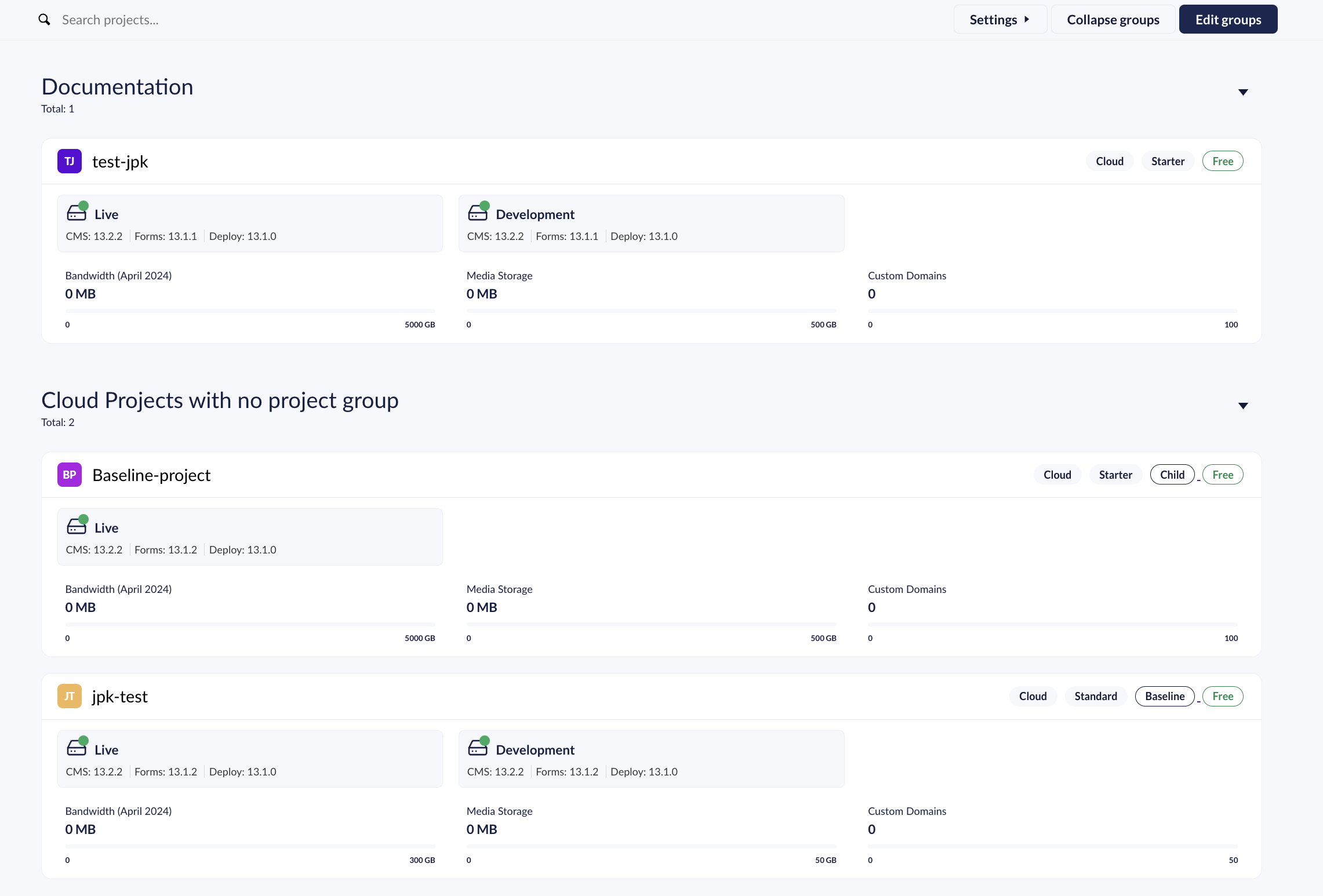
Project overview
## User group permissions for transfers and restores
On Umbraco Cloud, it is possible to control which users have access to transferring and restoring content and media on your Umbraco Cloud project.
This can be done when creating a new User Group or when editing an existing group.
You can decide whether a specific User Group has permission to do restores and queue content for transfer to the next environment.
It is also possible to get Granular control on a per-node basis to restrict restores and transfers of specific content on your site. This can help avoid mistakes and ensure that the proper workflows are followed.
### Set up Permissions for transfers and restores
There are two ways that you can set up these permissions:
* Create a new User Group
* Edit an existing one
To create a User Group, go to the **Users** section of the backoffice.
1. Click on "Groups" in the right corner, from here you are able to either create a new User Group or edit an existing one.

2. Click "Create group"
3. Scroll down and go to the "Content" heading in the "Default permissions" section. Here you can see three options:

4. Decide whether the users in the new User Group can restore items for the whole workspace, restore items for a tree, or partially restore items and click **Save**.
To edit an already existing User Group:
1. Go to the User Group you want to edit, e.g Editors or Writers.
2. Update the permissions and click **Save**.
### Granular Permissions
It is also possible to set Granular permissions for a specific content node on your Cloud project.
You can set the permission when you are creating or editing an existing User Group.
1. Add the setting for Granular permission for your content nodes at the bottom of the User Group.

2. Click "Add".
3. Choose the content node which you want to set the Granular settings for.

4. Set permissions for restore, partial restore, and queueing content for transfer.

---
# Agent Instructions
This documentation is published with GitBook. GitBook is the documentation platform designed so that both humans and AI agents can read, navigate, and reason over technical content effectively. Learn more at gitbook.com.
## Querying This Documentation
If you need additional information that is not directly available in this page, you can query the documentation by asking a question.
Perform an HTTP GET request on the following URL with the `ask` and `goal` query parameters:
```
GET https://docs.umbraco.com/umbraco-cloud/begin-your-cloud-journey/project-features/users-on-cloud.md?ask=&goal=
```
`ask` is the immediate question: it should be specific, self-contained, and written in natural language.
`goal` is what the user is ultimately trying to achieve, the reason they need the answer. Sharing it helps GitBook give you a better, more relevant answer. A goal is most helpful when it describes the outcome the user wants rather than restating the question. For example, with `ask=how do I create an API token`, a goal like `automate deployments from our CI pipeline` lets GitBook tailor the answer to that use case.
The response will contain a direct answer to the question and relevant excerpts and sources from the documentation.
Use this mechanism when the answer is not explicitly present in the current page, you need clarification or additional context, or you want to retrieve related documentation sections.