> For the complete documentation index, see [llms.txt](https://docs.umbraco.com/llms.txt). Markdown versions of documentation pages are available by appending `.md` to page URLs; this page is available as [Markdown](https://docs.umbraco.com/umbraco-cloud/begin-your-cloud-journey/the-cloud-portal.md).
# The Cloud Portal
The Umbraco Cloud Portal helps you manage your Umbraco Cloud project. From here, you can view and manage all your Cloud projects in one place.
## Umbraco Cloud Portal Overview
When you log in to the [Umbraco Cloud Portal](https://www.s1.umbraco.io/home/login/), the projects dashboard gives an overview of all your Umbraco Cloud projects. Here, you can view all the projects you've created or have been added to as a team member.

You can see the project's environments, usage for each project, and which plans it is on. You can also see whether it is a baseline or baseline-child project.
In the top-right corner of the Umbraco Cloud Portal, you will find:
* **Create New Project** - Allows you to create more projects using the plan you wish and a project will be ready for you within a few minutes.
* **Notifications** - You can also see notifications for your different projects. For example: if your project has been automatically updated or if an upgrade has failed.
* **Profile** - Manage projects, subscriptions, pending invites, organization information, profile details, view release notes, and log out of the portal.
## Project Groups
### Settings
In the right-side corner of the Umbraco Cloud Portal, you can enable **Show environments** and **Show usage** of the project from the **Settings** option.

### Collapse Groups
Collapse Groups allows you to collapse the groups on the project dashboard. You can also expand the groups depending on the view you prefer.

### Edit Groups
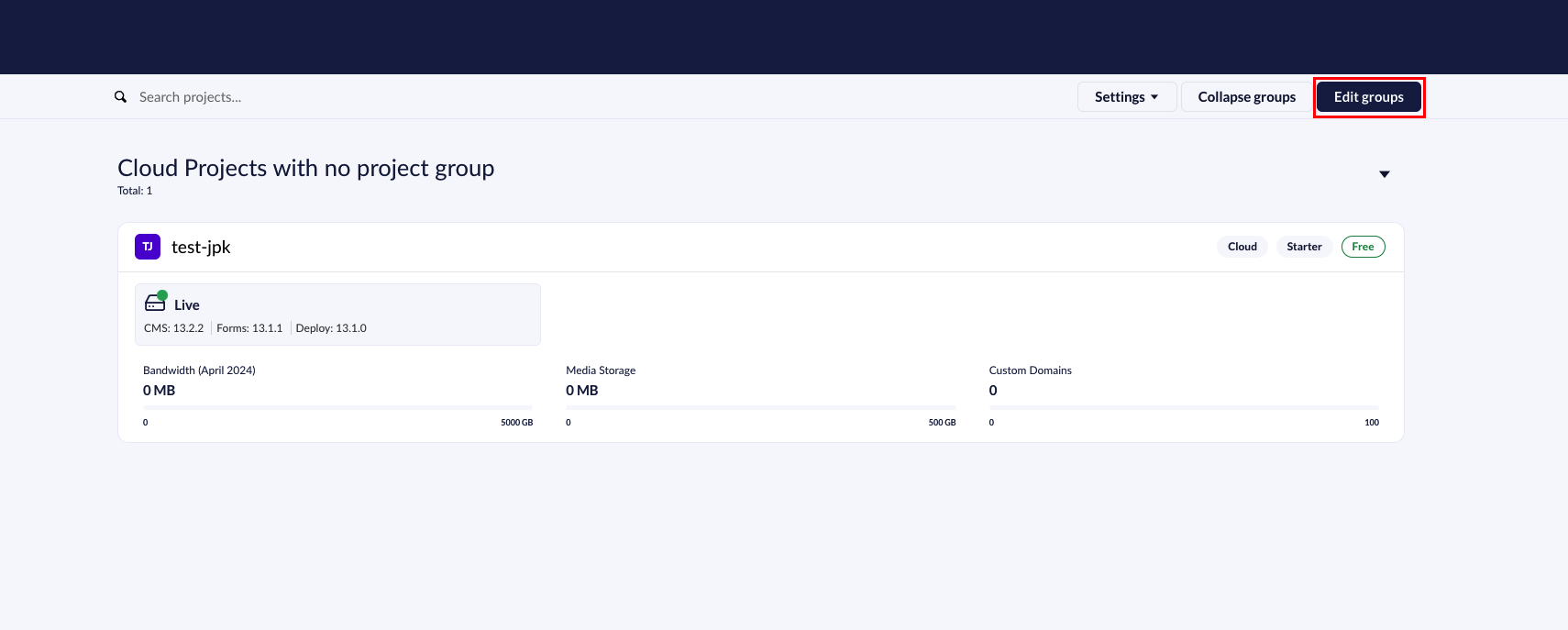
To get a better overview of your projects, it is possible to sort your projects into **Groups**. This can be done by clicking the **Edit Groups** button on the top right side of the Umbraco Cloud Portal.
Edit Groups
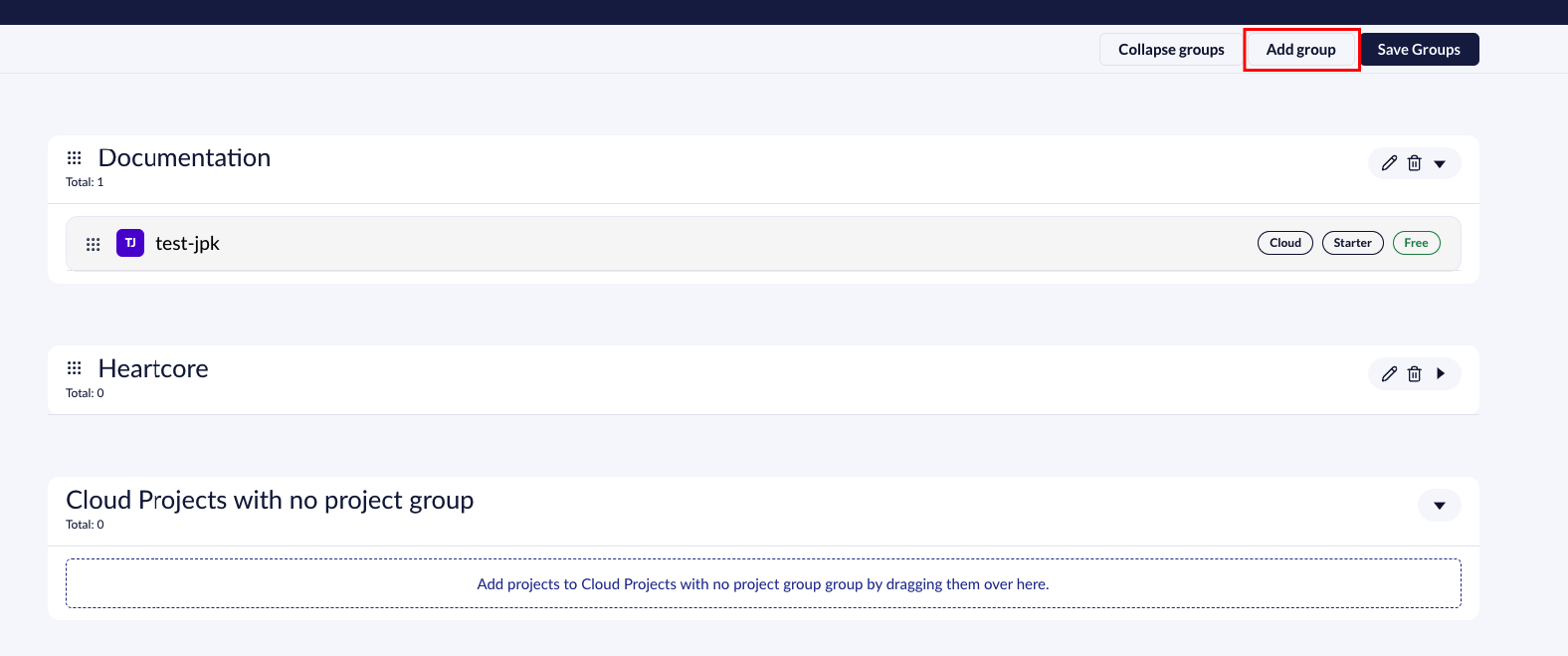
After clicking on **Edit Groups**, you can create new groups to categorize your projects and create a better overview for yourself.
Create Group

Click **Add Group**, give the group a name, and then drag and drop your projects into the group of your choice.
## Chat Feature
In the bottom-right corner of the Umbraco Cloud Portal, you'll find a chat bubble. This feature allows you to contact the Umbraco HQ Support team for assistance with your Umbraco Cloud projects.

Support availability depends on your plan:
* Starter and Standard plans: Support is available for Cloud platform-specific issues.
* Professional plan: Includes support for implementation and CMS-related issues through chat.
For more details on plans and pricing, see [Umbraco Cloud plans](https://umbraco.com/pricing/).
## Profile Options
When you click on the User Profile link, you will find the following options:
* [Projects](#projects)
* [Pending Invites](#pending-invites)
* [Profile](#profile)
* [Release Notes](#release-notes)
* [Logout](#logout)
### Projects
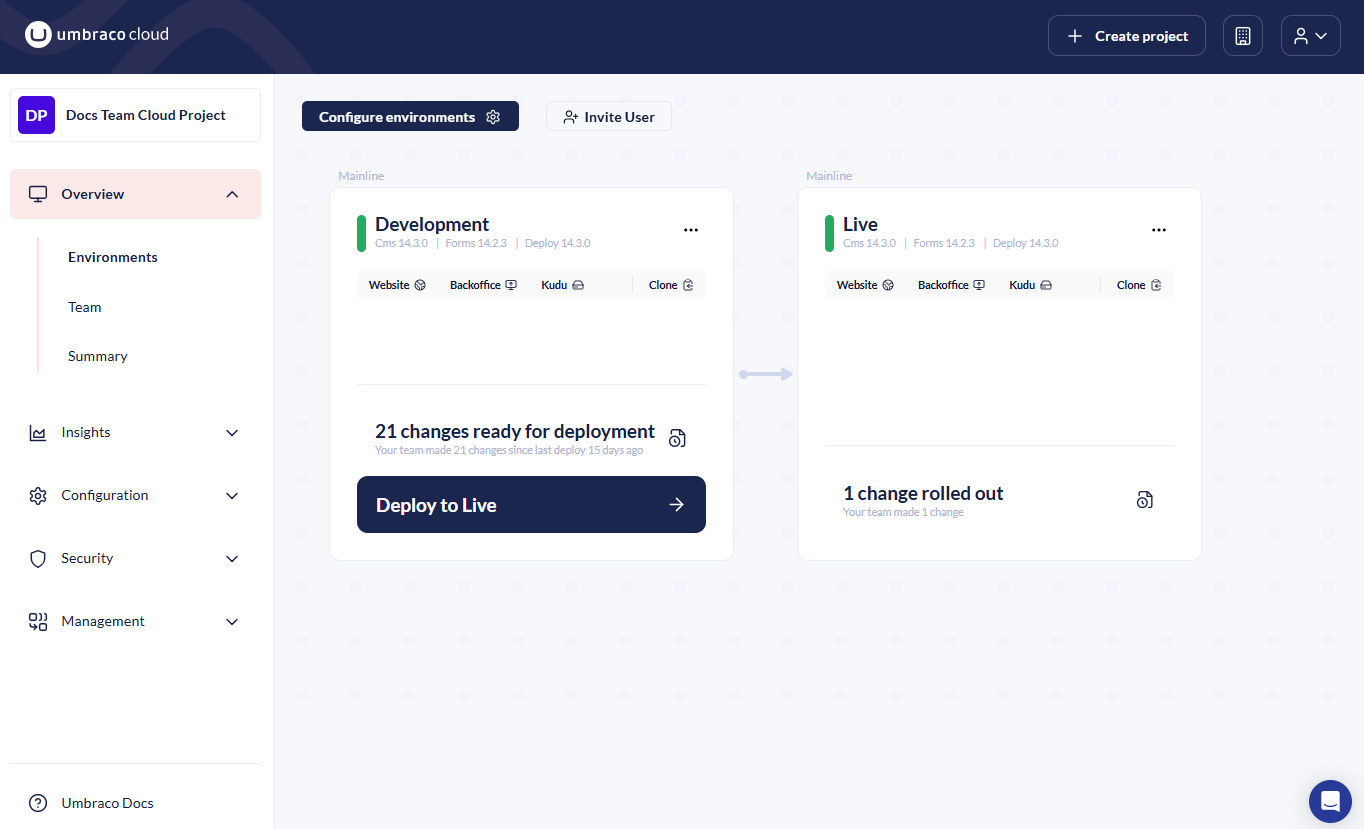
Managing your projects has been simplified with Umbraco Cloud. By navigating to a specific project, you can quickly view the environments within your project.
Project Overview
* **Project Name:** includes options to **Create environments** or **Invite User**.
* **Environment Name:** offers options to **Restart** the environment, view **History**, **Logs**, **Error Logs**, **Clone project**, **Delete** project.
* **Links:** Provides access to **View Website** (frontend), **Backoffice**, **Power Tools (Kudu)**, and **Clone project**.
* **Change Details:** Allows you to view change details.
To manage the environments in your project, click **Create Environments** to add or remove environments as needed. For more information on how the number of environments varies by plan, refer to the [Project Overview](/umbraco-cloud/begin-your-cloud-journey/project-features.md) article.
Additionally, changes are deployed from one Cloud environment to another from the project view. Find out more in the [Cloud-to-Cloud](/umbraco-cloud/build-and-customize-your-solution/handle-deployments-and-environments/deployment/cloud-to-cloud.md) article.
In the [Settings](/umbraco-cloud/build-and-customize-your-solution/set-up-your-project/project-settings.md) section, you will find more options to configure your project.
### Pending Invites
On Umbraco Cloud, you may receive invitations to join different projects. These project details are available under the **Pending Invites** tab. On the **Pending Invites** page, as a user, you will see the following details:
* Project Name
* Invited By
* Expiration Date of the invite
* Status
* Options to approve, reject, or delete the invitations that have expired.

### Profile
The Profile section includes the following information:

* Name: The name displayed on Umbraco Cloud.
* Email: The email address used for logging in to Umbraco Cloud and receiving email notifications from the Umbraco Cloud Portal.
{% hint style="info" %} It is not possible to change this email address at a later time. {% endhint %}\* Telephone: The contact number of the user.
* Edit profile: Allows you to update and ensure your information is valid and up to date for your Umbraco Cloud profile.
* Change Password: Provides the option to change the password for your Umbraco Cloud account.

### Release Notes
In the Umbraco Cloud portal, you can find a link to the **Release Notes** in the **Profile** dropdown. Release notes are published monthly and list the most relevant fixes and features added to the portal.
### Logout
The Logout option allows you to securely log out of your Umbraco Cloud account.
---
# Agent Instructions
This documentation is published with GitBook. GitBook is the documentation platform designed so that both humans and AI agents can read, navigate, and reason over technical content effectively. Learn more at gitbook.com.
## Querying This Documentation
If you need additional information that is not directly available in this page, you can query the documentation by asking a question.
Perform an HTTP GET request on the following URL with the `ask` and `goal` query parameters:
```
GET https://docs.umbraco.com/umbraco-cloud/begin-your-cloud-journey/the-cloud-portal.md?ask=&goal=
```
`ask` is the immediate question: it should be specific, self-contained, and written in natural language.
`goal` is what the user is ultimately trying to achieve, the reason they need the answer. Sharing it helps GitBook give you a better, more relevant answer. A goal is most helpful when it describes the outcome the user wants rather than restating the question. For example, with `ask=how do I create an API token`, a goal like `automate deployments from our CI pipeline` lets GitBook tailor the answer to that use case.
The response will contain a direct answer to the question and relevant excerpts and sources from the documentation.
Use this mechanism when the answer is not explicitly present in the current page, you need clarification or additional context, or you want to retrieve related documentation sections.