> For the complete documentation index, see [llms.txt](https://docs.umbraco.com/llms.txt). Markdown versions of documentation pages are available by appending `.md` to page URLs; this page is available as [Markdown](https://docs.umbraco.com/umbraco-cloud/build-and-customize-your-solution/handle-deployments-and-environments/deployment/deploying-deletions.md).
# Deploying Deletions
On Umbraco Cloud, deletions are environment specific. To delete something entirely from your project, you need to delete it in all environments.
In this article, you can read about the correct way of deleting files, schema, and content from your Umbraco Cloud project.
When you have an Umbraco Cloud project, you might have couple of environments including a local clone of the project. Each of these environments have their own database. These databases store references to your content, media, and schema files, such as Document Types and Templates.
The databases are environment specific. During deployment across environments, Umbraco Cloud's engine compares schema files with database references using *alias* and *GUID* for accuracy. If something doesn't add up, for example, there is a mismatch between the database references and the files deployed, you will see an error. Learn more about this in the [Troubleshooting section](/umbraco-cloud/optimize-and-maintain-your-site/monitor-and-troubleshoot/resolve-issues-quickly-and-efficiently/deployments.md).
The workflow described above does not recognize deletions of content and schema from the database. You'll need to delete the content and/or schema on all your environments to fully complete the deletion.
For schema, Umbraco Deploy can remove the database entries that no longer have a corresponding `.uda` file. Cleaning is an explicit operation or an opt-in setting, so nothing is deleted without a decision on each environment. See [Cleaning schema](#cleaning-schema) for details.
The main reason not to delete schema and content on deployments is that it could lead to an unrecoverable loss of data.
Here's an example of what can happen when a Document Type is deleted and deployed:
* A Document Type is deleted in the left-most mainline environment.
* This deletion is then pushed to the Live environment, where many content nodes depend on the deleted Document Type.
* When the deployment is completed, all those content nodes would be instantly removed.
In the scenario described above, there is no option to roll back because the Document Type they rely on no longer exists. To prevent such situations, manual deletion is necessary. You must actively decide on each environment for the process to occur. Below is the same scenario explained in more detail.
## Example scenario
The following example will build in the scenario outlined above, calling the left-most mainline environment the **Development** environment. In addition to the deletion, additional changes that have been made will also be deployed.
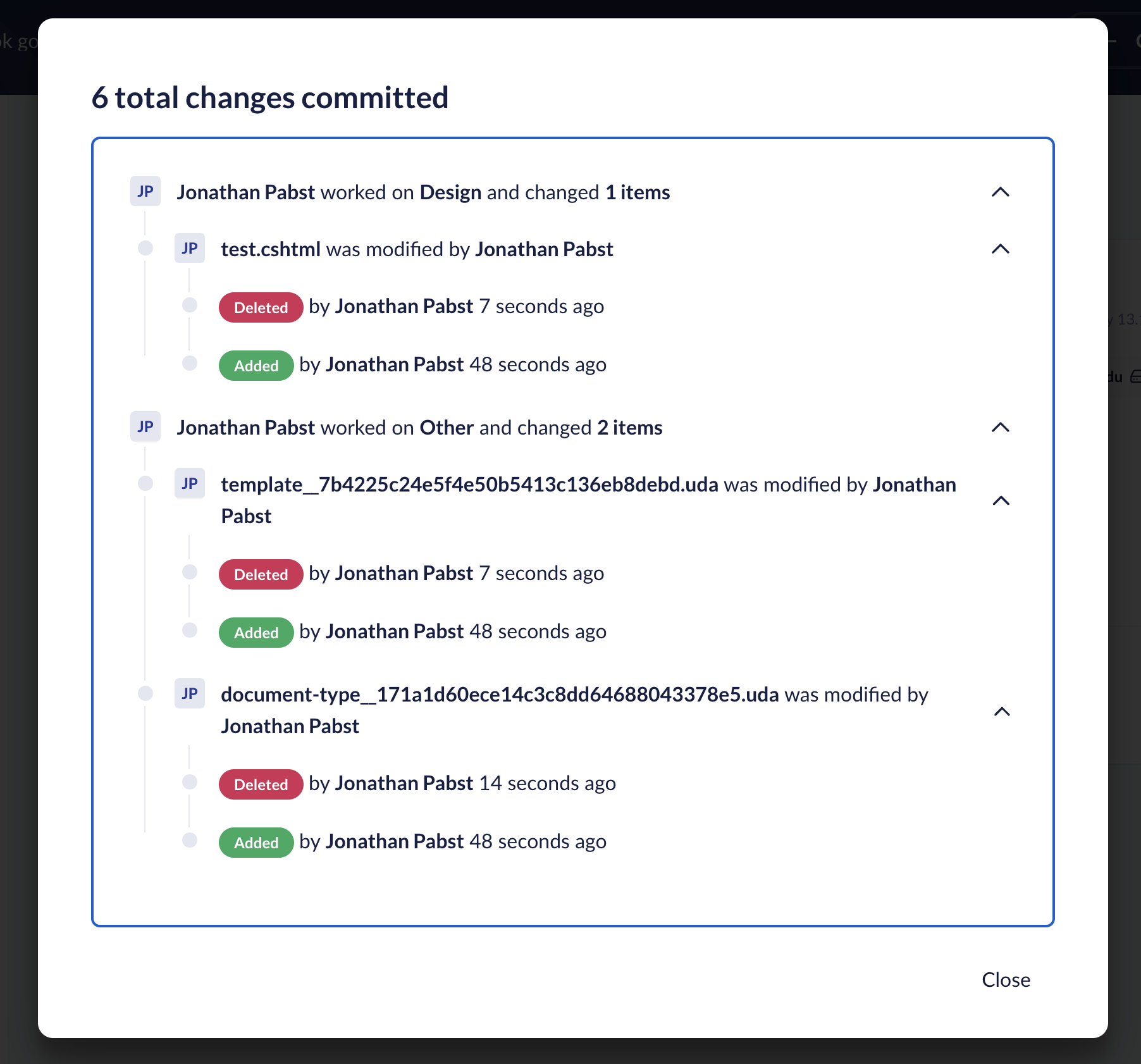
Before you deploy the changes, the Development environment will show that the following changes are ready to be deployed:
Changes ready for deployment
Following the **Activity log** in the browser, you'll notice that the `.uda` file for the Document Type gets deleted. Additionally, other files with changes are copied to the Live environment.
Once the deployment is completed, the following changes has taken place:
* The template is correctly updated.
* The Document Type you deleted on the Development environment is still present in the backoffice on the Live environment.
The reason for the Document Type to still be there is, that the associated `.uda` file is deleted. The Document Type still exists in the database.
To delete the Document Type from your entire project, you need to delete it from the backoffice of the other environments. When the Document Type has been deleted from the backoffice of all the environments and no `.uda` file exist, it is fully removed.
Instead of deleting the Document Type in the backoffice, you can [clean the schema](#cleaning-schema) on the Live environment. Deploy then deletes the Document Type, because its `.uda` file no longer exists.
If you save your Document Type during the process, a new `.uda` file is generated. This can recreate your deleted Document Type when deploying changes between environments.
## Which deletions are deployed?
Every **file** that's deleted, will also be deleted on the next environment when you deploy. However, there are some differences depending on what you have deleted.
Here's an overview of what happens when you deploy deletions to the next environment.
### Deleting Schema (Document Types, Datatypes, etc.)
| Deleted | Not Deleted |
| --------------------------- | ------------------------------------------------- |
| The associated `.uda` file. | The entry in the database. |
| | The item will still be visible in the backoffice. |
### Deleting a Template
| Deleted | Not Deleted |
| --------------------------------------------- | ------------------------------------------------------------------------ |
| The associated `.uda` file. | The entry in the database. |
| The associated `.cshtml` file (the view file) | The template file will be empty, but still be visible in the backoffice. |
### Deleting Files (CSS files, config files, etc.)
All files are deleted in the next environment upon deployment.
### Deleting Content and/or Media
Deletions of content and media won't be detected during deployments. You must manually delete them on each environment where removal is desired.
To reduce the risk of accidental deletions, restrict the delete permission for the relevant user groups using [granular Document permissions](https://docs.umbraco.com/umbraco-cms/manage-and-publish-content/users-and-members/users#granular-permissions).
### Deleting Backoffice Languages
| Deleted | Not Deleted |
| --------------------------- | -------------------------------------------------------------------------------------------------- |
| The associated `.uda` file. | The entry in the database. |
| | The language will still be visible in the Backoffice/Content dashboard (for multilingual content). |
Deleting the language in the backoffice on the target environment will ensure the environments are in sync.
## Cleaning schema
Schema deletions leave database entries behind, as described above. Umbraco Deploy 13.4 and later can remove these entries for you. Deploy compares the schema in the database with the `.uda` files on disk and deletes the items without a matching file. Cleaning applies to all schema types managed by Deploy, including Templates and Languages.
You can clean the schema in two ways:
* **Manually**: Run the **Verify schema** operation from the [Deploy Settings](/umbraco-cloud/build-and-customize-your-solution/handle-deployments-and-environments/deployment/deploy-dashboard.md#verify-schema) on the environment you want to clean. With Umbraco Deploy 18 and later, the operation is on the **Status** page and the **Schema** page shows which items are missing a file. In earlier versions, both are on the Deploy dashboard.
* **Automatically**: Set the [`PostDeploySchemaOperation`](https://docs.umbraco.com/umbraco-deploy/getting-started/deploy-settings#post-deploy-schema-operation) setting to `CleanSchema`. Deploy then cleans the schema after every schema deployment to that environment.
{% hint style="warning" %}
Cleaning the schema deletes items. Deleting a Document Type also deletes all content using that type, with no option to roll back. Only configure `CleanSchema` on environments where this is acceptable, such as local or Development environments. On Live, run the operation manually after checking the schema comparison.
{% endhint %}
Cleaning the schema does not affect content and media. Those deletions must still be made manually on each environment.
---
# Agent Instructions
This documentation is published with GitBook. GitBook is the documentation platform designed so that both humans and AI agents can read, navigate, and reason over technical content effectively. Learn more at gitbook.com.
## Querying This Documentation
If you need additional information that is not directly available in this page, you can query the documentation by asking a question.
Perform an HTTP GET request on the following URL with the `ask` and `goal` query parameters:
```
GET https://docs.umbraco.com/umbraco-cloud/build-and-customize-your-solution/handle-deployments-and-environments/deployment/deploying-deletions.md?ask=&goal=
```
`ask` is the immediate question: it should be specific, self-contained, and written in natural language.
`goal` is what the user is ultimately trying to achieve, the reason they need the answer. Sharing it helps GitBook give you a better, more relevant answer. A goal is most helpful when it describes the outcome the user wants rather than restating the question. For example, with `ask=how do I create an API token`, a goal like `automate deployments from our CI pipeline` lets GitBook tailor the answer to that use case.
The response will contain a direct answer to the question and relevant excerpts and sources from the documentation.
Use this mechanism when the answer is not explicitly present in the current page, you need clarification or additional context, or you want to retrieve related documentation sections.