> For the complete documentation index, see [llms.txt](https://docs.umbraco.com/llms.txt). Markdown versions of documentation pages are available by appending `.md` to page URLs; this page is available as [Markdown](https://docs.umbraco.com/umbraco-cloud/build-and-customize-your-solution/set-up-your-project/databases/backups.md).
# Database backups
Sometimes you might need to have a backup of your Cloud database. This can be accomplished directly on Umbraco Cloud.
{% hint style="info" %}
Read more about Umbraco Cloud's Backup and data retention policy in the [FAQ](https://docs.umbraco.com/umbraco-cloud/frequently-asked-questions).
{% endhint %}
## Limitations
When restoring a database backup on Umbraco Cloud, certain elements may cause issues:
* **SQL Server logins** - Custom SQL Server logins (for example, admin, sysuser, etc.) may conflict with existing logins when restoring the database in the hosting platform.
* **Complex Database Objects** - Custom complex database objects in SQL is an element with external dependencies or special server configurations, which may result in conflicts when restoring the database in our hosting platform.
{% hint style="info" %}
Restoring a database replaces the existing database with a fresh one containing the restored content. Once a Restore has run, you cannot create database backups with a **Date and Time for snapshot (UTC)** going back before the Restore-operation. However, any existing backups are still available.
{% endhint %}
## Backup on Umbraco Cloud
On Umbraco Cloud, you can utilize our 35-day point-in-time recovery to create and download a `bacpac` file from your project.
{% hint style="info" %}
Only Project Administrators have access to the **Backups** page on Umbraco Cloud.
{% endhint %}
To create a backup follow the steps below:
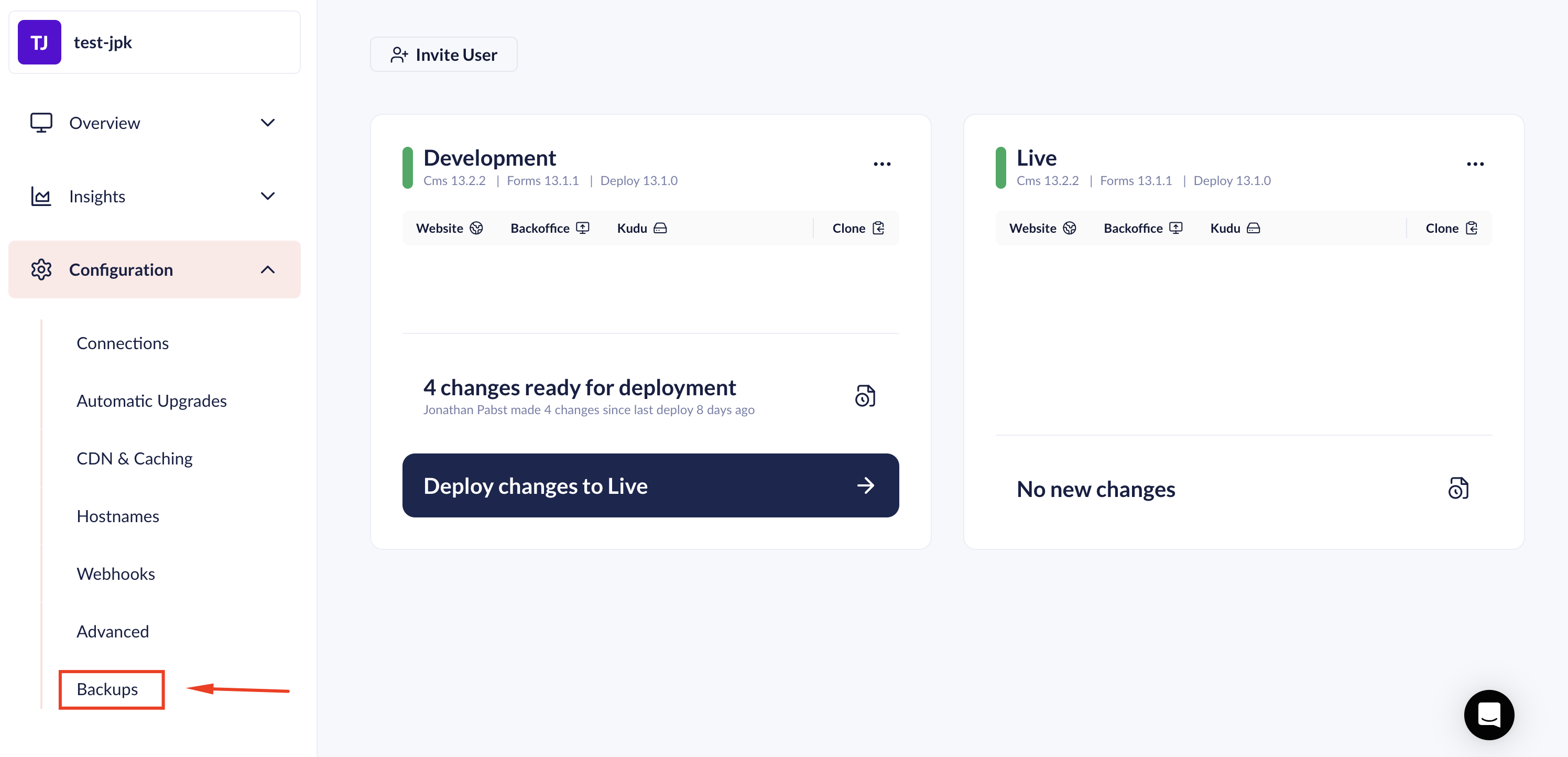
1. Open your Cloud project.
2. Go to **Backups** in the **Configuration** menu.
Backups on Cloud
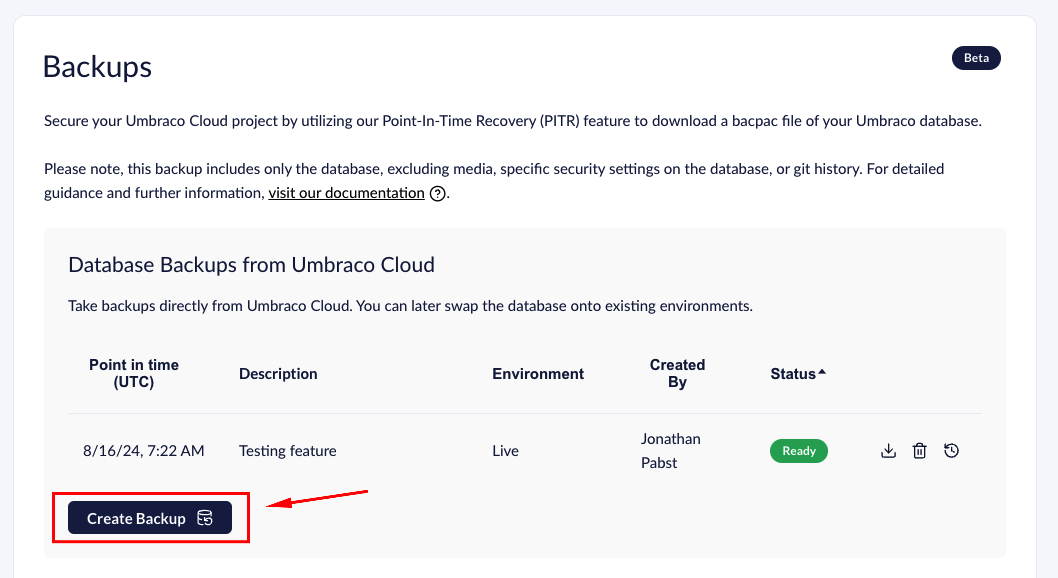
3. Click **Create Backup.**
Click Create Backup.
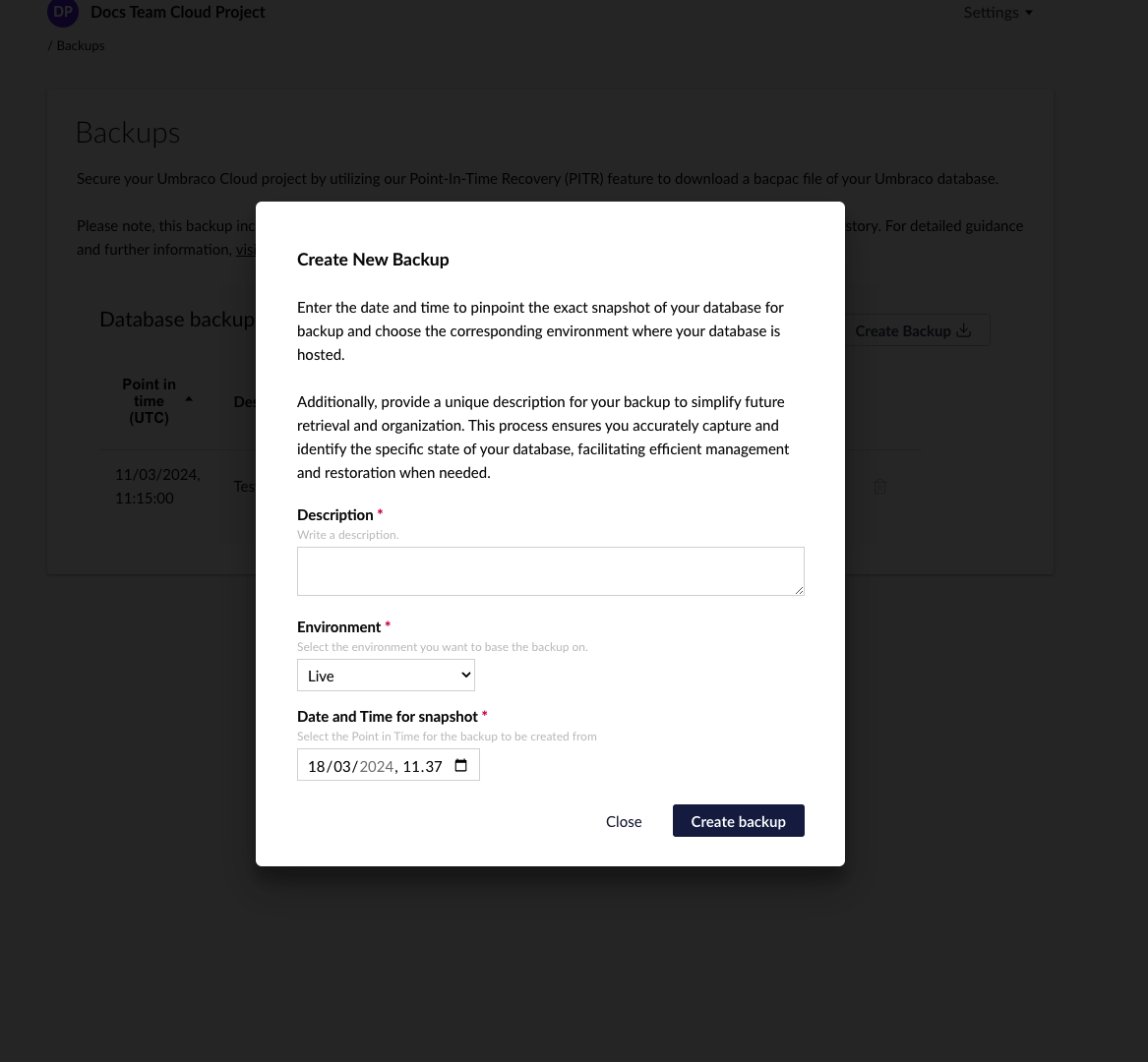
4. Enter a **description** for your **backup**.
5. Choose the **Environment** from which you want to create the backup.
6. Choose the **Date and Time** for the backup to be created.
Creating new Backup
1. Click **Create Backup.**
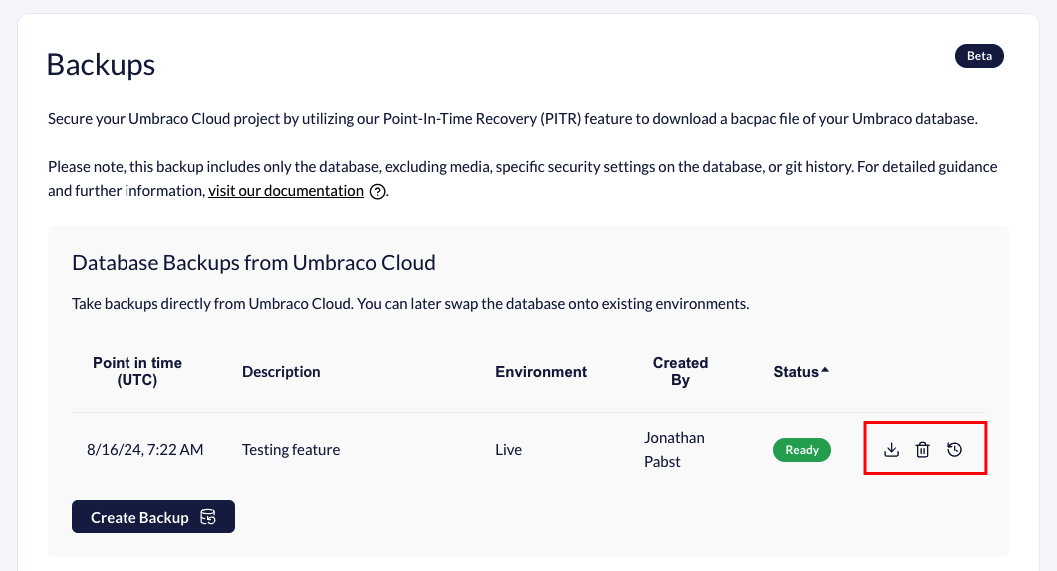
When you click on the **Create Backup** button, the system will start creating a backup file in the form of a `bacpac` file. Once the `bacpac` file is created, you can download it by clicking on the **download** icon. If you want to delete any backups, click the **delete** icon next to the backup.
Download or delete backup
### Create Backup Errors
When a backup creation fails, you can click the triangle icon to view more details about the error.
| Error Name | Description |
| ---------------------------------------------------------- | --------------------------------------------------------------------------------------- |
| CreateDatabaseBackupFailedUnableToFindResource | Metadata for new backup is missing. |
| CreateDatabaseBackupFailedUnableToFindOperation | Operation metadata for new backup is missing. |
| CreateDatabaseBackupFailedUnableToCreatePointInTimeRestore | Cannot create the temporary database used for point-in-time restore. |
| CreateDatabaseBackupFailedUnableToStartDatabaseRestore | Point-in-time restore on the temporary database failed. |
| CreateBackupJobContainerFailed | The job that creates and stores the backup file failed. |
| CreateBackupJobContainerUnknownError | An uncategorized error occurred during the job that creates and stores the backup file. |
| CreateBackupJobContainerTimeOut | Job for creating and storing the backup file took too long. |
## Upload Database
There might be times when you want to upload a database backup to Umbraco Cloud. You might need to restore your database to a certain point in time, or you might be migrating a project to Umbraco Cloud.
Follow the steps below to upload a `.bacpac` file to your Umbraco Cloud project:
1. Go to your **Umbraco Cloud** project.
2. Go to the **"Configuration"** tab in the side menu.
3. Click on **"Backup".**
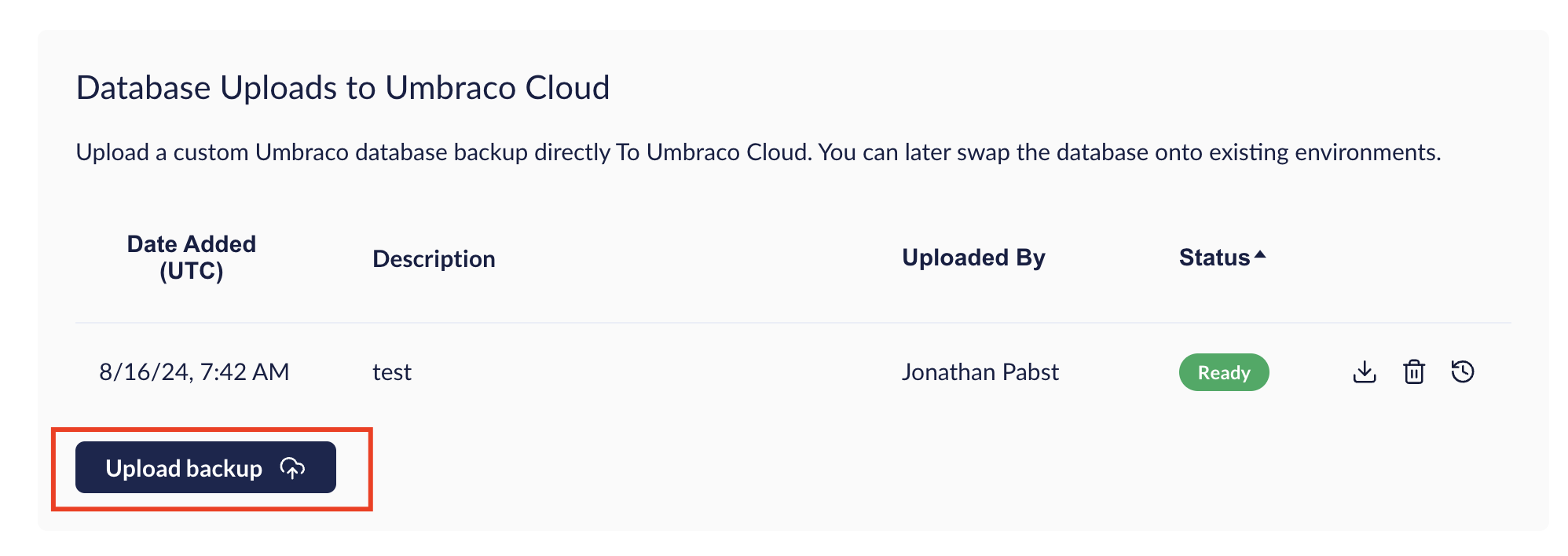
4. Click **"Upload backup"** under "Database Uploads to Umbraco Cloud".
Upload backup
5. Choose a `.bacpac` file to upload to your project.
6. Write a description of the database you are uploading.
7. Click **"Upload .bacpac"**.
Once the Database has been uploaded, restoring the backup to your environment is possible.
### Upload Database Errors
When an upload fails, you can click the triangle icon to view more details about the error.
| Error Name | Description |
| ------------------------- | -------------------------------------------- |
| ImportBackupAborted | User aborted the upload. |
| ImportBackupFailedUnknown | An unknown error occurred during the upload. |
| ImportBackupFailed | Upload took too long. |
## Restore Database
When restoring a database backup on Umbraco Cloud, certain elements may cause issues. For more details, see the [Limitations](#limitations) section .
Once you have uploaded a backup, you might want to restore it to one of your environments. To restore a backup to an environment follow the steps below.
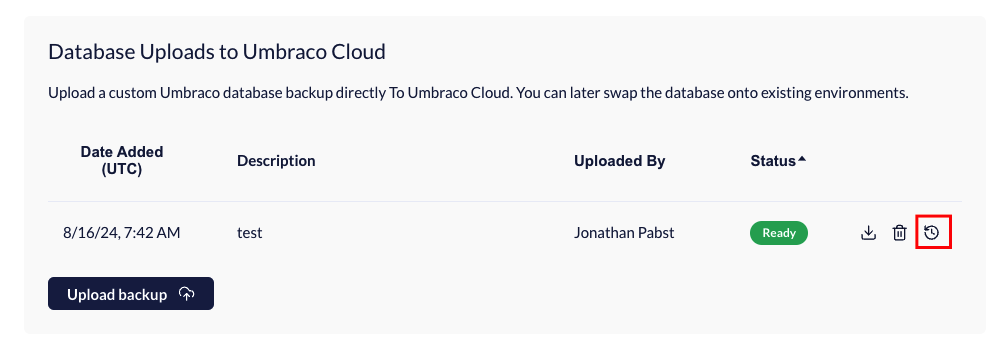
1. Click on the small watch on the right side.
Restore Database to environment
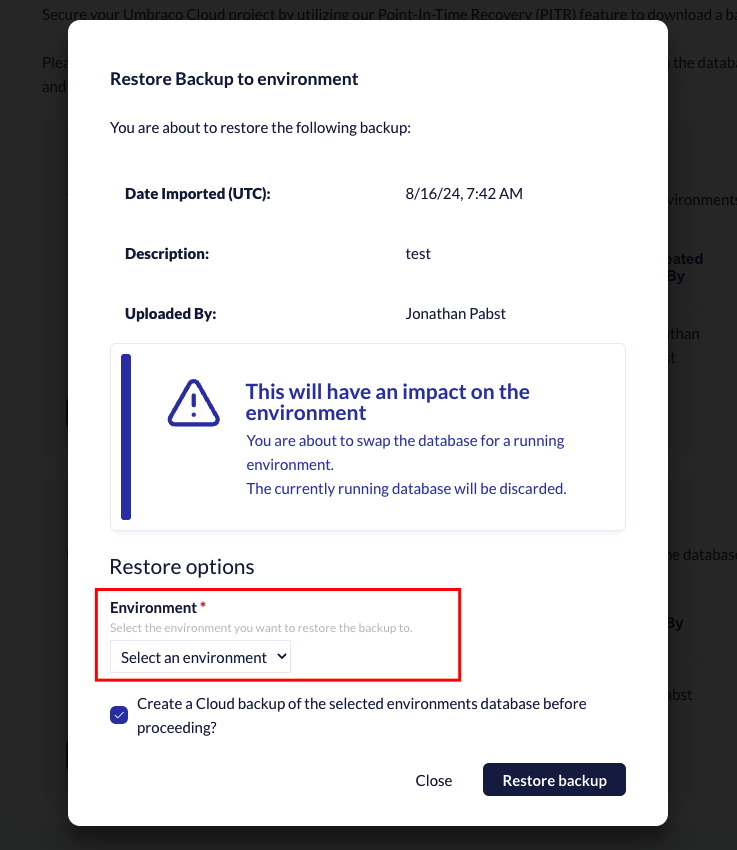
2. Choose which environment to replace the database with the backup.
Choose which environment to restore the backup on
3. **Optional:** Create a Cloud Backup of the selected environment's database before restoring the backup.
4. Click **"Restore backup"**
Once you click **"Restore backup"** the database will be restored to your selected environment. Wait for it to finish and you will successfully have replaced your environment database with your backup.
Make sure to check your environment and see if everything works as expected and that the data from the backup is there.
## Restoring a Cloud backup to a SQL Server Database
Use the following steps:
1. Connect to your SQL Server using SQL Server Management Studio (SSMS).
2. Expand "Databases", right-click "Databases", then select "Import Data-tier Application...".
3. Proceed through the dialog, by browsing to the saved location of your `bacpac` file, and then setting the options appropriate to your configuration
4. Complete the import dialog and the database will be restored.
{% hint style="info" %}
If a `bacpac` restore fails in SQL server, ensure the 'Contained Database Authentication' flag is set to true for resolution.
If it is not set the import will fail.
To Enable Contained Database Authentication, run the following SQL against your SQL server on the main database.
```sql
sp_configure 'contained database authentication', 1;
GO
RECONFIGURE;
GO
```
For reference, see the [Microsoft documentation on the topic](https://learn.microsoft.com/en-us/sql/database-engine/configure-windows/contained-database-authentication-server-configuration-option?view=sql-server-ver16).
{% endhint %}
---
# Agent Instructions
This documentation is published with GitBook. GitBook is the documentation platform designed so that both humans and AI agents can read, navigate, and reason over technical content effectively. Learn more at gitbook.com.
## Querying This Documentation
If you need additional information that is not directly available in this page, you can query the documentation by asking a question.
Perform an HTTP GET request on the following URL with the `ask` and `goal` query parameters:
```
GET https://docs.umbraco.com/umbraco-cloud/build-and-customize-your-solution/set-up-your-project/databases/backups.md?ask=&goal=
```
`ask` is the immediate question: it should be specific, self-contained, and written in natural language.
`goal` is what the user is ultimately trying to achieve, the reason they need the answer. Sharing it helps GitBook give you a better, more relevant answer. A goal is most helpful when it describes the outcome the user wants rather than restating the question. For example, with `ask=how do I create an API token`, a goal like `automate deployments from our CI pipeline` lets GitBook tailor the answer to that use case.
The response will contain a direct answer to the question and relevant excerpts and sources from the documentation.
Use this mechanism when the answer is not explicitly present in the current page, you need clarification or additional context, or you want to retrieve related documentation sections.