> For the complete documentation index, see [llms.txt](https://docs.umbraco.com/llms.txt). Markdown versions of documentation pages are available by appending `.md` to page URLs; this page is available as [Markdown](https://docs.umbraco.com/umbraco-cloud/build-and-customize-your-solution/set-up-your-project/databases/cloud-database.md).
# Database
There are a few steps you need to do before you can work with your database. You will be ready to start working with the database at the end of the article.
## Connecting to your Cloud database locally
Umbraco Cloud automatically overrides whatever is in the `umbracoDbDsn` connection string in the `web.config` or `appSettings.json` when the site is running on Cloud.
Any connection string named `umbracoDbDsn` will only be used when you run the site locally (cloned). In rare cases, you might need the database timeout increased on Cloud, for that, you'll need to reach out to support for assistance.
For security, your database on Umbraco Cloud is running behind a firewall. You'll need to open the firewall for the relevant IPs to connect to the database. This can be a single IP, a list of IPs, or even an IP range.
To open the firewall to a specific IP follow the steps below:
1. Go to your Umbraco Cloud Project.
2. Go to **Configuration** in the side menu on your project.
3. Click on **Connections**.
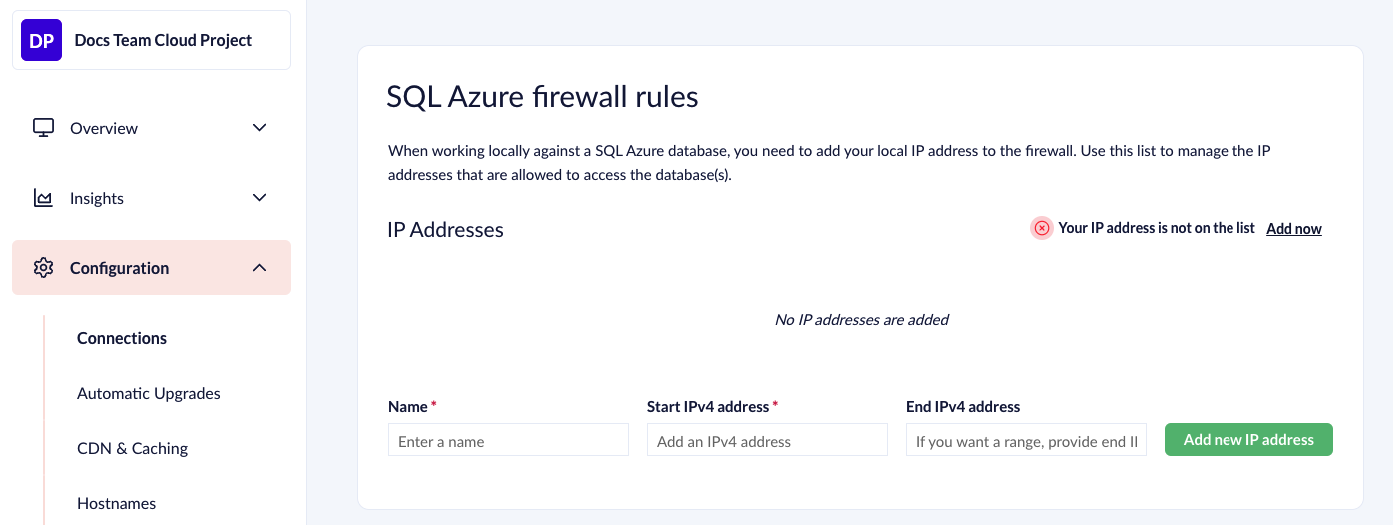
4. Click **Add new IP address** under **SQL Azure firewall rules**
5. Enter the IP that is allowed to access the database.
1. Give the IP a name as well. his gives an overview of who the different IPs that have been added belong to.
If you don't see the **SQL Azure firewall**, it's due to permissions and you'll need to contact the projects administrator.
Adding a new IP to access the database
The IP can also be added by clicking "**Add now"**. It'll automatically add your current IP address and save the settings. It might take up to five minutes for the firewall to be open for your IP.
### Connecting to the database using SQL Management Studio
Once the firewall is open, it's time to fire up SQL Management Studio and connect to the database. Be aware that a database exists for each environment on Umbraco Cloud. Any changes you make to custom tables need to be done for each database.
To connect to the database using SQL Management Studio follow the steps below:
1. Go to **SQL Connection Details** in the **Configuration** menu on Umbraco Cloud.
2. Note down the **Server name**, **Login**, **Password**, and **Database**.
3. Go to **SQL Management Studio**.
1. Choose **SQL Server Authentication** as the authentication type In the **Connect to Server** dialog.
2. Add the Server name in the **Connect to Server** dialog
3. Add the Login in the **Connect to Server** dialog
4. Add the Password in the **Connect to Server** dialog
4. Click Options.
5. Add the name of the database in the **Connect to Database** dialog under **Connection properties**.
6. Click **Connect.**
Now that you've connected you can work with the databases on Umbraco Cloud, like you could on any other host. Remember to let Umbraco Cloud do the work when it comes to the Umbraco-related tables (`Umbraco*` and `CMS*` tables).
## LocalDB
{% hint style="info" %}
LocalDB is no longer supported in the latest major version of Umbraco. The documentation below is only relevant if you are on Umbraco 9 and below.
{% endhint %}
When you clone a site locally, Umbraco Cloud automatically creates a local database and populates it with data from your website running on the Cloud. If you don't specify database settings before the local site startup, it defaults to a SQL CE database in the `umbraco/Data` folder. If you wish to use a local SQL Server instead, you can update the connection string in the `web.config` or `appSettings.json` file (from v9+). You need to do this before your site starts up the first time.
By default when Umbraco Cloud restores a local database it will be a `Umbraco.sdf` file in the `/App_Data` folder. However, the restore creates a `Umbraco.mdf` file if LocalDB is installed and configured. To use LocalDB ensure `applicationHost.config` it is configured with `loadUserProfile="true"` and `setProfileEnvironment="true"`.
Read about how to work with LocalDB and full IIS in the [Microsoft documentation](https://blogs.msdn.microsoft.com/sqlexpress/2011/12/08/using-localdb-with-full-iis-part-1-user-profile/).
```xml
```
{% hint style="info" %}
If you don´t see the lines in the `applicationHost.config`, you can add them manually to the `` section.
{% endhint %}
Usually `applicationHost.config` is located in this folder for IIS: `C:\Windows\System32\inetsrv\config`
and in one of these folders for IIS Express:
`C:\Users\\Documents\IISExpress\config\`
If you're using Visual Studio 2015+ check this path: `$(solutionDir)\.vs\config\applicationhost.config`
In Visual Studio 2015+ you can also configure which `applicationhost.config` file is used by altering the `true|false` setting in the project file (for example, `MyProject.csproj`). Source: Microsoft Developer Network (MSDN) forum.
Now that you are all set and ready you can continue to work with your [database locally](/umbraco-cloud/build-and-customize-your-solution/set-up-your-project/databases/cloud-database/local-database.md).
---
# Agent Instructions
This documentation is published with GitBook. GitBook is the documentation platform designed so that both humans and AI agents can read, navigate, and reason over technical content effectively. Learn more at gitbook.com.
## Querying This Documentation
If you need additional information that is not directly available in this page, you can query the documentation by asking a question.
Perform an HTTP GET request on the following URL with the `ask` and `goal` query parameters:
```
GET https://docs.umbraco.com/umbraco-cloud/build-and-customize-your-solution/set-up-your-project/databases/cloud-database.md?ask=&goal=
```
`ask` is the immediate question: it should be specific, self-contained, and written in natural language.
`goal` is what the user is ultimately trying to achieve, the reason they need the answer. Sharing it helps GitBook give you a better, more relevant answer. A goal is most helpful when it describes the outcome the user wants rather than restating the question. For example, with `ask=how do I create an API token`, a goal like `automate deployments from our CI pipeline` lets GitBook tailor the answer to that use case.
The response will contain a direct answer to the question and relevant excerpts and sources from the documentation.
Use this mechanism when the answer is not explicitly present in the current page, you need clarification or additional context, or you want to retrieve related documentation sections.