> For the complete documentation index, see [llms.txt](https://docs.umbraco.com/llms.txt). Markdown versions of documentation pages are available by appending `.md` to page URLs; this page is available as [Markdown](https://docs.umbraco.com/umbraco-cloud/build-and-customize-your-solution/set-up-your-project/project-settings/platform-configuration.md).
# Platform Configuration
Learn how to manage Platform Configuration on Umbraco Cloud, including Proactive Auto-Heal and Always On.
The Platform Configuration section in the Umbraco Cloud Portal lets you manage environment-level settings that affect how your application runs on Azure App Service. You can control the following settings:
* **Proactive Auto-Heal**: Automatically restart an environment when the platform detects unhealthy resource usage.
* **Always On**: Keep your application loaded at all times so it does not unload after 20 minutes without any incoming requests.
Changes to either setting cause the environment to restart and take effect only after you confirm them.
## Proactive Auto-Heal
Proactive Auto-Heal is an Azure App Service feature that automatically monitors the health of your Umbraco Cloud environments. When the platform detects an unhealthy environment due to memory usage or slow requests, it performs an overlapping restart to recover it. This means a new instance is started before the old one is stopped, minimizing downtime.
Proactive Auto-Heal is **enabled by default** on all Umbraco Cloud projects and helps ensure your site remains available without manual intervention.
### When Proactive Auto-Heal is triggered
Proactive Auto-Heal monitors your environment and triggers a restart depending on the following factors:
* **Memory usage**: If the environment's memory consumption exceeds 90% of the available limit for more than 30 seconds, an overlapping restart is triggered. The exact memory limit depends on the worker size and process architecture.
* **Slow requests**: If 80% or more of all requests take longer than 200 seconds within a 2-minute rolling window, a restart is triggered. This rule requires a minimum of 5 requests in the window before it activates. The rule is not applied during the initial warm-up period after a process start.
### When to Disable Proactive Auto-Heal
In most cases, Proactive Auto-Heal should remain enabled. However, there are scenarios where legitimate high-resource workloads may trigger unnecessary restarts. Consider disabling Proactive Auto-Heal when your project performs:
* **Large content imports**: Bulk importing content can temporarily increase memory usage and request processing times.
* **Examine index rebuilds**: Rebuilding search indexes is resource-intensive and can trigger the monitoring thresholds.
* **Schema migrations**: Running database schema migrations may cause slow request processing during the migration.
* **Large content caches**: Projects with large content caches may consistently use higher memory, which could be misidentified as an unhealthy state.
{% hint style="warning" %}
Disabling Proactive Auto-Heal means your environment will no longer be automatically restarted when it enters an unhealthy state. If your site experiences genuine resource exhaustion, you need to manually restart the environment or wait for the issue to resolve itself. Only disable this feature if you understand the trade-offs.
{% endhint %}
{% hint style="info" %}
The option to disable Proactive Auto-Heal is only available for projects on a **Dedicated** plan. Projects on Shared plans always have Proactive Auto-Heal enabled.
{% endhint %}
### Automatic Re-enablement on Plan Downgrade
If you downgrade your project from a **Dedicated** plan to a **Shared** plan, Proactive Auto-Heal is automatically re-enabled. This ensures that projects on shared infrastructure benefit from the automatic recovery behavior.
You do not need to take any action. The setting is applied automatically during the downgrade process.
## Always On
Always On keeps your application loaded, so it does not unload after 20 minutes without any incoming requests. Without Always On, an idle application is unloaded to free resources. The next incoming request then has to wait for the application to start again.
Keeping the application loaded removes this warm-up delay and helps ensure consistent response times.
{% hint style="warning" %}
Changing the Always On toggle is only available for environments on a **Dedicated** plan. Environments on Shared plans use the default value for Always On. This restriction exists for sustainability reasons. Keeping idle applications loaded consumes resources that could otherwise be released on shared infrastructure.
{% endhint %}
### Default Value on Plan Downgrade
If you downgrade an environment from a **Dedicated** plan to a **Shared** plan, the Always On setting reverts to its default value:
* **Production environments**: Always On is enabled (`true`) by default.
* **Development/Pre-Production environments**: Always On is disabled (`false`) by default.
You do not need to take any action. The default is applied automatically as part of the downgrade process.
## How to Update Platform Configuration
To update Proactive Auto-Heal or Always On for your project:
1. Go to your project in the [Umbraco Cloud Portal](https://www.s1.umbraco.io).
2. Navigate to **Configuration** > **Advanced** in the left-side menu.
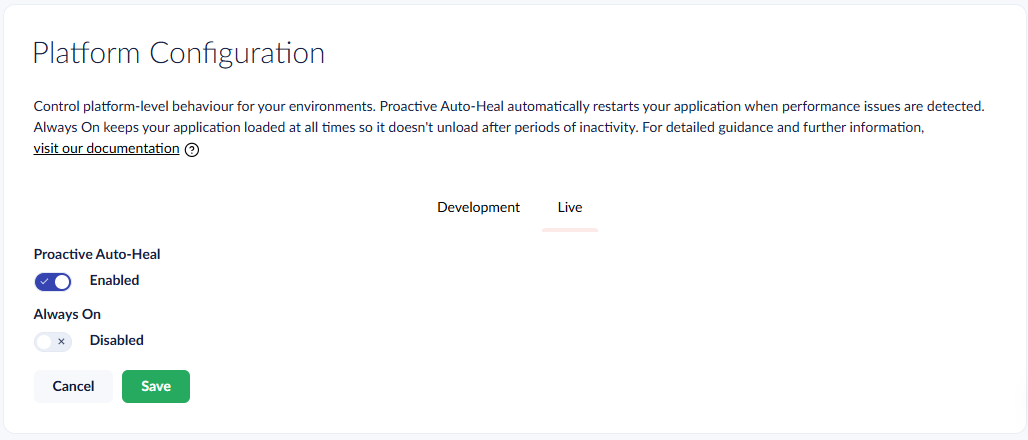
3. Locate the **Platform Configuration** section.
Platform Configuration toggles
4. Toggle **Proactive Auto-Heal** and **Always On** to the desired state.
5. Select **Save** to apply the changes.
* Select **Cancel** to discard the changes.
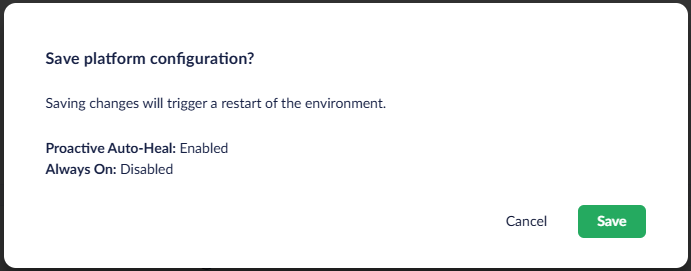
6. On the confirmation dialog, select **Save** to confirm the change. The environment restarts to apply the new settings.
* Select **Cancel** to keep the environment running and discard the pending changes.
Platform Configuration confirmation dialog
{% hint style="warning" %}
Saving changes to Platform Configuration restarts the environment. Selecting **Cancel** on the dialog or the **Cancel** button below the toggles reverts any pending changes.
{% endhint %}
---
# Agent Instructions
This documentation is published with GitBook. GitBook is the documentation platform designed so that both humans and AI agents can read, navigate, and reason over technical content effectively. Learn more at gitbook.com.
## Querying This Documentation
If you need additional information that is not directly available in this page, you can query the documentation by asking a question.
Perform an HTTP GET request on the following URL with the `ask` and `goal` query parameters:
```
GET https://docs.umbraco.com/umbraco-cloud/build-and-customize-your-solution/set-up-your-project/project-settings/platform-configuration.md?ask=&goal=
```
`ask` is the immediate question: it should be specific, self-contained, and written in natural language.
`goal` is what the user is ultimately trying to achieve, the reason they need the answer. Sharing it helps GitBook give you a better, more relevant answer. A goal is most helpful when it describes the outcome the user wants rather than restating the question. For example, with `ask=how do I create an API token`, a goal like `automate deployments from our CI pipeline` lets GitBook tailor the answer to that use case.
The response will contain a direct answer to the question and relevant excerpts and sources from the documentation.
Use this mechanism when the answer is not explicitly present in the current page, you need clarification or additional context, or you want to retrieve related documentation sections.