> For the complete documentation index, see [llms.txt](https://docs.umbraco.com/llms.txt). Markdown versions of documentation pages are available by appending `.md` to page URLs; this page is available as [Markdown](https://docs.umbraco.com/umbraco-cloud/go-live/manage-hostnames/security-certificates.md).
# Custom Certificates
{% hint style="info" %}
This feature is *only* available for Umbraco Cloud projects on a **Professional** or **Enterprise** plan.
All projects on Starter, Standard, or Professional plans will automatically be assigned a Transport Layer Security (HTTPS) certificate.
See the full list of features in the [Umbraco Cloud Pricing Plans](https://umbraco.com/umbraco-cloud-pricing/) on the Umbraco website.
{% endhint %}
To manually upload your certificate on the Umbraco Cloud Portal and assign it to one of the hostnames you've added:
1. Go to your project on the Umbraco Cloud portal.
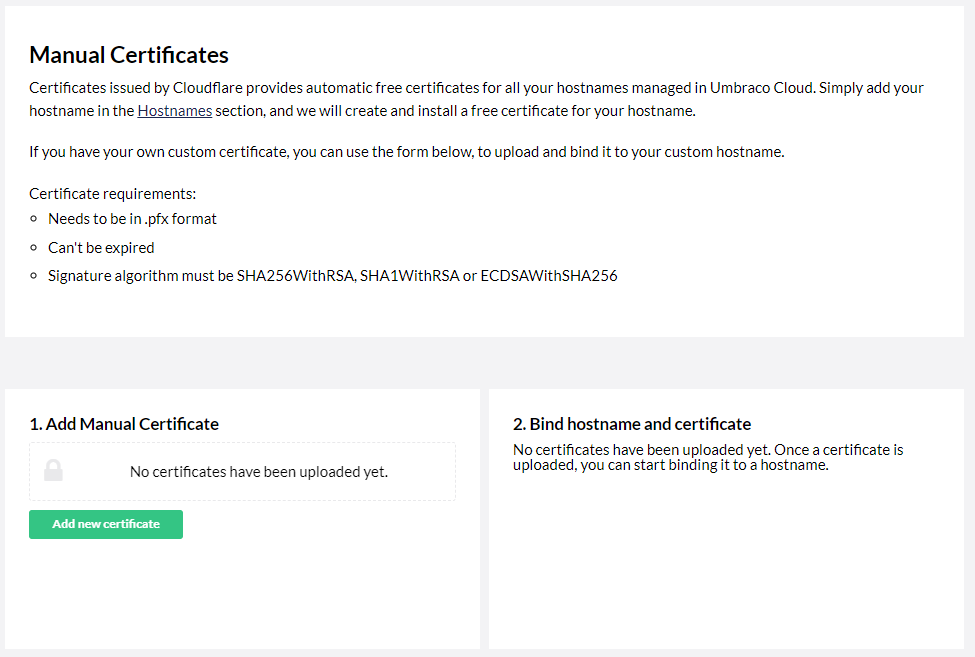
2. Click **Settings** -> **Certificates**. The **Manual Certificates** window opens.
Manual certificates
Your certificates need to be:
1. In **`.pfx`** format.
2. Must use a password.
3. Cannot be expired.
4. Signature algorithm must be SHA256WithRSA, SHA1WithRSA or ECDSAWithSHA256
The **`.pfx`** file can only contain one certificate. Each certificate can then be bound to a hostname you have already added to your site. Make sure you use the hostname you will bind the certificate to as the Common Name (CN) when generating the certificate.
## Add Manual certificate
1. Click **Add New Certificate**.
2. Select **Choose file** in the **Certificate (.pfx file)** field and upload your certificate from your local machine.
3. Enter the **Password** for your certificate.

4. Click **Add**.
## Bind Certificate to a Hostname
1. Click **Add new binding**.
2. Choose your hostname from the *Hostname* dropdown.
3. Choose your newly uploaded certificate from the *Certificate* dropdown.
4. Click **Add**.
You've now successfully added your certificate to the Cloud project.
## From Custom Certificate to Automatic TLS (HTTPS)
In some cases, you might want to switch from using your custom certificate to using the ones provided by the Umbraco Cloud service.
By removing your certificate from your Cloud project, the Umbraco Cloud service will automatically assign a new TLS (HTTPS) certificate to the hostname.
{% hint style="info" %}
Did your manually uploaded security certificate expire?
You will need to remove the expired certificate for Umbraco Cloud to assign a new certificate to your hostname(s).
{% endhint %}
## Read more
* [Redirect from HTTP to HTTPS](/umbraco-cloud/go-live/manage-hostnames/rewrites-on-cloud.md#running-your-site-on-https-only)
---
# Agent Instructions
This documentation is published with GitBook. GitBook is the documentation platform designed so that both humans and AI agents can read, navigate, and reason over technical content effectively. Learn more at gitbook.com.
## Querying This Documentation
If you need additional information that is not directly available in this page, you can query the documentation by asking a question.
Perform an HTTP GET request on the following URL with the `ask` and `goal` query parameters:
```
GET https://docs.umbraco.com/umbraco-cloud/go-live/manage-hostnames/security-certificates.md?ask=&goal=
```
`ask` is the immediate question: it should be specific, self-contained, and written in natural language.
`goal` is what the user is ultimately trying to achieve, the reason they need the answer. Sharing it helps GitBook give you a better, more relevant answer. A goal is most helpful when it describes the outcome the user wants rather than restating the question. For example, with `ask=how do I create an API token`, a goal like `automate deployments from our CI pipeline` lets GitBook tailor the answer to that use case.
The response will contain a direct answer to the question and relevant excerpts and sources from the documentation.
Use this mechanism when the answer is not explicitly present in the current page, you need clarification or additional context, or you want to retrieve related documentation sections.