> For the complete documentation index, see [llms.txt](https://docs.umbraco.com/llms.txt). Markdown versions of documentation pages are available by appending `.md` to page URLs; this page is available as [Markdown](https://docs.umbraco.com/umbraco-cloud/optimize-and-maintain-your-site/manage-product-upgrades/product-upgrades/major-upgrades.md).
# Major Upgrades
Follow this guide when upgrading your Cloud project to a new major version of Umbraco CMS.
{% hint style="info" %}
**Are you using custom packages or code on your Umbraco Cloud project?**
Make sure any packages you use are compatible with the latest version of Umbraco. Additionally, confirm that your custom code works with the updated .NET version.
**Breaking Changes**
Be aware of any [Breaking changes](https://docs.umbraco.com/umbraco-cms/get-started/upgrading-and-migrating/version-specific#breaking-changes) introduced in the latest version of Umbraco CMS to avoid issues during the upgrade.
{% endhint %}
## Before you start the upgrade
Before upgrading your Umbraco Cloud project to the latest major version, you must consider the version your project is already on. This will impact the upgrade flow you will be following.
### Upgrading from a Short-Term Supported (STS) version
When upgrading from an STS version, you must start by upgrading to the closest Long-term Support (LTS) major. If the version you are upgrading to is an STS version, you can upgrade to that version, directly from the closest LTS. You can upgrade directly if there are no LTS versions between the current one and the one you are upgrading to.
Refer to the [Long-term support and EOL article](https://umbraco.com/products/knowledge-center/long-term-support-and-end-of-life/) to learn which versions are STS.
#### *Example: Upgrading from Umbraco 11 (STS) to Umbraco 15 (STS)*
Start by upgrading to the closest LTS. In this case, that is Umbraco 13. After that, you can upgrade directly from Umbraco 13 to Umbraco 15.
### Upgrading from a Long-Term Supported (LTS) version
When upgrading from an LTS version, you must start by looking at the versions between yours and the one you are upgrading to. Is there another LTS version in that line, you need to upgrade to that version first.
Refer to the [Long-term support and EOL article](https://umbraco.com/products/knowledge-center/long-term-support-and-end-of-life/) to learn which versions are LTS.
{% hint style="info" %}
Skipping upgrades to STS versions, like 11 and 12, means you will not receive warnings about obsolete features. We recommend keeping the [Breaking Changes documentation](https://docs.umbraco.com/umbraco-cms/get-started/upgrading-and-migrating/version-specific#breaking-changes) handy to avoid any surprises.
{% endhint %}
#### Example: Upgrading from Umbraco 10 (LTS) to Umbraco 15 (STS)
Between version 10 and 15, there is another LTS version: Umbraco 13. The first step is therefore to upgrade to Umbraco 13. After that, you can upgrade directly from Umbraco 13 to Umbraco 15.
### Version-specific upgrade notes
Look for the "**Upgrade from/to Umbraco xx"** boxes. These boxes contain important information about any extra steps needed for a specific version.
## Prerequisites
* Follow the **requirements** for [local development](https://docs.umbraco.com/umbraco-cms/fundamentals/setup/requirements#local-development).
* An Umbraco Cloud project running [the latest version of your current Umbraco CMS installation](https://our.umbraco.com/download/releases)
* The **latest** .[NET version](https://dotnet.microsoft.com/en-us/download/visual-studio-sdks) is installed locally.
* **At least two environments** on your Cloud project.
* A backup of your project database.
* Directly from your environment. See the [Database backups](/umbraco-cloud/build-and-customize-your-solution/set-up-your-project/databases/backups.md) article,
* Or clone down, restore the project, and back up the local database.
{% hint style="warning" %}
**Do not perform major version upgrades directly in Umbraco Cloud.**
Major upgrades involve significant database migrations that should be run locally, where you have full visibility into the migration process. Running major migrations directly on the Cloud can cause boot failures, which typically show up as a 503 or 500.30 error. These incomplete migrations are often difficult to diagnose.
Always perform the database upgrade locally first, verify that the backoffice loads successfully, and then deploy the upgraded project to Cloud. Follow the steps below for the recommended approach.
{% endhint %}
## Step 1: Enable .NET
Before proceeding, you must determine whether the .NET Framework version needs to be updated for your project. If no changes to the .NET version are required, you can skip this step and proceed with Step 2.
Refer to the [Choose the correct .NET version](https://docs.umbraco.com/umbraco-cms/get-started/upgrading-and-migrating/upgrade-details#choose-the-correct-.net-version) section to identify whether a .NET version update is necessary for your upgrade.
1. Go to the project in the Umbraco Cloud portal.
2. Navigate to **Configuration** -> **Advanced**.
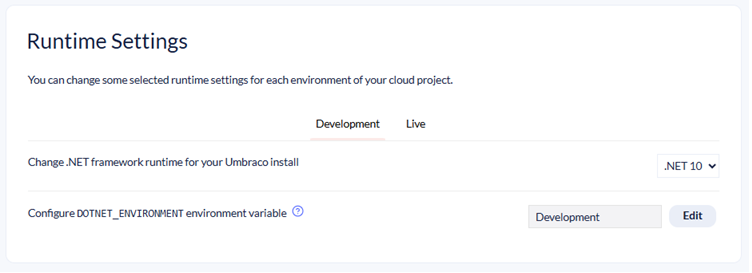
3. Scroll down to the **Runtime Settings** section.
4. Select the appropriate .NET version from the **Change .NET framework runtime for your Umbraco install** dropdown for each environment in your Cloud project.
Runtime settings
## Step 2: Clone down your environment
1. Clone down the **left-most mainline environment**.
2. Build and run the [project locally](/umbraco-cloud/build-and-customize-your-solution/handle-deployments-and-environments/working-locally.md#running-the-site-locally).
3. Log in to the backoffice.
4. Restore content from your Cloud environment.
## Step 3: Upgrade the project locally using Visual Studio
1. Open the `csproj` file located in the `/src/UmbracoProject` folder.
2. Determine if you need to update the .NET version based on the changes made in [Step 1](#step-1-enable-net):
* **If the .NET version was updated:** Update the `` to match the version set in your Cloud environment.
* **If the .NET version was not updated:** Skip this step.
Upgrading to Umbraco 15 and above
The following packages are no longer needed on the Cloud platform:
* `Umbraco.Cloud.Cms.PublicAccess`
* `Umbraco.Cloud.Identity.Cms`
Delete the `` entries for these packages.
3. Go to **Tools** > **NuGet Package Manager** > **Manage NuGet Packages for Solution**.
4. Navigate to the **Updates** tab.
5. Select the version you are updating to and follow the instructions:
{% tabs %}
{% tab title="Umbraco 18" %}
6\) Update the all `Umbraco.*` packages to the latest version 18.
* `Umbraco.Community.*` packages may also need updating, though we cannot guarantee their compatibility.
* Ensure the following default Cloud packages are upgraded:
* `Umbraco.Forms.Deploy`
* `Umbraco.Cms`
* `Umbraco.Deploy.Cloud`
* `Umbraco.Deploy.Contrib`
* `Umbraco.Forms`
* `Umbraco.Cloud.Cms`
* `Umbraco.Cloud.StorageProviders.AzureBlob`
7. Ensure all projects and packages in your solution is compatible with the latest .NET.
{% endtab %}
{% tab title="Umbraco 17 (LTS)" %}
6\. Update the all `Umbraco.*` packages to the latest version 17.
* `Umbraco.Community.*` packages may also need updating, though we cannot guarantee their compatibility.
* Ensure the following default Cloud packages are upgraded:
* `Umbraco.Forms.Deploy`
* `Umbraco.Cms`
* `Umbraco.Deploy.Cloud`
* `Umbraco.Deploy.Contrib`
* `Umbraco.Forms`
* `Umbraco.Cloud.Cms`
* `Umbraco.Cloud.StorageProviders.AzureBlob`
7. Open the `Licenses` folder and delete all Umbraco-related `.lic` files.
8. Keep any `.lic` files needed for your third-party tools.
If the folder is empty after deleting the files, you can safely remove the entire `Licenses` folder as well.
9. *\[Optional]* If using Deploy and Forms on Umbraco Cloud:
1. Locate and open the `appsettings.json` file (and any environment-specific variants).
2. Add the following section to `Umbraco:Licenses:Products:`:
```json
{
"Umbraco": {
"Licenses": {
"Products": {
"Umbraco.Deploy": "UMBRACO-CLOUD",
"Umbraco.Forms": "UMBRACO-CLOUD"
}
}
}
}
```
This ensures the built-in Umbraco Cloud licenses are recognized after upgrading. Without these values, you may encounter license validation errors even though your project is on Umbraco Cloud.
10. *\[Optional]* If you use `InMemoryAuto` models builder, or rely on Razor runtime compilation for editing templates via the backoffice, reference the `Umbraco.Cms.DevelopmentMode.Backoffice` package. For more information, see the [Breaking Changes](https://docs.umbraco.com/umbraco-cms/17.latest/fundamentals/setup/upgrading/version-specific#umbraco-17) article.
11. Ensure all projects and packages in your solution is compatible with the latest .NET.
{% endtab %}
{% tab title="Umbraco 15 and 16" %}
6\. Update the all `Umbraco.*` packages to the latest version 15/16.
* `Umbraco.Community.*` packages may also need updating, though we cannot guarantee their compatibility.
* Ensure the following default Cloud packages are upgraded:
* `Umbraco.Forms.Deploy`
* `Umbraco.Cms`
* `Umbraco.Deploy.Cloud`
* `Umbraco.Deploy.Contrib`
* `Umbraco.Forms`
* `Umbraco.Cloud.Cms`
* `Umbraco.Cloud.StorageProviders.AzureBlob`
7. Ensure all projects and packages in your solution is compatible with the latest .NET.
{% endtab %}
{% tab title="Umbraco 14" %}
6\. Update the all `Umbraco.*` packages to the latest version 14.
* `Umbraco.Community.*` packages may also need updating, though we cannot guarantee their compatibility.
* Ensure the following default Cloud packages are upgraded:
* `Umbraco.Forms.Deploy`
* `Umbraco.Cms`
* `Umbraco.Deploy.Cloud`
* `Umbraco.Deploy.Contrib`
* `Umbraco.Forms`
* `Umbraco.Cloud.Cms`
* `Umbraco.Cloud.Identity.Cms`
* `Umbraco.Cloud.Cms.PublicAccess`
* `Umbraco.Cloud.StorageProviders.AzureBlob`
* `Microsoft.Extensions.DependencyInjection.Abstractions`
{% endtab %}
{% tab title="Umbraco 13 (LTS)" %}
From Umbraco 13, the `Umbraco.Deploy.Forms` package has been replaced with the `Umbraco.Forms.Deploy` package.
6. Remove the `Umbraco.Deploy.Forms` package.
7. Update the all `Umbraco.*` packages to the latest version 13.
* `Umbraco.Community.*` packages may also need updating, though we cannot guarantee their compatibility.
* Ensure the following default Cloud packages are upgraded:
* `Umbraco.Cms`
* `Umbraco.Deploy.Cloud`
* `Umbraco.Deploy.Contrib`
* `Umbraco.Forms`
* `Umbraco.Cloud.Cms`
* `Umbraco.Cloud.Identity.Cms`
* `Umbraco.Cloud.Cms.PublicAccess`
* `Umbraco.Cloud.StorageProviders.AzureBlob`
* `Microsoft.Extensions.DependencyInjection.Abstractions`
8. Install the `Umbraco.Forms.Deploy` package.
{% endtab %}
{% tab title="Umbraco 10" %}
6\. Update the all `Umbraco.*` packages to the latest version 10.
* `Umbraco.Community.*` packages may also need updating, though we cannot guarantee their compatibility.
* Ensure the following default Cloud packages are upgraded:
* `Umbraco.Deploy.Forms`
* `Umbraco.Cms`
* `Umbraco.Deploy.Cloud`
* `Umbraco.Deploy.Contrib`
* `Umbraco.Forms`
* `Umbraco.Cloud.Cms`
* `Umbraco.Cloud.Identity.Cms`
* `Umbraco.Cloud.Cms.PublicAccess`
* `Umbraco.Cloud.StorageProviders.AzureBlob`
* `Microsoft.Extensions.DependencyInjection.Abstractions`
{% endtab %}
{% endtabs %}
{% hint style="info" %}
Update all projects and packages in your solution to support the latest .NET.
{% endhint %}
## Step 4: Finishing the Upgrade
1. Ensure that [Unattended Upgrades](https://docs.umbraco.com/umbraco-cms/fundamentals/setup/upgrading/upgrade-unattended) are enabled.
2. Run the **project locally**.
3. Log in to the Umbraco backoffice to **verify the upgrade** has happened.
* If you cannot login locally via Umbraco ID and URL shows `/umbraco/authorizeupgrade?redir=` then this is because of the Unattended Upgrades setting. It must be set to `true` and deployed to the environment before the upgrade.
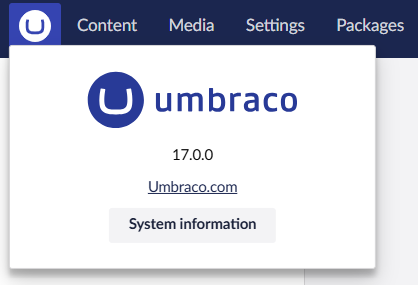
Click on the Umbraco logo in the Umbraco backoffice to confirm the version number.
{% hint style="warning" %}
If you receive a missing deploy license error after upgrading, even though the license is valid, it may be due to browser caching. Google Chrome has an aggressive caching that can interfere with license validation during startup. To resolve this:
1. Open Chrome's Developer Tools (F12).
2. Right-click the reload button next to the address bar.
3. Select **Empty cache and hard reload**.
It is recommended to clear the cache and cookies thoroughly in all browsers you're using to access the Umbraco backoffice. This step can help resolve unexpected startup issues after the upgrade.
If the issue persists and your project has CDN Caching and Optimization enabled, cached responses may interfere with license validation. In this case, try purging the cache and reloading the site.
{% endhint %}
5. Ensure that the project runs locally without any errors.
Upgrading from Umbraco 13
In Umbraco 14, Smidge has been removed from the CMS.
In the `_ViewImports.cshtml` of your project, remove the following lines:
```csharp
@addTagHelper *, Smidge
@inject Smidge.SmidgeHelper SmidgeHelper
```
When upgrading **from** Umbraco 13, you need to be aware that `UseInstallerEndpoints()` no longer exists.
1. Open the `Program.cs` file.
2. Remove `u.UseInstallerEndpoints()` from the `app.UseUmbraco()` method.

Upgrading from Umbraco 9
Update the `Program` class in the `Program.cs` file to the following:\
using Umbraco.Cms.Web.Common.Hosting;
```
public class Program
{
public static void Main(string[] args)
=> CreateHostBuilder(args)
.Build()
.Run();
public static IHostBuilder CreateHostBuilder(string[] args) =>
Host.CreateDefaultBuilder(args)
.ConfigureUmbracoDefaults()
.ConfigureWebHostDefaults(webBuilder =>
{
webBuilder.UseStaticWebAssets();
webBuilder.UseStartup();
});
}
```
Re-enable the app settings IntelliSense by updating your schema reference in the `appsettings.json` file from:
```json
"$schema": "./umbraco/config/appsettings-schema.json",
```
To:
```json
"$schema": "./appsettings-schema.json",
```
Apply this change to the following files as well:
* `appsettings.Development.json`
* `appsettings.Production.json`
* `appsettings.Staging.json`
Remove the following files and folders *manually* from your local project:
* `/wwwroot/umbraco`
* `/umbraco/PartialViewMacros`
* `/umbraco/UmbracoBackOffice`
* `/umbraco/UmbracoInstall`
* `/umbraco/UmbracoWebsite`
* `/umbraco/config/lang`
Remove the same files from the left-most environment. This should be done from the left-most environment through `KUDU` -> `Debug Console` -> `CMD` -> `Site` -> from both the `repository` and `wwwroot` folders.
5. Push the changes to the Cloud environment. See the [Deploying from local to your environments](/umbraco-cloud/build-and-customize-your-solution/handle-deployments-and-environments/deployment/local-to-cloud.md) article.
6. Test that everything works with the upgrade on the Cloud environment.
{% hint style="warning" %}
**If the environment fails to boot after this push (503 or 500.30 error)**
Both errors usually mean the database migration did not complete in time. This can happen on any environment, not only Live, and is more likely on environments with a large or complex database.
Check the Umbraco log for the specific underlying error before proceeding. This confirms whether it's a migration timeout or something else.
If this happens, follow the [Local Upgrade Option](/umbraco-cloud/optimize-and-maintain-your-site/manage-product-upgrades/product-upgrades/major-upgrades/planning-major-upgrades-safely-on-live.md#approach-2-run-a-controlled-local-migration-local-upgrade-option) to complete the migration locally. Connect directly to the target environment's database instead of the Live environment's database.
{% endhint %}
It is highly recommended to go through everything in your Cloud environment. This can help you identify any potential errors after the upgrade, and ensure that you are not deploying any issues onto your production environment.
{% hint style="warning" %}
**Check Point for Large, Busy, or Business-Critical Sites** Have you finished upgrading your packages and testing your code changes locally? **Before you deploy these changes to your Live environment**, review the [Planning Major Upgrades Safely for Live Environments](/umbraco-cloud/optimize-and-maintain-your-site/manage-product-upgrades/product-upgrades/major-upgrades/planning-major-upgrades-safely-on-live.md) guide.
That guide will help you set up a Staging safety net and choose the right resource strategy to prevent database migration downtime on production. Once your strategy is selected, return here to execute your deployment.
{% endhint %}
## Step 5: Deploy the upgrade
The next part is to deploy the upgrade through to the production environment.
{% hint style="info" %}
Deploying the upgrade pushes your upgraded **codebase only**. It does not move, restore, or overwrite your database. The existing database for each environment stays in place, and schema migrations run automatically the first time the new code starts up on that environment. Content and media are only moved if you explicitly restore or import them, as described in the **With content freeze** steps below.
{% endhint %}
For major upgrades that include content migrations, the process can be extensive. This is especially true for sites with a large amount of content. In these cases, it is recommended to:
* Initiate a content freeze to prevent changes during the migration.
* Rearrange your custom hostname(s) to **minimize website downtime.**
You can choose between two approaches based on your needs:
* **With content freeze** - involves a more detailed upgrade process but helps reduce downtime on your live website.
* **Without content freeze** - provides a more straightforward process that may result in longer downtime on your live website.
{% tabs %}
{% tab title="With content freeze" %}
{% hint style="info" %}
The following steps involve setting a **content-freeze** period on the project. It is recommended to coordinate this with your content editors before moving forward.
{% endhint %}
1. Delete any environments between your left-most and production environments.
2. Create a new environment from the production environment - call it Staging.
3. Initiate **content-freeze**.
4. Import content using either of the following approaches:
1. [Restore content and media](/umbraco-cloud/build-and-customize-your-solution/handle-deployments-and-environments/deployment/restoring-content.md) directly from the backoffice.
2. Use the [Database Backup and Restore](/umbraco-cloud/build-and-customize-your-solution/set-up-your-project/databases/backups.md) functionality in the Cloud Portal.
5. Deploy the upgrade from the left-most environment.
6. Verify and test all functionality on the upgraded environment.
7. [Remove your custom hostname(s)](/umbraco-cloud/go-live/manage-hostnames.md) from the production environment.
8. Ensure the hostname(s) no longer point to the production environment.
9. [Add the custom hostname(s)](/umbraco-cloud/go-live/manage-hostnames.md) to the new environment (Staging).
10. Deploy the upgrade to the production environment.
1. In case the upgrade is taking longer than expected, restore a backup of the Staging database on the production environment.
11. Cancel **content-freeze**.
12. Verify and test all functionality in the production environment.
13. [Remove your custom hostname(s)](/umbraco-cloud/go-live/manage-hostnames.md) from the Staging environment.
14. Ensure the hostname(s) no longer point to the Staging environment.
15. [Add the custom hostname(s)](/umbraco-cloud/go-live/manage-hostnames.md) to the production environment.
{% endtab %}
{% tab title="Without content freeze" %}
1. Deploy the upgrade to the next environment.
2. Verify and test all functionality on the upgraded environment.
3. Deploy the upgrade to the production environment.
1. In case the upgrade is taking longer than expected, restore a backup of the database on the production environment.
4. Verify and test all functionality in the production environment.
{% endtab %}
{% endtabs %}
---
# Agent Instructions
This documentation is published with GitBook. GitBook is the documentation platform designed so that both humans and AI agents can read, navigate, and reason over technical content effectively. Learn more at gitbook.com.
## Querying This Documentation
If you need additional information that is not directly available in this page, you can query the documentation by asking a question.
Perform an HTTP GET request on the following URL with the `ask` and `goal` query parameters:
```
GET https://docs.umbraco.com/umbraco-cloud/optimize-and-maintain-your-site/manage-product-upgrades/product-upgrades/major-upgrades.md?ask=&goal=
```
`ask` is the immediate question: it should be specific, self-contained, and written in natural language.
`goal` is what the user is ultimately trying to achieve, the reason they need the answer. Sharing it helps GitBook give you a better, more relevant answer. A goal is most helpful when it describes the outcome the user wants rather than restating the question. For example, with `ask=how do I create an API token`, a goal like `automate deployments from our CI pipeline` lets GitBook tailor the answer to that use case.
The response will contain a direct answer to the question and relevant excerpts and sources from the documentation.
Use this mechanism when the answer is not explicitly present in the current page, you need clarification or additional context, or you want to retrieve related documentation sections.