> For the complete documentation index, see [llms.txt](https://docs.umbraco.com/llms.txt). Markdown versions of documentation pages are available by appending `.md` to page URLs; this page is available as [Markdown](https://docs.umbraco.com/umbraco-cms/17.latest/extend-your-project/tutorials/creating-a-property-editor/adding-configuration-to-a-property-editor.md).
# Adding Configuration to a Property Editor
Adding configuration options to the editor.
## Overview
This is step two in the guide to building a Property Editor. This step builds on part one and covers adding configuration options to the editor.
This article covers the following:
* [Adding settings object to umbraco-package.json](#adding-settings-object-to-umbraco-package.json)
* [Using the configuration](#using-the-configuration)
### Configuration
An important part of building good Property Editors is making them flexible so they can be reused in many contexts. The Rich Text Editor, for example, lets you choose which buttons and stylesheets to use per instance.
The same editor can be reused with different configurations.
## Adding settings object to umbraco-package.json
To add a Data Type configuration field to the Suggestion Property Editor:
1. Open the `umbraco-package.json` file.
2. Add the `settings` object inside the `meta` object.
3. Add some `properties`:
{% code title="umbraco-package.json" %}
```json
...
"meta": {
...
"settings": {
"properties": [
{
"alias": "disabled",
"label": "Disabled",
"description": "Disables the suggestion button",
"propertyEditorUiAlias": "Umb.PropertyEditorUi.Toggle"
},
{
"alias": "placeholder",
"label": "Placeholder text",
"description": "A nice placeholder description to help out our editor!",
"propertyEditorUiAlias": "Umb.PropertyEditorUi.TextBox"
},
{
"alias": "maxChars",
"label": "Max characters allowed",
"description": "The maximum number of allowed characters in a suggestion",
"propertyEditorUiAlias": "Umb.PropertyEditorUi.Integer"
}
]
}
...
}
```
{% endcode %}
The code above adds three configuration fields. Each entry in the `properties` collection represents a Configuration field.
* `Disabled` uses the Toggle Property Editor UI. This enables to switch the suggestion button on or off and provides the user with a toggle button.
* `Placeholder text` uses the TextBox Property Editor UI, allowing the user to write a text.
* `Max characters allowed` uses the Integer Property Editor UI, enabling the user to enter a numeric value.
{% hint style="info" %}
The Property Editor UI needs to be declared as it declares what User Interface should be used for this field.
You can use any Property Editor UI to define Configuration fields. The alias of a given Property Editor UI can be found in Data Type configurations using that Property Editor.
{% endhint %}
4. Add default values for the new configuration fields:
{% code title="umbraco-package.json" %}
```json
...
"meta": {
...
"settings": {
"properties": [...],
"defaultData": [
{
"alias": "disabled",
"value": true
},
{
"alias": "placeholder",
"value": "Write a suggestion"
},
{
"alias": "maxChars",
"value": 50
}
]
}
...
```
{% endcode %}
See the entire file: umbraco-package.json
{% code title=" umbraco-package.json" %}
```json
{
"$schema": "../../umbraco-package-schema.json",
"id": "My.AwesomePackage",
"name": "My Awesome Package",
"version": "0.1.0",
"extensions": [
{
"type": "propertyEditorUi",
"alias": "My.PropertyEditorUi.Suggestions",
"name": "My Suggestions Property Editor UI",
"element": "/App_Plugins/Suggestions/dist/suggestions.js",
"elementName": "my-suggestions-property-editor-ui",
"meta": {
"label": "Suggestions",
"icon": "icon-list",
"group": "common",
"propertyEditorSchemaAlias": "Umbraco.Plain.String",
"settings": {
"properties": [
{
"alias": "disabled",
"label": "Disabled",
"description": "Disables the suggestion button",
"propertyEditorUiAlias": "Umb.PropertyEditorUi.Toggle"
},
{
"alias": "placeholder",
"label": "Placeholder text",
"description": "A nice placeholder description to help out our editor!",
"propertyEditorUiAlias": "Umb.PropertyEditorUi.TextBox"
},
{
"alias": "maxChars",
"label": "Max characters allowed",
"description": "The maximum number of allowed characters in a suggestion",
"propertyEditorUiAlias": "Umb.PropertyEditorUi.Integer"
}
],
"defaultData": [
{
"alias": "disabled",
"value": true
},
{
"alias": "placeholder",
"value": "Write a suggestion"
},
{
"alias": "maxChars",
"value": 50
}
]
}
}
}
]
}
```
{% endcode %}
{% hint style="warning" %}
`defaultData` only applies to newly created Data Types. If you already saved the Data Type in [Part 1](/umbraco-cms/17.latest/extend-your-project/tutorials/creating-a-property-editor.md) of the tutorial, adding `defaultData` here won't automatically populate the existing configuration. Umbraco only reads default values when a Data Type is first created. If your Data Type already exists, you have two options:
* Manually set the values by going to **Settings** → **Data Types**. Open your Data Type and enter the values there.
* Delete and recreate the Data Type to have `defaultData` take effect automatically.
{% endhint %}
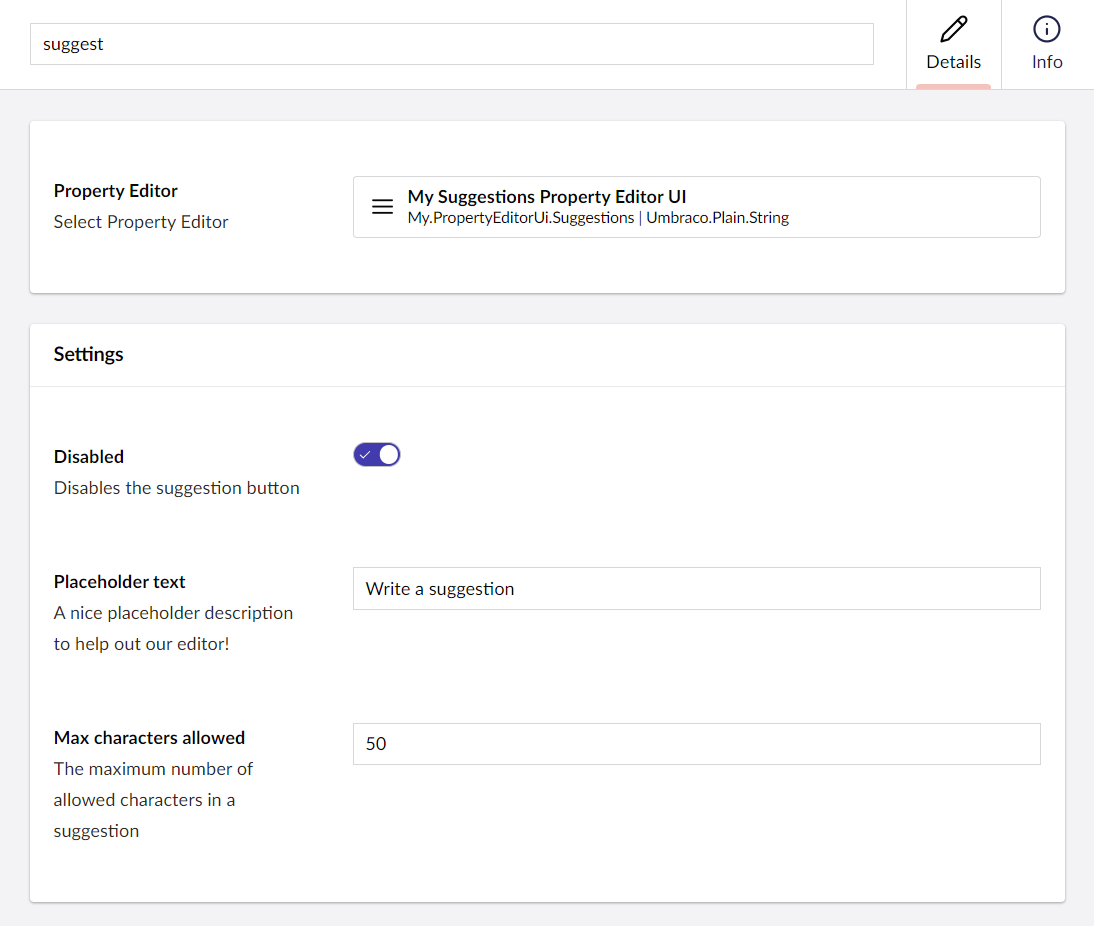
5. Save the files and reload the backoffice. You can now see the Configurations in the Data Type:
Data Type configuration.
## Using the configuration
The next step is to gain access to our new configuration options. For this, open the `suggestions-property-editor-ui.element.ts` file.
1. Create some state variables that can store our configurations:
{% code title="suggestions-property-editor-ui.element.ts" %}
```typescript
@state()
private _disabled?: boolean;
@state()
private _placeholder?: string;
@state()
private _maxChars?: number;
```
{% endcode %}
2. Let's create a config property. Add a new import and add the following property:
{% code title="suggestions-property-editor-ui.element.ts" %}
```typescript
import { type UmbPropertyEditorConfigCollection } from '@umbraco-cms/backoffice/property-editor';
```
{% endcode %}
3. Look up the alias of the config and then grab the value by said alias:
{% code title="suggestions-property-editor-ui.element.ts" %}
```typescript
@property({ attribute: false })
public set config(config: UmbPropertyEditorConfigCollection) {
this._disabled = config.getValueByAlias("disabled");
this._placeholder = config.getValueByAlias("placeholder");
this._maxChars = config.getValueByAlias("maxChars");
}
```
{% endcode %}
Let's use the `placeholder` and `maxChars` for the input field and the `disabled` option for the suggestion button.
4. Add a new import `ifDefined` :
{% code title="suggestions-property-editor-ui.element.ts" %}
```typescript
import { ifDefined } from '@umbraco-cms/backoffice/external/lit';
```
{% endcode %}
5. Update the render method:
{% code title="suggestions-property-editor-ui.element.ts" %}
```typescript
render() {
return html`
Give me suggestions!
Trim text
`;
}
```
{% endcode %}
See the entire file: suggestions-property-editor-ui.element.ts
{% code title="suggestions-property-editor-ui.element.ts" overflow="wrap" lineNumbers="true" %}
```typescript
import { UmbChangeEvent } from '@umbraco-cms/backoffice/event';
import { css, customElement, html, ifDefined, LitElement, property, state } from '@umbraco-cms/backoffice/external/lit';
import type {
UmbPropertyEditorConfigCollection,
UmbPropertyEditorUiElement,
} from '@umbraco-cms/backoffice/property-editor';
import { UmbTextStyles } from '@umbraco-cms/backoffice/style';
@customElement('my-suggestions-property-editor-ui')
export default class MySuggestionsPropertyEditorUIElement extends LitElement implements UmbPropertyEditorUiElement {
@property({ type: String })
public value = '';
@state()
private _disabled?: boolean;
@state()
private _placeholder?: string;
@state()
private _maxChars?: number;
@state()
private _suggestions = [
'You should take a break',
'I suggest that you visit the Eiffel Tower',
'How about starting a book club today or this week?',
'Are you hungry?',
];
@property({ attribute: false })
public set config(config: UmbPropertyEditorConfigCollection) {
this._disabled = config.getValueByAlias('disabled');
this._placeholder = config.getValueByAlias('placeholder');
this._maxChars = config.getValueByAlias('maxChars');
}
#onInput(e: InputEvent) {
this.value = (e.target as HTMLInputElement).value;
this.#dispatchChangeEvent();
}
#onSuggestion() {
const randomIndex = (this._suggestions.length * Math.random()) | 0;
this.value = this._suggestions[randomIndex];
this.#dispatchChangeEvent();
}
#dispatchChangeEvent() {
this.dispatchEvent(new UmbChangeEvent());
}
override render() {
return html`
Give me suggestions!
Trim text
`;
}
static override readonly styles = [
UmbTextStyles,
css`
#wrapper {
margin-top: 10px;
display: flex;
gap: 10px;
}
.element {
width: 100%;
}
`,
];
}
declare global {
interface HTMLElementTagNameMap {
'my-suggestions-property-editor-ui': MySuggestionsPropertyEditorUIElement;
}
}
```
{% endcode %}
6. Run the command `npm run build` in the `suggestions` folder.
7. Run the project.
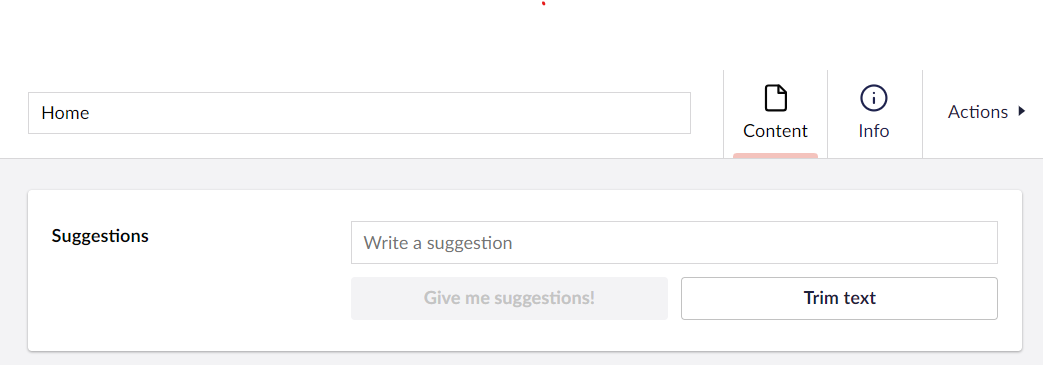
8. Go to the **Content** section of the Backoffice to see the new changes in the property editor:
Suggestions Property Editor with disabled suggestions option
## Going further
The Data Type now has configuration options wired up to the Property Editor. The next part covers integrating context with the Property Editor.
---
# Agent Instructions
This documentation is published with GitBook. GitBook is the documentation platform designed so that both humans and AI agents can read, navigate, and reason over technical content effectively. Learn more at gitbook.com.
## Querying This Documentation
If you need additional information that is not directly available in this page, you can query the documentation by asking a question.
Perform an HTTP GET request on the following URL with the `ask` and `goal` query parameters:
```
GET https://docs.umbraco.com/umbraco-cms/17.latest/extend-your-project/tutorials/creating-a-property-editor/adding-configuration-to-a-property-editor.md?ask=&goal=
```
`ask` is the immediate question: it should be specific, self-contained, and written in natural language.
`goal` is what the user is ultimately trying to achieve, the reason they need the answer. Sharing it helps GitBook give you a better, more relevant answer. A goal is most helpful when it describes the outcome the user wants rather than restating the question. For example, with `ask=how do I create an API token`, a goal like `automate deployments from our CI pipeline` lets GitBook tailor the answer to that use case.
The response will contain a direct answer to the question and relevant excerpts and sources from the documentation.
Use this mechanism when the answer is not explicitly present in the current page, you need clarification or additional context, or you want to retrieve related documentation sections.