> For the complete documentation index, see [llms.txt](https://docs.umbraco.com/llms.txt). Markdown versions of documentation pages are available by appending `.md` to page URLs; this page is available as [Markdown](https://docs.umbraco.com/umbraco-cms/17.latest/manage-and-publish-content/publishing-and-workflow/editorial-tools/dictionary-items.md).
# Dictionary Items
Creating Dictionary Items in Umbraco
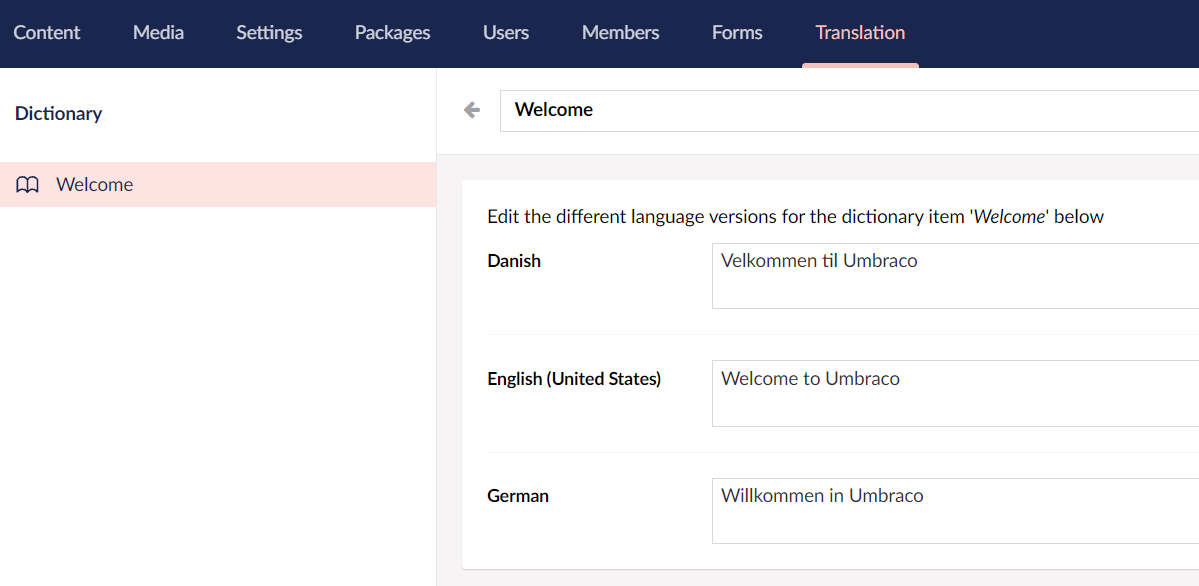
There might be text on your site — like labels or static text — that isn't part of your content but still needs translation. Using Dictionary Items, you can store a value for each language. Dictionary Items have a unique key, which is the **Name** you give them. This key is used to reference the item elsewhere.
Dictionary Items are managed from the **Translation** section.
## Adding a Dictionary Item
To add a Dictionary Item:
1. Go to the **Translation** section.
2. Click on **Dictionary** in the **Translation** tree and select **Create**.
3. Enter the **Name** for the dictionary item. Let's say *Welcome*.
4. Enter the values for the different language versions.
5. Click **Save**.
### Grouping Dictionary Items
To group dictionary items:
1. Go to the **Translation** section.
2. Click on **Dictionary** in the **Translation** tree and select **Create**.
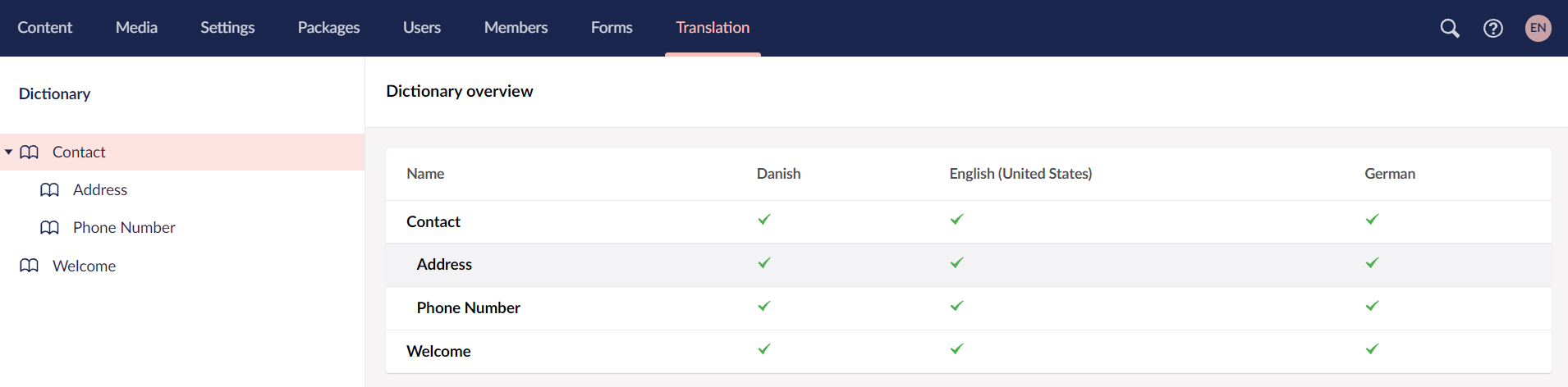
3. Enter the **Name** for the dictionary item. Let's say *Contact*.
4. Click **Create**.
5. Click on **Contact** and select **Create**.
6. Enter the **Name** of the item to be created under the **Contact** group.
7. Click **Create**.
8. Enter the values for the different language versions.
9. Click **Save**.
## Editing Dictionary Items
To edit a dictionary item, follow these steps:
1. Go to the **Translation** section.
2. Use the **Dictionary** tree to locate the item you need to update/edit.
* Alternatively, you can use the *search field* in the top-right corner.
3. Make the edits you need to make.
4. Click **Save** to save the changes.
{% hint style="info" %}
It will only be possible to edit the language(s) that the given user has access to. The value of the remaining languages will be *read-only*.
Which language a user has access to is determined by the "Language permissions" set on the User Group. Learn more about this feature in the [Users](/umbraco-cms/17.latest/manage-and-publish-content/users-and-members/users.md#creating-a-user-group) article.
{% endhint %}
## Importing and exporting Dictionary Items
In some cases, you might want to use the same Dictionary Items on multiple Umbraco websites. For this, you can use the export and import functionality to quickly copy the items from one website to another.
### Exporting Dictionary Items
1. Go to the **Translation** section in the Umbraco backoffice.
2. Locate the Dictionary Item (or group) you want to copy in the section tree.
3. Click **...** next to the Dictionary item (or group).
4. Select **Export...**.
5. Decide whether you want to also include descendants.
6. Click **Export**.
This will download a `.udt` file which you can use to import the Dictionary items on another Umbraco website.

### Importing Dictionary Items
1. Go to the **Translation** section in the Umbraco backoffice.
2. Click **...** next to the **Dictionary** tree.
3. Select **Import...**.
4. Click on **Import**.
5. Find and select the `.udt` file containing the Dictionary Items.
6. Click **Open** in the file browser.
7. Review the Dictionary Items for import.
8. Choose where to import the items.
9. Click on **Import**.
The Dictionary Items have now been added to your website.

## Using Dictionary Items in Templates
A developer can reference a Dictionary Item from a template using its key. For example, the following renders the value of a Dictionary Item named *Welcome*:
```csharp
@Umbraco.GetDictionaryValue("Welcome")
```
{% hint style="info" %}
Adding Dictionary Items to templates is a development task. For the full set of options, including how to specify a fallback value, see [Fetching Dictionary Values](/umbraco-cms/17.latest/develop-with-umbraco/templating-and-rendering/querying/umbracohelper.md#fetching-dictionary-values).
{% endhint %}
## Using Dictionary Item in a Multilingual website
To use Dictionary Items in a multilingual website, see the [Creating a Multilingual Site](/umbraco-cms/17.latest/develop-with-umbraco/tutorials/multilanguage-setup.md) article.
## Related Links
* [Creating a Multilingual Site](/umbraco-cms/17.latest/develop-with-umbraco/tutorials/multilanguage-setup.md)
---
# Agent Instructions
This documentation is published with GitBook. GitBook is the documentation platform designed so that both humans and AI agents can read, navigate, and reason over technical content effectively. Learn more at gitbook.com.
## Querying This Documentation
If you need additional information that is not directly available in this page, you can query the documentation by asking a question.
Perform an HTTP GET request on the following URL with the `ask` and `goal` query parameters:
```
GET https://docs.umbraco.com/umbraco-cms/17.latest/manage-and-publish-content/publishing-and-workflow/editorial-tools/dictionary-items.md?ask=&goal=
```
`ask` is the immediate question: it should be specific, self-contained, and written in natural language.
`goal` is what the user is ultimately trying to achieve, the reason they need the answer. Sharing it helps GitBook give you a better, more relevant answer. A goal is most helpful when it describes the outcome the user wants rather than restating the question. For example, with `ask=how do I create an API token`, a goal like `automate deployments from our CI pipeline` lets GitBook tailor the answer to that use case.
The response will contain a direct answer to the question and relevant excerpts and sources from the documentation.
Use this mechanism when the answer is not explicitly present in the current page, you need clarification or additional context, or you want to retrieve related documentation sections.