> For the complete documentation index, see [llms.txt](https://docs.umbraco.com/llms.txt). Markdown versions of documentation pages are available by appending `.md` to page URLs; this page is available as [Markdown](https://docs.umbraco.com/umbraco-cms/extend-your-project/backoffice-extensions/extending-overview/extension-types/dashboard.md).
# Dashboards
A guide to creating custom dashboards in Umbraco
Each section of the Umbraco backoffice has its own set of default dashboards. Your own custom sections can show dashboards, and you can create your own custom dashboards for existing sections.
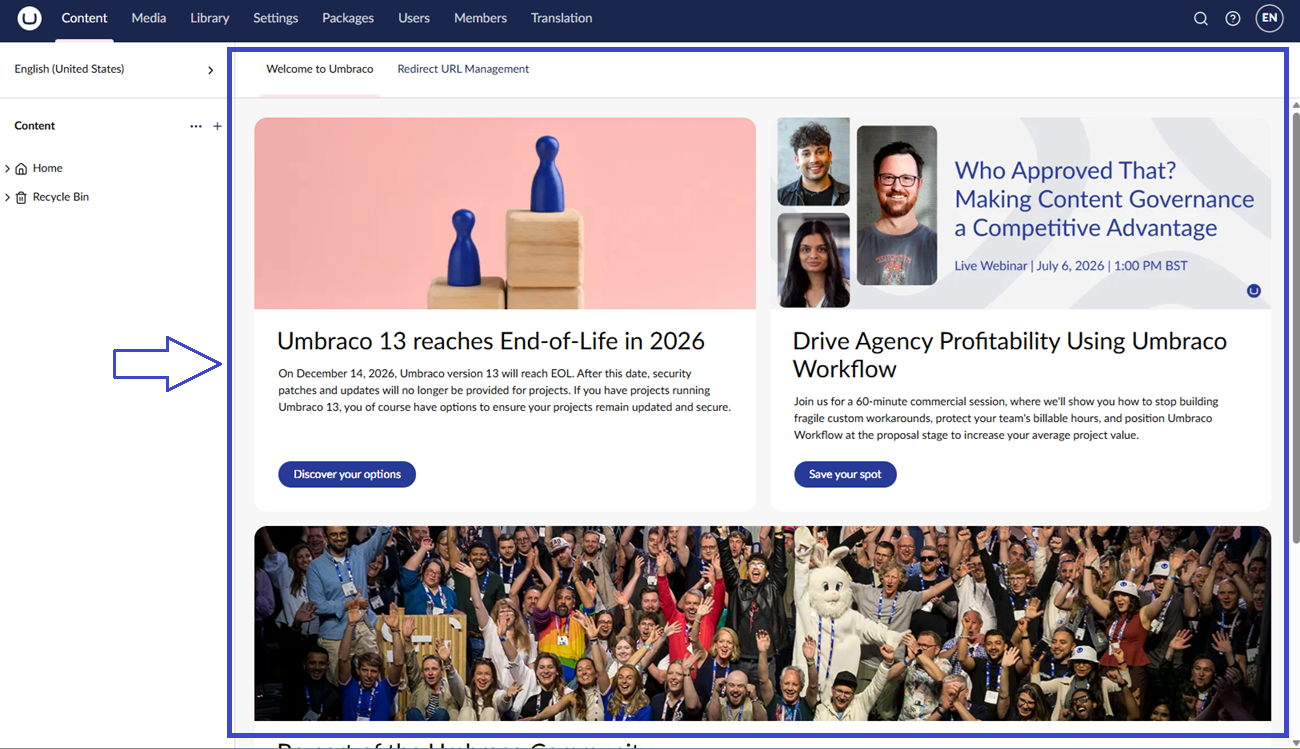
The Getting Started dashboard in Umbraco
The dashboard area of Umbraco is used to display an "editor" for the selected item in the tree. If no item is selected, then the default set of section dashboards is shown in the dashboard area.
Notice that [Section Views](/umbraco-cms/extend-your-project/backoffice-extensions/extending-overview/extension-types/sections/section-view.md) is another similar approach to append information to the root of a Section. Section views are thought mainly to be used as Secondary pages. These two approaches should ideally not be combined.
## Default Dashboards in Umbraco
The default dashboards in Umbraco are the ones that are displayed when you first enter a section in the backoffice. These dashboards are used to display information and functionality that is relevant to the section you are in.
The default sections in Umbraco are:
| Alias | Name |
| ----------------------- | ---------- |
| Umb.Section.Content | Content |
| Umb.Section.Media | Media |
| Umb.Section.Library | Elements |
| Umb.Section.Settings | Settings |
| Umb.Section.Members | Members |
| Umb.Section.Users | Users |
| Umb.Section.Translation | Dictionary |
Here is a table of the default dashboards in Umbraco and the sections they are used including their aliases:
| Alias | Section | Weight | Description |
| -------------------------------- | -------------------- | ------ | ------------------------------------------------------------------------------------------------------------------------------------------------ |
| Umb.Dashboard.UmbracoNews | Umb.Section.Content | 20 | The Getting Started dashboard users see when they first enter Umbraco. Contains the latest news of Umbraco including outbound links to resources |
| Umb.Dashboard.RedirectManagement | Umb.Section.Content | 10 | Contains a list of active URL redirects |
| Umb.Dashboard.SettingsWelcome | Umb.Section.Settings | 500 | Contains a set of boxes with links to appropriate resources |
Even though these dashboards are useful, you might want to create your own custom dashboard to display specific information or functionality.
You can try and [create a custom dashboard](/umbraco-cms/extend-your-project/tutorials/creating-a-custom-dashboard.md) as a way on getting started on this topic.
### Hiding or adding conditional rules to existing dashboards
You might need to hide or add conditions to existing dashboards. Common use cases include hiding the Getting Started dashboard or restricting the Redirect Management dashboard to Admin users only.
To do this, you will first need to [create an extension](/umbraco-cms/extend-your-project/tutorials/creating-your-first-extension.md). For this example, which implements dashboard customizations, a descriptive name like `DashboardCustomization` works well:
{% code title="\~/App\_Plugins/DashboardCustomization/umbraco-package.json" lineNumbers="true" %}
```json
{
"name": "DashboardCustomization",
"version": "1.0.0",
"extensions": [
{
"type": "backofficeEntryPoint",
"alias": "DashboardCustomization.EntryPoint",
"name": "Dashboard Customization Entry Point",
"js": "/App_Plugins/DashboardCustomization/dashboards-setup.js"
}
]
}
```
{% endcode %}
Use the `onInit` function to configure the dashboard removal and customization. The optional `onUnload` function can clean up any customizations when the extension is disposed:
{% code title="\~/App\_Plugins/DashboardCustomization/dashboards-setup.js" lineNumbers="true" %}
```js
export const onInit = (host, extensionRegistry) => {
// Remove Getting Started dashboard for all users
extensionRegistry.exclude('Umb.Dashboard.UmbracoNews');
// Restrict Redirect Management dashboard to Admin users only
extensionRegistry.appendCondition('Umb.Dashboard.RedirectManagement', {
alias: 'Umb.Condition.CurrentUser.IsAdmin'
});
}
/**
* Optional: Perform cleanup when the extension is unloaded
*/
export const onUnload = (host, extensionRegistry) => {
// Note: In most cases, cleanup is not necessary as the extension registry
// handles this automatically when the backoffice reloads
}
```
{% endcode %}
#### Restricting to specific user groups
To allow multiple user groups (for example, Admin or a custom group), use the `Umb.Condition.CurrentUser.GroupId` condition with the `oneOf` parameter:
{% code title="\~/App\_Plugins/DashboardCustomization/dashboards-setup.js" lineNumbers="true" %}
```js
export const onInit = (host, extensionRegistry) => {
extensionRegistry.appendCondition('Umb.Dashboard.RedirectManagement', {
alias: 'Umb.Condition.CurrentUser.GroupId',
oneOf: [
'CUSTOM-GROUP-GUID-1-HERE',
'CUSTOM-GROUP-GUID-2-HERE'
]
});
};
```
{% endcode %}
You can find user group GUIDs in the **Users > User Groups** section of the backoffice.
Read more about the available conditions:
{% content-ref url="/pages/dZcn3pcvFTGxZliinCzN" %}
[Extension Conditions](/umbraco-cms/extend-your-project/backoffice-extensions/extending-overview/extension-types/condition.md)
{% endcontent-ref %}
## Registering your Dashboard
This section dives into the Dashboard Extension Manifest, shows how to register one, and append additional details.
### Example Extension Manifest
{% hint style="info" %}
You can read more about manifests in the tutorial [Creating Your First Extension](/umbraco-cms/extend-your-project/tutorials/creating-your-first-extension.md).
{% endhint %}
Insert this as an entry in the `extensions` list in a `umbraco-package.json` file.
{% code title="\~/App\_Plugins/WelcomeDashboard/umbraco-package.json" lineNumbers="true" %}
```json
{
"type": "dashboard",
"alias": "my.welcome.dashboard",
"name": "My Welcome Dashboard",
"element": "/App_Plugins/WelcomeDashboard/dashboard.js",
"weight": -1,
"meta": {
"label": "Welcome Dashboard",
"pathname": "welcome-dashboard"
}
}
```
{% endcode %}
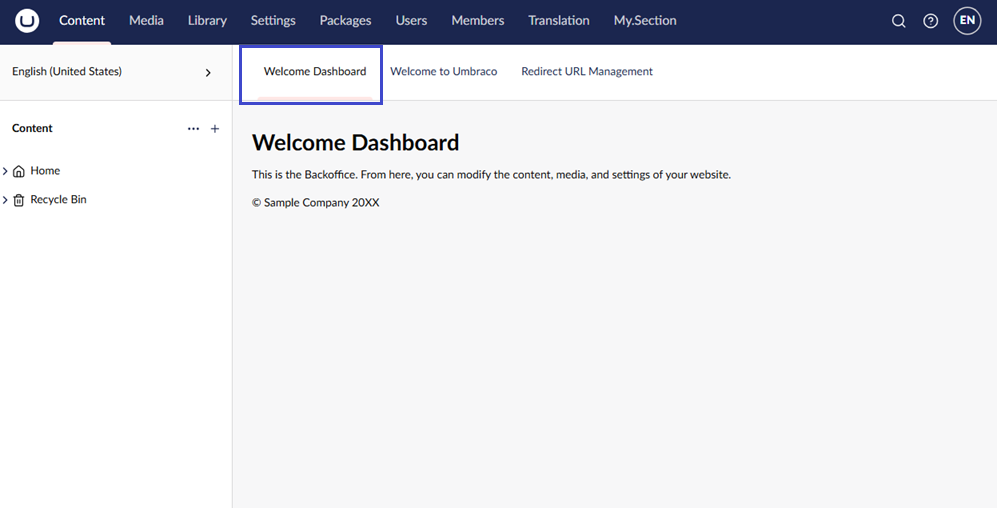
This will register a dashboard with the alias `my.welcome.dashboard` and the name `My Welcome Dashboard`. The dashboard will be loaded from the file `/App_Plugins/WelcomeDashboard/dashboard.js`. The dashboard will be displayed with the label `Welcome Dashboard` and the URL `/welcome-dashboard` on *all sections*, e.g. `/section/content/dashboard/welcome-dashboard`.
### Conditions
You can specify conditions for when the dashboard should be displayed. This is done by adding a `conditions` property to the manifest. Ideally, we would like the dashboard to be shown only in a specific section. This can be done by specifying the condition called `Umb.Condition.SectionAlias` and providing the [alias of the section](#default-dashboards-in-umbraco) you want the dashboard to be displayed on:
```json
"conditions": [
{
"alias": "Umb.Condition.SectionAlias",
"match": "Umb.Section.Content"
}
]
```
This will make the dashboard only be displayed on the Content section.
{% hint style="info" %}
You can read more about [Extension Conditions](/umbraco-cms/extend-your-project/backoffice-extensions/extending-overview/extension-types/condition.md) in the documentation.
{% endhint %}
### Properties
The dashboard manifest can contain the following properties:
| Property | Type | Description |
| ----------- | ------ | -------------------------------------------------------------------------------------------------------------------------------------------------------------------------- |
| type | string | The type of extension, should be `dashboard` |
| alias | string | A unique alias for the dashboard extension |
| name | string | The name of the dashboard extension |
| element | string | The path to the JavaScript file that exports the dashboard |
| elementName | string | (Optional) The name of the Web Component that contains the dashboard (only if not a default export) |
| weight | number | (Optional) The weight of the dashboard, higher numbers are displayed first |
| meta | object | Additional metadata for the dashboard |
| Property | Type | Description |
| Label | string | The label shown to the user |
| pathname | string | The routable URL pathname |
| conditions | array | (Optional) [Conditions](/umbraco-cms/extend-your-project/backoffice-extensions/extending-overview/extension-types/condition.md) for when the dashboard should be displayed |
### Full Example
{% code title="\~/App\_Plugins/WelcomeDashboard/umbraco-package.json" lineNumbers="true" %}
```json
{
"type": "dashboard",
"alias": "my.welcome.dashboard",
"name": "My Welcome Dashboard",
"element": "/App_Plugins/WelcomeDashboard/dashboard.js",
"weight": -1,
"meta": {
"label": "Welcome Dashboard",
"pathname": "welcome-dashboard"
},
"conditions": [
{
"alias": "Umb.Condition.SectionAlias",
"match": "Umb.Section.Content"
}
]
}
```
{% endcode %}
The Welcome Dashboard appears in the Content section
You can learn about [creating a custom dashboard](/umbraco-cms/extend-your-project/tutorials/creating-a-custom-dashboard.md) in the tutorials section. Here you will learn how to build the dashboard itself as a Web Component.
---
# Agent Instructions
This documentation is published with GitBook. GitBook is the documentation platform designed so that both humans and AI agents can read, navigate, and reason over technical content effectively. Learn more at gitbook.com.
## Querying This Documentation
If you need additional information that is not directly available in this page, you can query the documentation by asking a question.
Perform an HTTP GET request on the following URL with the `ask` and `goal` query parameters:
```
GET https://docs.umbraco.com/umbraco-cms/extend-your-project/backoffice-extensions/extending-overview/extension-types/dashboard.md?ask=&goal=
```
`ask` is the immediate question: it should be specific, self-contained, and written in natural language.
`goal` is what the user is ultimately trying to achieve, the reason they need the answer. Sharing it helps GitBook give you a better, more relevant answer. A goal is most helpful when it describes the outcome the user wants rather than restating the question. For example, with `ask=how do I create an API token`, a goal like `automate deployments from our CI pipeline` lets GitBook tailor the answer to that use case.
The response will contain a direct answer to the question and relevant excerpts and sources from the documentation.
Use this mechanism when the answer is not explicitly present in the current page, you need clarification or additional context, or you want to retrieve related documentation sections.