> For the complete documentation index, see [llms.txt](https://docs.umbraco.com/llms.txt). Markdown versions of documentation pages are available by appending `.md` to page URLs; this page is available as [Markdown](https://docs.umbraco.com/umbraco-engage/marketers-and-editors/settings/suspicious-activity.md).
# Suspicious Activity
Umbraco Engage flags visitors with an unusually high number of pageviews, so you can review and reclassify them as bots.
Suspicious Activity surfaces visitors whose traffic pattern doesn't look human, so you can keep your analytics accurate.
## Accessing suspicious activity
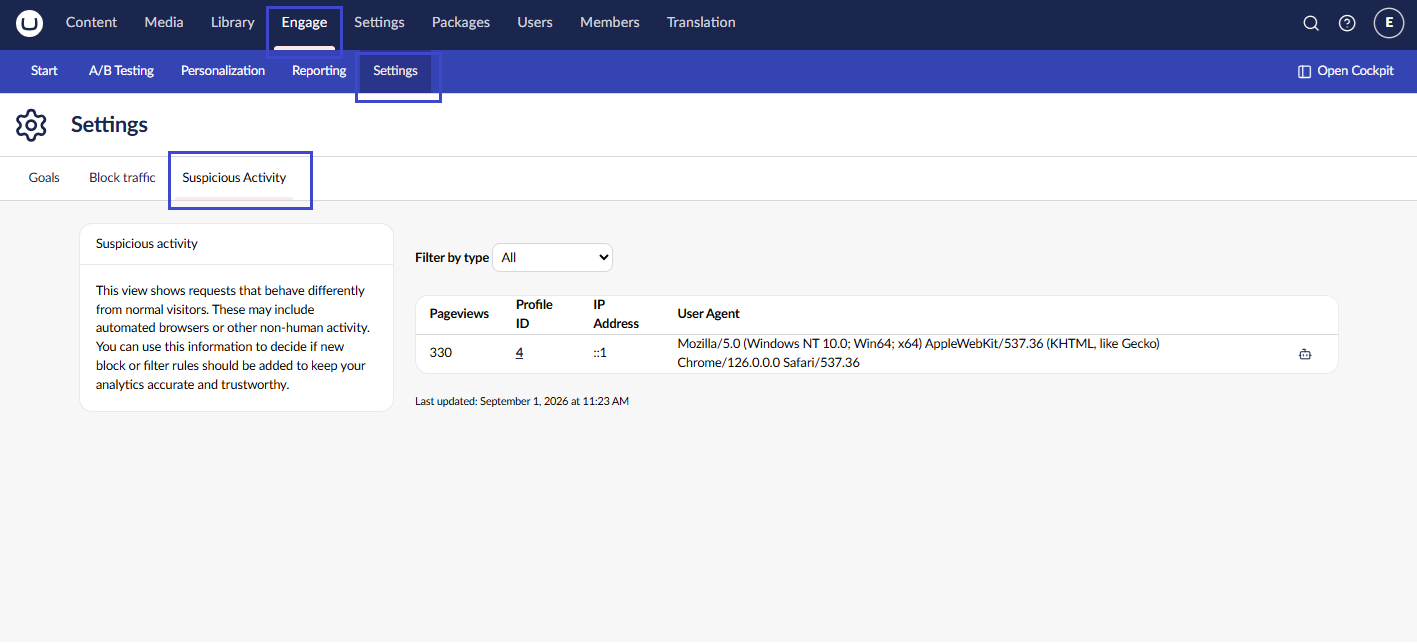
To access Suspicious Activity, go to **Engage > Settings > Suspicious Activity**.
The view lists visitors whose pageview count reaches or exceeds a configurable threshold (250 by default). For each visitor, you can see:
* **Pageviews**: The visitor's total pageview count.
* **Profile ID**: Links to the visitor's [Profile detail](/umbraco-engage/marketers-and-editors/profiling/profile-detail.md) view.
* **IP Address**: The visitor's most recent IP address.
* **User Agent**: The visitor's most recent user agent string.
The built-in **Anonymous Visitor** is excluded from this list.
{% hint style="info" %}
This view reads from Engage's reporting data. If you don't see visitors you expect, the reporting job may not have run yet. You can trigger it manually from the Umbraco **Settings** section, under **Configuration** > **Reporting** > **Regenerate reporting data**.
{% endhint %}
## Filtering by type
Use the **Filter by type** dropdown to filter the list:
* **All**: Every visitor over the threshold.
* **Real visitors**: Visitors still classified as a person.
* **Bots & excluded**: Visitors marked as a bot, plus visitors Engage detected automatically as a monitor or spam. Those rows have no toggle icon.
## Marking a visitor as a bot
If a visitor's traffic looks automated, mark them as a bot directly from the table:
1. Find the visitor's row.
2. Select the bot icon at the end of the row.
The icon's tooltip reflects the visitor's current state. **Mark as bot** if they're currently classified as a person, or **Revert to person** if they're already marked as a bot. Selecting it toggles between the two.
Marking a visitor as a bot only changes the visitor's type. It does not delete any data and it does not create a Block Traffic rule. The visitor's pageviews are left out of the reports after the next nightly reporting run.
Reclassifying a visitor updates the **Filter by type** results immediately. The visitor's status such as Person/Bot is also counted under **Settings > Configuration > Statistics**.
## Changing the pageview threshold
The number of pageviews that triggers a visitor's inclusion in this list defaults to 250. You can view the current value under **Settings > Configuration > General** (in the main Umbraco **Settings** section), in the **Suspicious Activity** section. This field is read-only in the backoffice.
To change the value, set it in `appsettings.json`:
```json
{
"Umbraco": {
"CMS": { ... }
},
"Engage": {
"Settings": {
"SuspiciousActivity": {
"PageviewThreshold": 100
}
}
},
"ConnectionStrings": { ... }
}
```
{% hint style="warning" %}
This change requires a website restart to take effect.
{% endhint %}
---
# Agent Instructions
This documentation is published with GitBook. GitBook is the documentation platform designed so that both humans and AI agents can read, navigate, and reason over technical content effectively. Learn more at gitbook.com.
## Querying This Documentation
If you need additional information that is not directly available in this page, you can query the documentation by asking a question.
Perform an HTTP GET request on the following URL with the `ask` and `goal` query parameters:
```
GET https://docs.umbraco.com/umbraco-engage/marketers-and-editors/settings/suspicious-activity.md?ask=&goal=
```
`ask` is the immediate question: it should be specific, self-contained, and written in natural language.
`goal` is what the user is ultimately trying to achieve, the reason they need the answer. Sharing it helps GitBook give you a better, more relevant answer. A goal is most helpful when it describes the outcome the user wants rather than restating the question. For example, with `ask=how do I create an API token`, a goal like `automate deployments from our CI pipeline` lets GitBook tailor the answer to that use case.
The response will contain a direct answer to the question and relevant excerpts and sources from the documentation.
Use this mechanism when the answer is not explicitly present in the current page, you need clarification or additional context, or you want to retrieve related documentation sections.