> For the complete documentation index, see [llms.txt](https://docs.umbraco.com/llms.txt). Markdown versions of documentation pages are available by appending `.md` to page URLs; this page is available as [Markdown](https://docs.umbraco.com/umbraco-forms/13.latest/editor/creating-a-form/conditional-logic.md).
# Setting-up Conditional Logic on Fields
Sometimes you might have a field in your Form, that you want to show *only* if the user has entered a specific value in another field.
You can achieve this setting by using **conditional logic** on Fields.
## Example
Take a look at the following:

In this case, it makes sense to **only** show the email or phone field when the corresponding option is selected in the **How should we contact you?** field.
To enable conditions for the **Email** and **Phone** fields, do the following:
1. Click the `cog` wheel next to the **Email** and **Phone** field. The **Edit question** dialog opens.
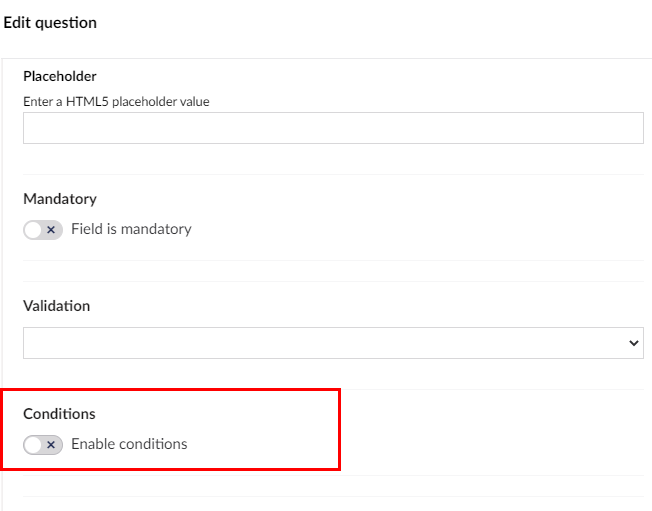
2. Select **Enable Conditions** in the **Conditions** section.
3. Enabling the condition field displays more options:
4. Set the appropriate conditions and click **Submit**.
### Action and Logic Types
There are two **Action Types**:
* Show: the field will be displayed if the rules match
* Hide: the field will be hidden if the rules match
Next up, you'll need to specify the **Logic Type**. This setting is only important if you have multiple rules.
* All: All of the rules must match
* Any: Any of the rules may match
## Adding a new condition
When adding a new condition, you'll need to select the field where you want to evaluate the value and can select an operator.
In this example, we only want to show the **Phone** field if the value of the **How should we contact you** field is `Phone`.
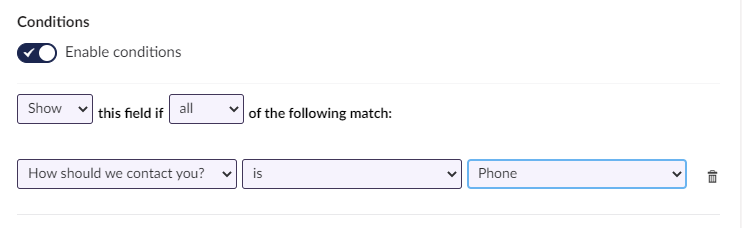
Similarly, you can display the **Email** field, if the value of the **How should we contact you** field is `Email`. You can see the conditions added to each field in the Forms designer:

## Result
When both the conditions have been set as shown above, this is how it will look on the frontend:

In this example, we have only selected **Phone** but it is possible to choose both *Phone*\* and **Email** and display both the fields.
## Conditions for Pages and Fieldsets
As well as showing or hiding a field based on conditions, you can also apply conditions to groups of fields (known as fieldsets) or to pages. The process is the same as described above.
When applying a condition to a page, effectively you are controlling the display of the submit button (for a single-page form) or the next/previous buttons (available on multi-page forms). In this way you can ensure that the entry so far is complete before accepting it or allowing the user to move onto the next page.
## Conditions for Dates
You can apply conditions to dates as well as strings. When you use the date picker field, you can set a condition if a submitted date is greater/less than a specific date.
---
# Agent Instructions
This documentation is published with GitBook. GitBook is the documentation platform designed so that both humans and AI agents can read, navigate, and reason over technical content effectively. Learn more at gitbook.com.
## Querying This Documentation
If you need additional information that is not directly available in this page, you can query the documentation dynamically by asking a question.
Perform an HTTP GET request on the current page URL with the `ask` query parameter, and the optional `goal` query parameter:
```
GET https://docs.umbraco.com/umbraco-forms/13.latest/editor/creating-a-form/conditional-logic.md?ask=&goal=
```
`ask` is the immediate question: it should be specific, self-contained, and written in natural language.
`goal` is optional and describes the broader end goal you are ultimately trying to accomplish on behalf of the user. GitBook uses it to tailor the answer towards what is most useful for that goal.
The response will contain a direct answer to the question and relevant excerpts and sources from the documentation.
Use this mechanism when the answer is not explicitly present in the current page, you need clarification or additional context, or you want to retrieve related documentation sections.