> For the complete documentation index, see [llms.txt](https://docs.umbraco.com/llms.txt). Markdown versions of documentation pages are available by appending `.md` to page URLs; this page is available as [Markdown](https://docs.umbraco.com/umbraco-cloud/begin-your-cloud-journey/the-cloud-portal/organizations/organization-login-providers.md).
# Organization Login Providers
Learn how to configure and use external login providers via your Umbraco Cloud organization.
The External Login Providers feature in Umbraco Cloud enables you to integrate third-party authentication systems for managing Portal user logins securely and efficiently. This functionality is built for teams that want to manage login using an existing identity setup.
Using OpenID Connect, Umbraco Cloud supports external login providers like Microsoft Entra ID, Auth0, and Google. The feature helps administrators manage backoffice access, assign user roles, and improve security.
{% hint style="info" %}
This is exclusively for Cloud Portal access and access to Project features only available within the portal. [You can see how to set up External Login Providers for the Backoffice on Cloud Projects in this article](/umbraco-cloud/begin-your-cloud-journey/project-features/external-login-providers.md).
{% endhint %}
## External Login Providers
{% hint style="info" %}
The Organization Areas are only available for users logged in with Umbraco ID. Additionally, the Login Providers Section can only be accessed by a user who has Admin rights to the Organization.
{% endhint %}
This guide shows you how to set up and configure external login providers for the Cloud Portal, including related Project Permissions. It includes the following steps:
1. [Prepare your Login Provider](#prepare-your-login-provider)
2. [Register the login provider in the Cloud Portal](#register-the-login-provider-in-the-cloud-portal)
### Prepare your Login Provider
{% tabs %}
{% tab title="Microsoft Entra ID" %}
1. Access the Microsoft Azure Portal.
2. Locate the Microsoft Entra ID and enter your tenant.
3. Select **Add**.

4. Choose **App registration**.
5. Register your app.
* Ignore the Redirect URI as that will be covered later in the guide.
6. Click **Register**.
Once the app has been registered, locate and note down the following keys.
* **Application (client) ID** - found on the **Overview** page for the app.
* **Authority URL** - available from **Endpoints** on the **Overview** page.
* **Client Secret** - needs to be generated on the **Certificates & Secrets** page.
These keys will be used to set up the login provider on Umbraco Cloud.
{% hint style="info" %}
**Enterprise or custom setup**
When working with an enterprise or a custom setup, ensure that the email claim is included in the ID token configuration.
{% endhint %}
{% endtab %}
{% tab title="Auth0" %}
1. Access your Auth0 dashboard.
2. Navigate to **Applications**.
3. Select **Create Application**.

4. Give the application a name and select **Regular Web Application**.
5. Go to the **Settings** section.
6. Identify and note down the following keys:
* **Domain URL** (Authority URL)
* **Client Id**
* **Client Secret**
{% endtab %}
{% tab title="Google Authentication" %}
1. Access the Google Developer Console.
2. Select **Create Project** and give it a name.
3. Go to the **OAuth consent screen** page.
4. Select the **Internal** User Type and click **Create**.
5. Fill in the required information.
6. Add **Authorized domains** from where login should be allowed.
7. Click **Save and continue**.
8. Navigate to **Credentials**.
9. Select **+ Create Credentials** and choose **OAuth client ID**.
10. Choose **Web Application** as the application type.
11. Fill in the required fields.
12. Click **Save** to complete creating the credentials.
Before you move on, take note of the following keys:
* **Client ID** (generated through the steps above)
* **Client Secret** (generated through the steps above)
* **Authority URL** (`https://accounts.google.com`)
{% endtab %}
{% endtabs %}
Once you have the keys from your login provider, follow the next steps in the Umbraco Cloud Portal.
Keep the configuration for your login provider open, as you will come back to it later in the guide.
### Register the login provider in the Cloud Portal
1. Access the Umbraco Cloud Portal.
2. Navigate to your Organization
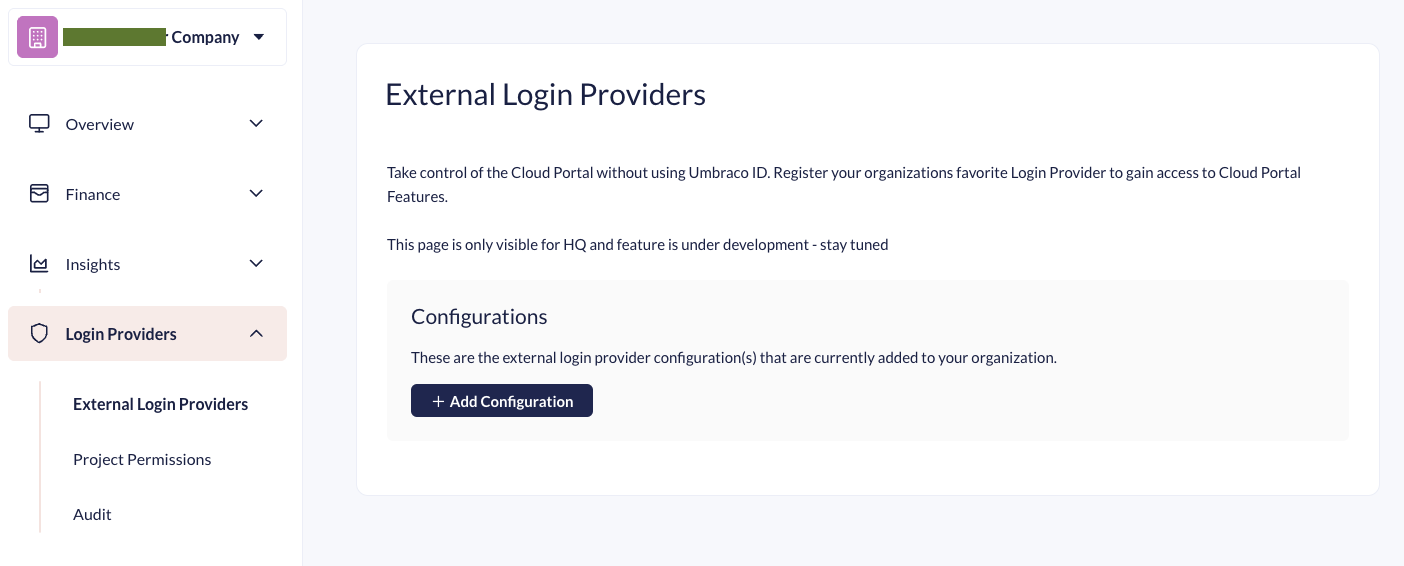
3. Navigate to **External Login Providers** page under the **Login Provider** section.
4. Select **Add Configuration**.
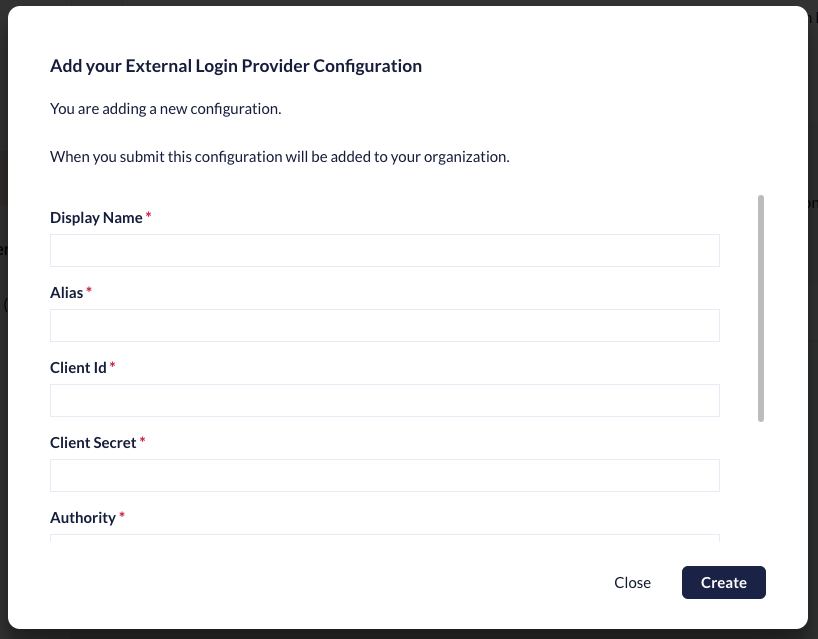
5. Fill out the fields.
* [Learn how to fill out the form](#how-to-fill-in-the-external-login-provider-configuration).
6. Click **Create** to add the new configuration.
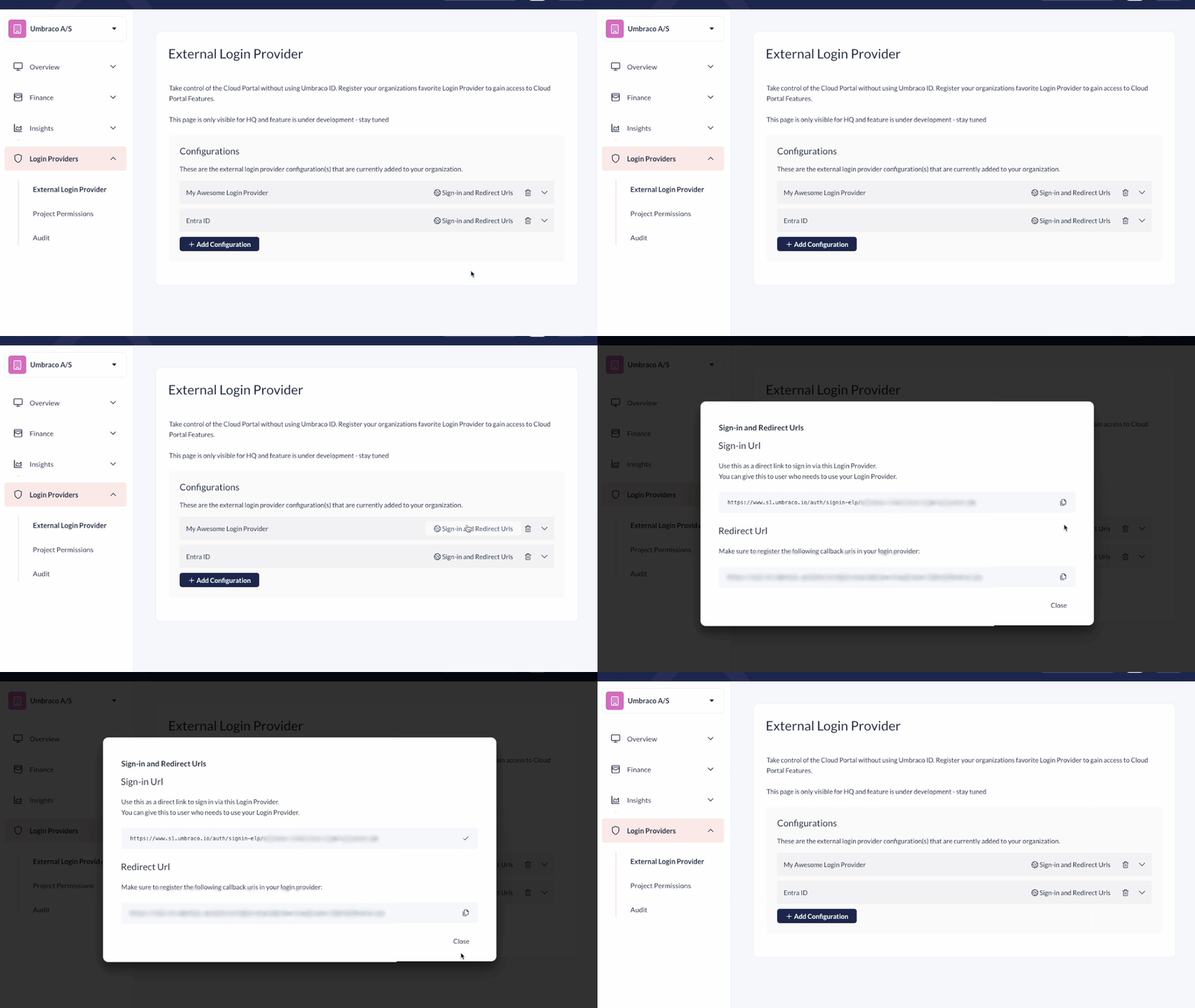
7. Click on **Sign-in and Redirect Urls**.
8. Take note of the Redirect URI.
9. Head back to the configuration for your external login provider.
{% tabs %}
{% tab title="Microsoft Entra ID" %}
1. Click on **Authentication**.
2. Select **Add a platform**.
3. Select **Web** and add the Redirect URI.
4. Add more Redirect URIs if needed.
5. Check the following options under **Implicit grant and hybrid flows**:
* Access Tokens (used for implicit flows)
* ID tokens (used for implicit and hybrid flows)
6. Click **Configure** to complete the configuration.
{% endtab %}
{% tab title="Auth0" %}
1. Navigate to the **Settings** section.
2. Scroll down to find the **Application URIs**.
3. Add the Redirect URI to the **Allowed Callback URLs**.
4. Add the Redirect URI to the **Allowed Logout URLs** as well.

5. Add more Redirect URIs if needed.
{% endtab %}
{% tab title="Google Authentication" %}
1. Open the **Credentials** created earlier through this guide.
2. Select **Add URI**.
3. Add the Redirect URI.
4. Click **Save** to complete the configuration.
{% endtab %}
{% endtabs %}
## How to fill in the External Login Provider Configuration
This section provides an overview of what type of data and information is needed for each field in the configuration form.
### Display Name
A descriptive name for the Login Provider
### Alias (required)
A unique alias for the provider in the Organization. Use only lower-case. Spaces are not allowed.
### Client Id (required)
A unique Client ID is generated in the external login provider.
* Entra ID: Guid
* Auth0: Random characters
* Google: `{randomchars}.apps.googleusercontent.com`
### Client Secret (required)
A secret that is generated in the external login provider and is associated with the Client ID.
### Authority (required)
The URL for the external login provider. This can be found in the External Login Provider.
Entra ID: `https://login.microsoftonline.com/<Directory (tenant)>` Auth0: `https://{accountId}.uk.auth0.com` Google: `https://accounts.google.com`
### Metadata Address
If you need a special metadata address for your External Login Provider, you can set it here. By default, the system resolves the metadata address from the Authority URL, making the property optional.
A common scenario for using a special metadata address is when working with Entra ID and configuring claims mapping. In this case, you must set the metadata address to the following: `https://login.microsoftonline.com/{tenant}/v2.0/.well-known/openid-configuration?appid={client-id}`.
### User Mapping Claim Name
Your provider may assign users to specific roles. For example: Read and Write.
The **User Mapping Claim Name** is the field in the authentication token (claim) that identifies these roles. The system reads this claim to determine a user's permissions.
For example, if the roles claim is called `user_roles` in your provider, you set the **User Mapping Claim Name** to `user_roles`.
{% hint style="info" %}
The **User Mapping Claim Name** setting only applies to flexible, granular access control at the project level. It does not affect organization-level roles or permissions.
If the field is left blank, the system will default to use `http://schemas.microsoft.com/ws/2008/06/identity/claims/role` as the claim name.
{% endhint %}
## Signing in using the Login Provider
When trying to access Umbraco Cloud Portal through `s1.umbraco.io`, you are greeted by an Umbraco ID sign-in screen.
To sign in with your login provider, you must use a special sign-in URL that is unique to your Login Provider.
1. Go back to Cloud Portal, where you registered the Login Provider.
2. Click on the `Sign-in and Redirect URLs` button.
How to retrive the Sign in Url
3. Give the URL to the Organization members you want to sign in using your Login Provider.
## Project Permissions
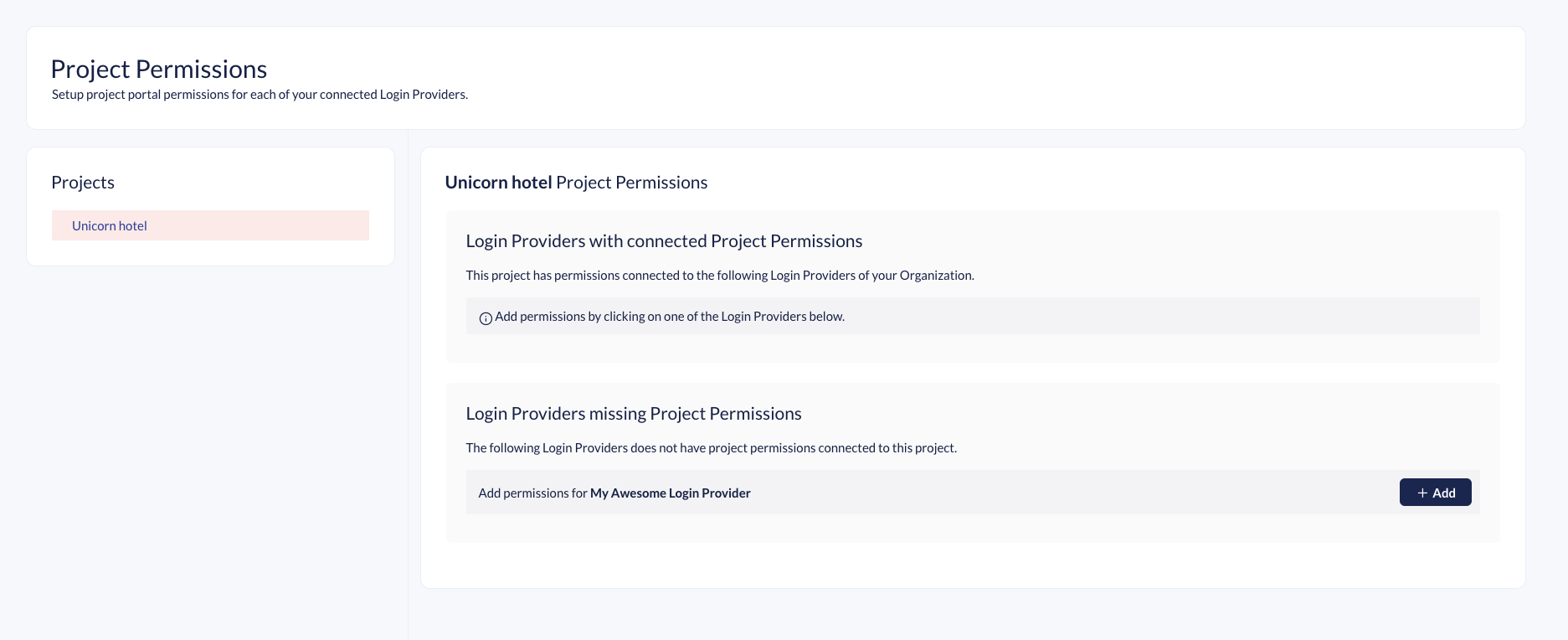
Project Permissions lets you set up access to Projects in the Portal while signed in with your Login Provider.
You must add one Project Permission model per Project and one per Login Provider. It is not required to add Project Permissions to all projects. Projects without a Project Permissions tied to a Login Provider will not be shown to a user logged in with that particular Login Provider.
Project Permission Screen
To set up Project Permission, follow these steps:
1. Select a Project on the left side of the screen.
2. Click on "+ Add" on the Login Provider you want to add Project Permissions for.
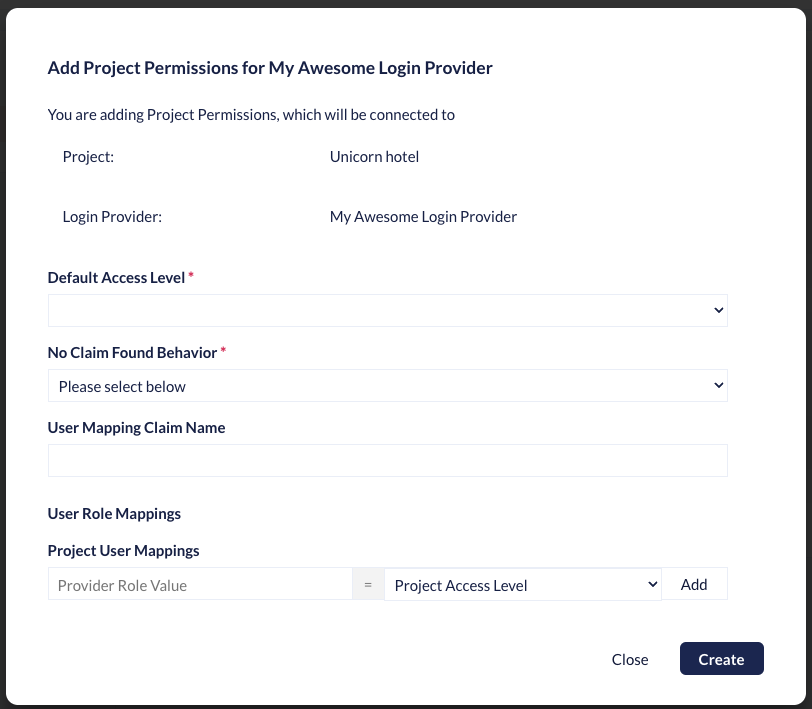
Add Project Permission
3. Fill in the fields in the modal:
* Default Access Level (required)
* No Claim Found Behavior (required)
* User Mapping Claim Name
* Project User Mappings
* Consists of two fields: "Provider Role Value" and "Project Access Level"
## How to fill in the Project Permissions
### Default Access Level
Select the level of access you want users to get for this project.
The dropdown has two possible permissions:
* Read
* Write
#### Read
A team member with Read permissions can only view the project in the portal and the backoffice. They are not able to deploy or change anything on the project itself.
#### Write
A team member with Write permissions can do everything on a project except delete it and edit the team. A user with Write permissions can deploy changes between environments through the portal.
This value is works as a fallback value and can be overwritten by the "Project User Mappings" setting. If there are no Mappings available for the user, the "No Claim Found Behavior" setting will evaluate if this fallback permission is used or "NoAccess".
### No Claim Found Behavior
This setting is used for adding granular control.
You can use the Role Claim from your Login Provider to assign Permissions to your users.
The setting has two options:
* NoAccess
* Use Default Access Level
When `NoAccess` is selected, it will block the user's access to the Project if they do not have the correct Role assigned.
Using the "Use Default Access Level" option, all users in your Login Provider will automatically get the permission you selected in "Default Access Level". The only exception is when they have a hit on the Project User Mappings.
### User Mapping Claim Name
This is used for the name of your provider's default or custom Role claim name. Use this if you want to override the one already entered in the Login Provider configuration.
### Project User Mappings
Use this to map the Provider Role Value (a role coming from your external login provider) to a Project Permission Level in the portal.
If your external login provider is configured to assign roles to users, those role values are included in the ID token. You can then use these values to automatically assign the appropriate access level when the user signs in to the portal.
For example, a role like `Happy.Write` from your identity provider could be mapped to the `Write` permission level for your Cloud project.
## Audit
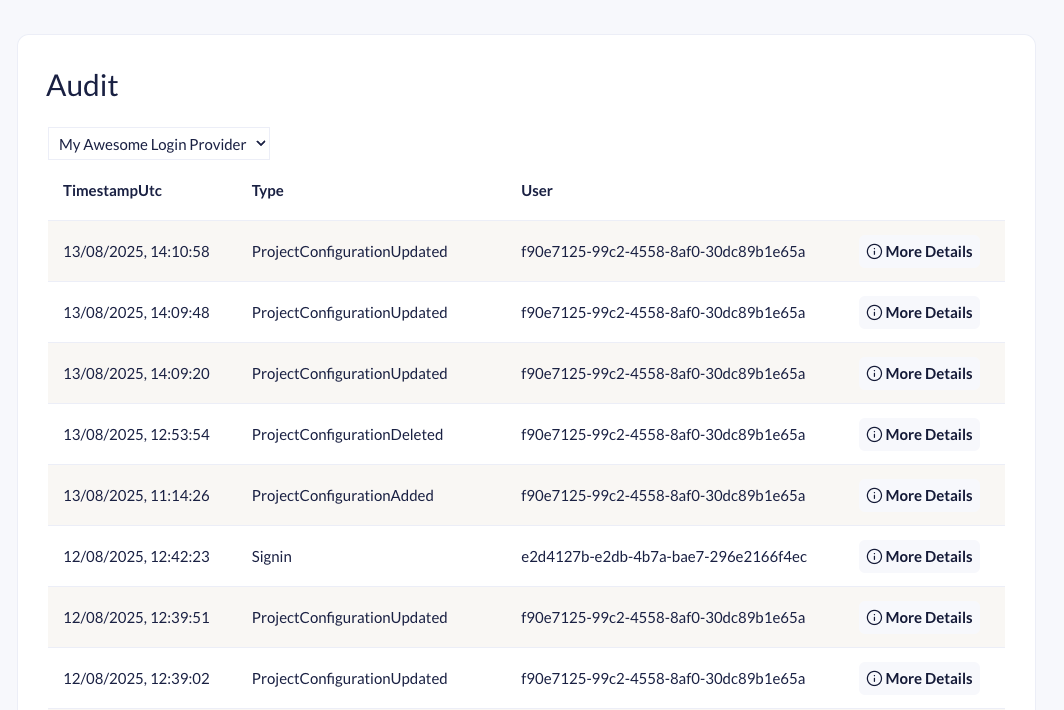
Use the Audit section to troubleshoot your Login Providers and keep an eye on user Sign-ins.
There is an audit log for each Login Provider. If you remove the Login Provider, the audit log will also disappear.
Audit page
The following audit types are listed:
| Type | Sub-Type | Description |
| ------------------------ | --------------------------- | ----------------------------------------------------------------------------- |
| User Sign-ins | - | See information about Project Permissions evaluated at the Sign-in. |
| External Login Providers | Added and Updated | Entries include the changed properties. The Client Secret is always redacted. |
| Project Permission | Added, Updated, and Deleted | Shows information on the changed properties and stored Role mapping options |
---
# Agent Instructions
This documentation is published with GitBook. GitBook is the documentation platform designed so that both humans and AI agents can read, navigate, and reason over technical content effectively. Learn more at gitbook.com.
## Querying This Documentation
If you need additional information that is not directly available in this page, you can query the documentation by asking a question.
Perform an HTTP GET request on the following URL with the `ask` and `goal` query parameters:
```
GET https://docs.umbraco.com/umbraco-cloud/begin-your-cloud-journey/the-cloud-portal/organizations/organization-login-providers.md?ask=&goal=
```
`ask` is the immediate question: it should be specific, self-contained, and written in natural language.
`goal` is what the user is ultimately trying to achieve, the reason they need the answer. Sharing it helps GitBook give you a better, more relevant answer. A goal is most helpful when it describes the outcome the user wants rather than restating the question. For example, with `ask=how do I create an API token`, a goal like `automate deployments from our CI pipeline` lets GitBook tailor the answer to that use case.
The response will contain a direct answer to the question and relevant excerpts and sources from the documentation.
Use this mechanism when the answer is not explicitly present in the current page, you need clarification or additional context, or you want to retrieve related documentation sections.