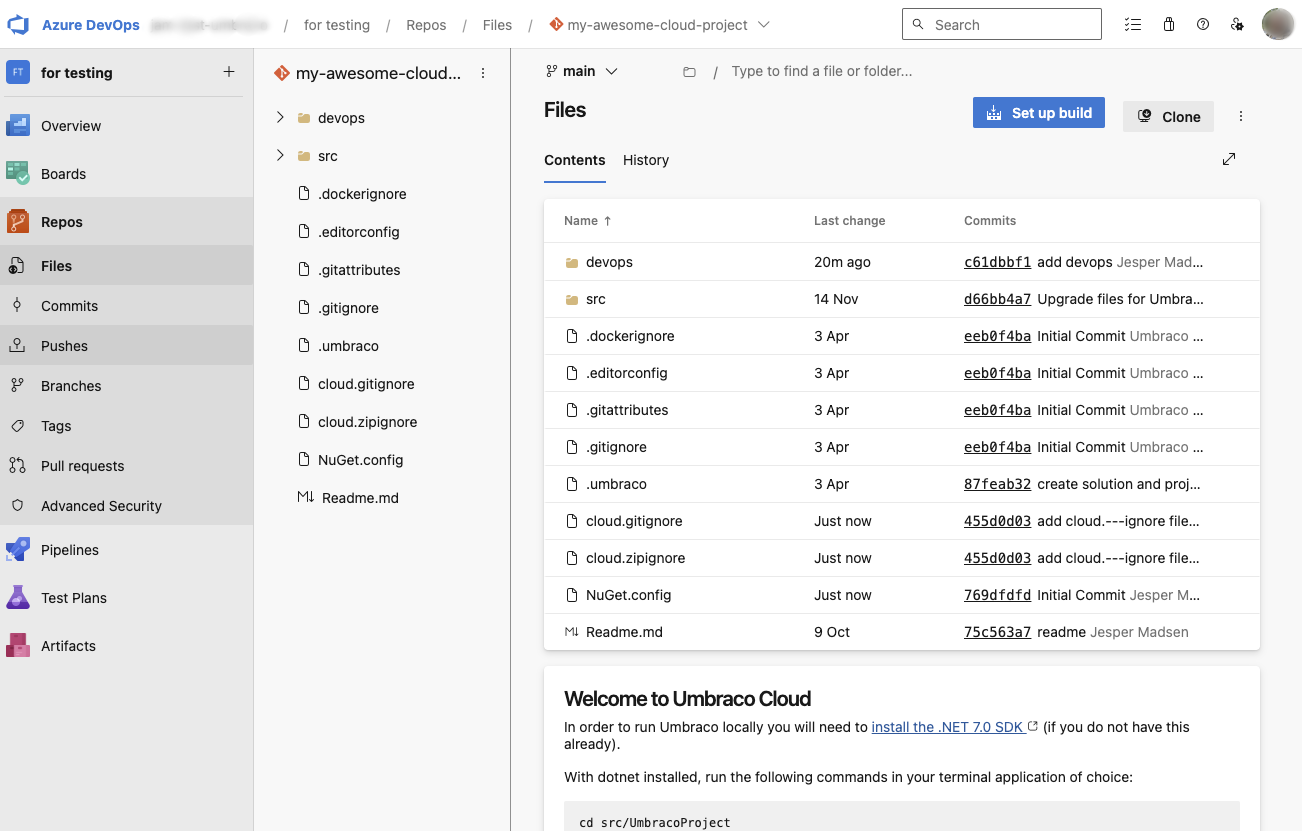
Azure DevOps Repository
Azure DevOps Repository
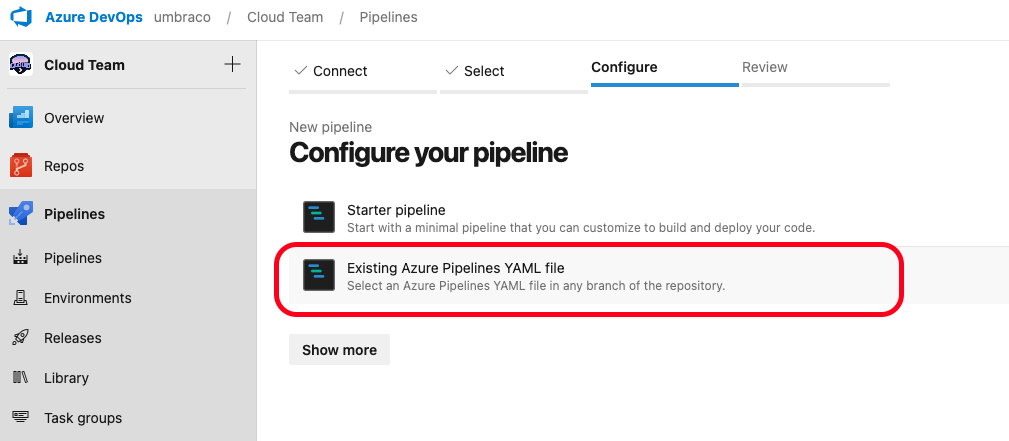
Configure pipeline with existing YAML file
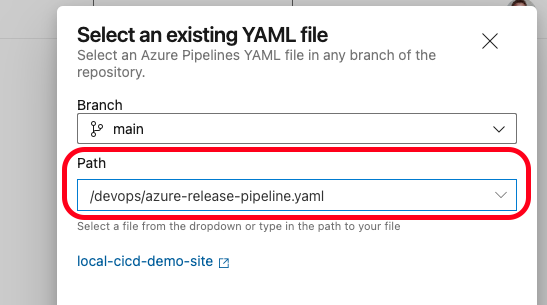
Select Branch and Path
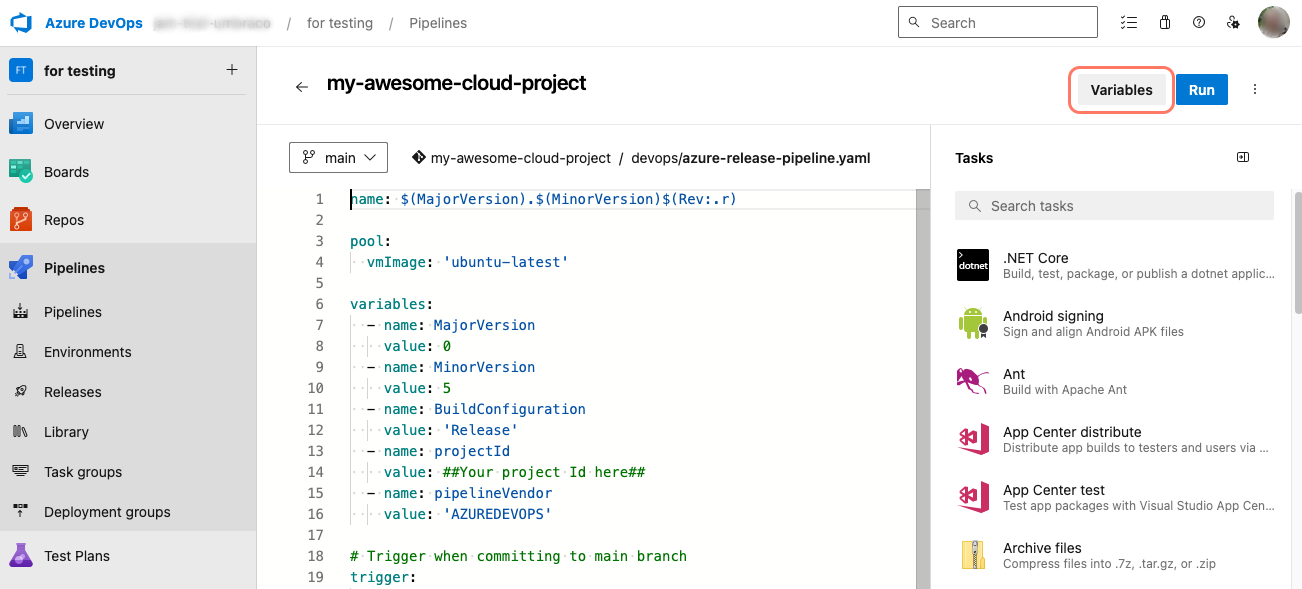
Pipeline variables in Azure DevOps
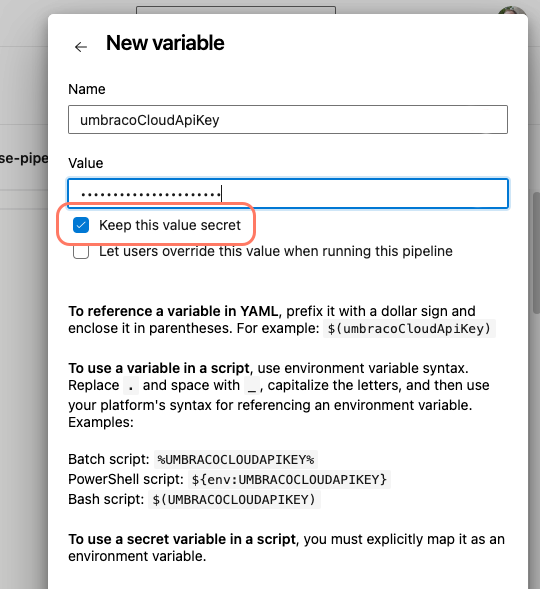 {% hint style="info" %}
You can customize the variable names as you like. However, this requires renaming the affected variables in `azure-release-pipeline.yaml`.
Check that the references to the variables in the YAML files match the variable syntaxes in the created variable. Example: `umbracoCloudApiKey` = `UMBRACOCLOUDAPIKEY`.
{% endhint %}
When you click on "Save and Run", your first deployment will be triggered. This means Azure DevOps is set up with all the required information to deploy your Cloud project back to Umbraco Cloud.
## Optional: Test the pipeline
With everything set up, it is recommended to run a test deployment to confirm that the pipeline works.
While working on your project locally:
1. Add a new Document Type.
2. Commit the change to the `main` branch and push it to your repository.
3. Wait for the pipeline to complete.
4. Log in to Backoffice on your left-most environment in Umbraco Cloud.
5. Go to the Settings section and see that your new Document Type has been deployed.
## High-level overview of the pipeline components
The mentioned scripts are provided as a starting point.
It is recommended that you familiarize yourself with the scripts and documentation related to using Azure DevOps.
The scripts demonstrate the following:
* How to sync your Azure DevOps repository with an environment in Umbraco Cloud via the environment alias.
* How to prepare and upload an artifact that can be used for a deployment.
* How to deploy changes to an environment in Umbraco Cloud, targeted via the environment alias.
### Main
The `azure-release-pipeline.yaml` defines the main pipeline, and is the one that will be triggered on a push to the `main` branch in your repository. You can configure a different trigger behavior in this file.
You can add your Build and Test stage between the `cloudSyncStage` and `cloudPrepareArtifact` stages. Keep in mind that you do not need to retain the dotnet build artifact for upload later. The `cloudPrepareArtifact` job will handle packaging all your source code and uploading it to Umbraco Cloud.
Make sure that you check out the potentially updated code if you add Build and Test steps.
### Cloud-sync
The `cloud-sync.yml` shows how to sync your Azure DevOps repository with your Cloud environment. In this sample, it accepts any change from the API, applies it, and commits it back to the branch that triggered the pipeline. The commit does not trigger the pipeline again.
If you don't want the pipeline to commit back to the triggering branch, this is where you need to change the pipeline.
### Cloud-artifact
The `cloud-artifact.yml` shows how to prepare and package an artifact and finally upload it to Umbraco Cloud.
There are a couple of things here to be aware of:
* The sample is overwriting the `.gitignore` file with `cloud.gitignore`. This is a way to accommodate your gitignore needs when working locally. For instance, you might want to ignore frontend builds, but want them built and published to the Cloud.
* The sample contains a special `cloud.zipignore` file. This is a convenient way to tell the pipeline which files **not** to include when creating the zip package to send to the Cloud.
If you want to customize the artifact, take a look at the [Artifact Best Practice](/umbraco-cloud/build-and-customize-your-solution/handle-deployments-and-environments/umbraco-cicd/samplecicdpipeline/artifact-best-practice.md) article.
### Cloud-deployment
The `cloud-deployment.yml` shows how to deploy to a named environment of your Cloud project. The sample shows how to request the deployment and wait for the Cloud to finish the operation.
{% hint style="info" %}
If you have frontend assets that need to be built (using tools like npm/yarn or others), you should add the required steps before `cloudPrepareArtifact`. This ensures that the fresh frontend assets are included in the package sent to Umbraco Cloud.
{% endhint %}
## Next steps
After following the guide in this article, you can advance your knowledge further by diving into the following articles:
* [Deployment options](/umbraco-cloud/build-and-customize-your-solution/handle-deployments-and-environments/umbraco-cicd/samplecicdpipeline/advanced-deployment-options.md)
* [Deploy to multiple targets](/umbraco-cloud/build-and-customize-your-solution/handle-deployments-and-environments/umbraco-cicd/samplecicdpipeline/advanced-multiple-targets.md)
## Further information
* [Azure Pipelines Documentation](https://learn.microsoft.com/en-us/azure/devops/pipelines/)
---
# Agent Instructions
This documentation is published with GitBook. GitBook is the documentation platform designed so that both humans and AI agents can read, navigate, and reason over technical content effectively. Learn more at gitbook.com.
## Querying This Documentation
If you need additional information that is not directly available in this page, you can query the documentation by asking a question.
Perform an HTTP GET request on the following URL with the `ask` and `goal` query parameters:
```
GET https://docs.umbraco.com/umbraco-cloud/build-and-customize-your-solution/handle-deployments-and-environments/umbraco-cicd/samplecicdpipeline/azure-devops.md?ask=
{% hint style="info" %}
You can customize the variable names as you like. However, this requires renaming the affected variables in `azure-release-pipeline.yaml`.
Check that the references to the variables in the YAML files match the variable syntaxes in the created variable. Example: `umbracoCloudApiKey` = `UMBRACOCLOUDAPIKEY`.
{% endhint %}
When you click on "Save and Run", your first deployment will be triggered. This means Azure DevOps is set up with all the required information to deploy your Cloud project back to Umbraco Cloud.
## Optional: Test the pipeline
With everything set up, it is recommended to run a test deployment to confirm that the pipeline works.
While working on your project locally:
1. Add a new Document Type.
2. Commit the change to the `main` branch and push it to your repository.
3. Wait for the pipeline to complete.
4. Log in to Backoffice on your left-most environment in Umbraco Cloud.
5. Go to the Settings section and see that your new Document Type has been deployed.
## High-level overview of the pipeline components
The mentioned scripts are provided as a starting point.
It is recommended that you familiarize yourself with the scripts and documentation related to using Azure DevOps.
The scripts demonstrate the following:
* How to sync your Azure DevOps repository with an environment in Umbraco Cloud via the environment alias.
* How to prepare and upload an artifact that can be used for a deployment.
* How to deploy changes to an environment in Umbraco Cloud, targeted via the environment alias.
### Main
The `azure-release-pipeline.yaml` defines the main pipeline, and is the one that will be triggered on a push to the `main` branch in your repository. You can configure a different trigger behavior in this file.
You can add your Build and Test stage between the `cloudSyncStage` and `cloudPrepareArtifact` stages. Keep in mind that you do not need to retain the dotnet build artifact for upload later. The `cloudPrepareArtifact` job will handle packaging all your source code and uploading it to Umbraco Cloud.
Make sure that you check out the potentially updated code if you add Build and Test steps.
### Cloud-sync
The `cloud-sync.yml` shows how to sync your Azure DevOps repository with your Cloud environment. In this sample, it accepts any change from the API, applies it, and commits it back to the branch that triggered the pipeline. The commit does not trigger the pipeline again.
If you don't want the pipeline to commit back to the triggering branch, this is where you need to change the pipeline.
### Cloud-artifact
The `cloud-artifact.yml` shows how to prepare and package an artifact and finally upload it to Umbraco Cloud.
There are a couple of things here to be aware of:
* The sample is overwriting the `.gitignore` file with `cloud.gitignore`. This is a way to accommodate your gitignore needs when working locally. For instance, you might want to ignore frontend builds, but want them built and published to the Cloud.
* The sample contains a special `cloud.zipignore` file. This is a convenient way to tell the pipeline which files **not** to include when creating the zip package to send to the Cloud.
If you want to customize the artifact, take a look at the [Artifact Best Practice](/umbraco-cloud/build-and-customize-your-solution/handle-deployments-and-environments/umbraco-cicd/samplecicdpipeline/artifact-best-practice.md) article.
### Cloud-deployment
The `cloud-deployment.yml` shows how to deploy to a named environment of your Cloud project. The sample shows how to request the deployment and wait for the Cloud to finish the operation.
{% hint style="info" %}
If you have frontend assets that need to be built (using tools like npm/yarn or others), you should add the required steps before `cloudPrepareArtifact`. This ensures that the fresh frontend assets are included in the package sent to Umbraco Cloud.
{% endhint %}
## Next steps
After following the guide in this article, you can advance your knowledge further by diving into the following articles:
* [Deployment options](/umbraco-cloud/build-and-customize-your-solution/handle-deployments-and-environments/umbraco-cicd/samplecicdpipeline/advanced-deployment-options.md)
* [Deploy to multiple targets](/umbraco-cloud/build-and-customize-your-solution/handle-deployments-and-environments/umbraco-cicd/samplecicdpipeline/advanced-multiple-targets.md)
## Further information
* [Azure Pipelines Documentation](https://learn.microsoft.com/en-us/azure/devops/pipelines/)
---
# Agent Instructions
This documentation is published with GitBook. GitBook is the documentation platform designed so that both humans and AI agents can read, navigate, and reason over technical content effectively. Learn more at gitbook.com.
## Querying This Documentation
If you need additional information that is not directly available in this page, you can query the documentation by asking a question.
Perform an HTTP GET request on the following URL with the `ask` and `goal` query parameters:
```
GET https://docs.umbraco.com/umbraco-cloud/build-and-customize-your-solution/handle-deployments-and-environments/umbraco-cicd/samplecicdpipeline/azure-devops.md?ask=